Laravel With Tenbyte

How do I use Laravel with Tenbyte?

Laravel is validated for use with Tenbyte. To use this product with Tenbyte, please follow the instructions below.
  1. Set up your Tenbyte account and create a bucket as described here.
  2. Install Composer using the CLI.
  3. Create a new Laravel project using the following command. You will receive the following output on the terminal once it is successfully created:

composer create-project laravel/laravel
image loading
  1. Go inside your project using the cd command and you will see the project files inside.

    image loading
  2. Now we will need to edit certain files inside this project to make this work with S3-style storage. You can either use any editor to edit the files (e.g. vim or nano) or make use of an IDE to search and edit them easily (e.g. Atom or Visual Studio Code).
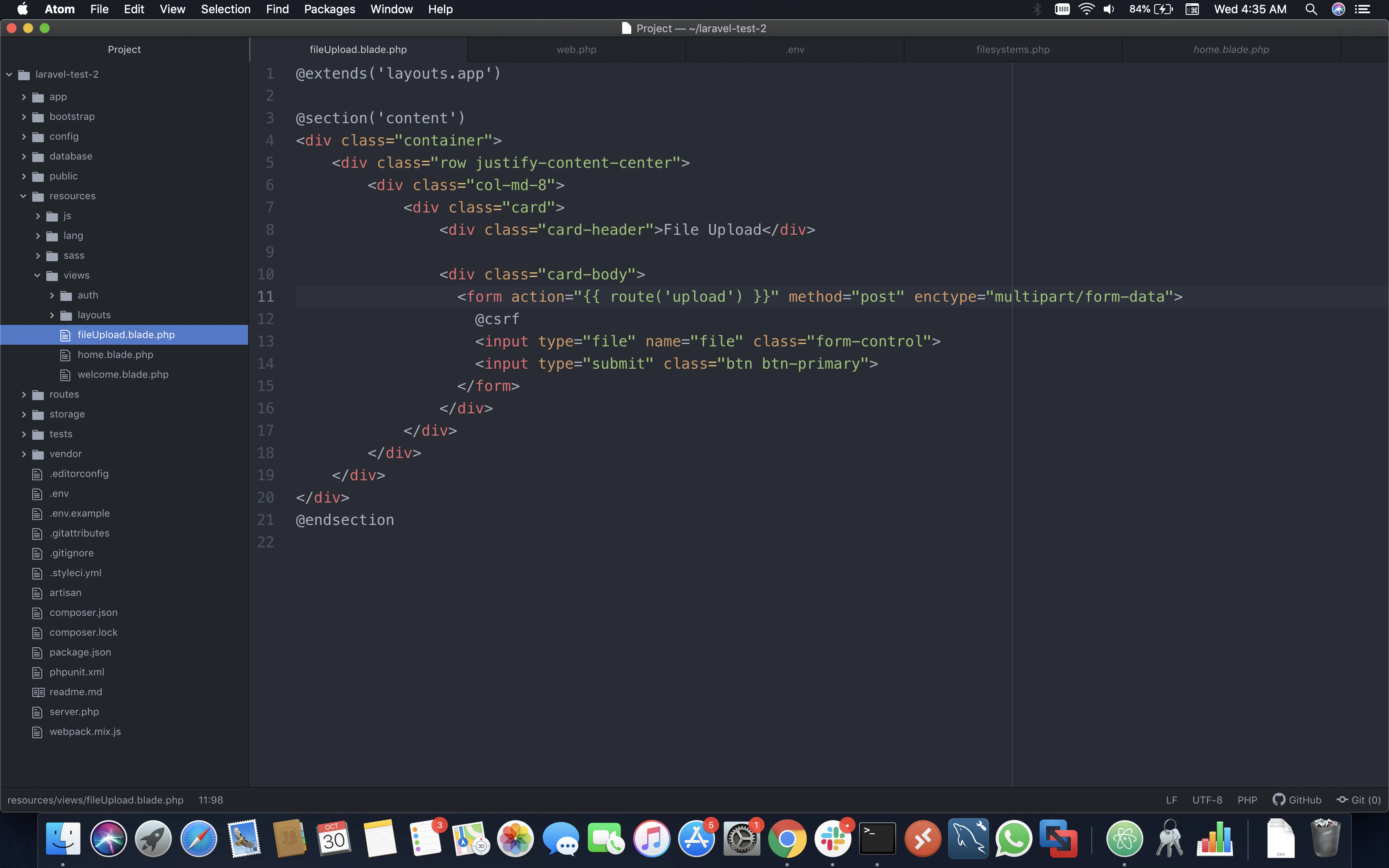
  3. Once you have the framework open in an IDE, create a new .php file in resources -> views and name it fileUpload.blade.php.
    Note: We recommend using the same name for the test as we have used this name when referencing in other files. The hierarchy would look like this:
     <Frame>
         <img src="/images/cloud/97.png" alt="image loading" />
     </Frame>
    
    Paste the below code in fileUpload.blade.php:
    @extends('layouts.app')
    
    @section('content')
    <div class="container">
      <div class="row justify-content-center">
        <div class="col-md-8">
          <div class="card">
            <div class="card-header">File Upload</div>
    
            <div class="card-body">
              <form action="{{ route('upload') }}" method="post" enctype="multipart/form-data">
                @csrf
                <input type="file" name="file" class="form-control">
                <input type="submit" class="btn btn-primary">
              </form>
            </div>
          </div>
        </div>
      </div>
    </div>
    @endsection
    
  4. Now go to routes -> web.php and replace the file with the following code:
    Route::get('/', function () {
      return view('fileUpload');
    });
    
    Route::post('upload', function () {
      request()->file('file')->store(
        'my-file',
        'Tenbyte'
      );
    })->name('upload');
    
    Auth::routes();
    
    Route::get('/home', 'HomeController@index')->name('home');
    
    Note: The directory here is my-file and your files will be uploaded inside it. We are also passing Tenbyte as a driver, which we will configure later in filesystems.php to specify our custom-defined driver to pass user input.
  5. Go to vendor -> .env file and replace with the following code.
    NOTE: Make sure to use your correct Access Key, Secret Access Key, Tenbyte bucket region, Tenbyte Bucket Name, and Tenbyte Region URL.
    APP_NAME=Laravel
    APP_ENV=local
    APP_KEY=base64:ZBWX+Pgx8ABy8CThdSi9ixRCyQmKQ1iWDsv1TSCMBUM=
    APP_DEBUG=true
    APP_URL=http://localhost
    
    LOG_CHANNEL=stack
    
    DB_CONNECTION=mysql
    DB_HOST=127.0.0.1
    DB_PORT=3306
    DB_DATABASE=laravel
    DB_USERNAME=root
    DB_PASSWORD=
    
    BROADCAST_DRIVER=log
    CACHE_DRIVER=file
    QUEUE_CONNECTION=sync
    SESSION_DRIVER=file
    SESSION_LIFETIME=120
    
    REDIS_HOST=127.0.0.1
    REDIS_PASSWORD=null
    REDIS_PORT=6379
    
    MAIL_DRIVER=smtp
    MAIL_HOST=smtp.mailtrap.io
    MAIL_PORT=2525
    MAIL_USERNAME=null
    MAIL_PASSWORD=null
    MAIL_ENCRYPTION=null
    
    AWS_ACCESS_KEY_ID=
    AWS_SECRET_ACCESS_KEY=
    AWS_DEFAULT_REGION=us-east-1
    AWS_BUCKET=
    
    PUSHER_APP_ID=
    PUSHER_APP_KEY=
    PUSHER_APP_SECRET=
    PUSHER_APP_CLUSTER=mt1
    
    MIX_PUSHER_APP_KEY="${PUSHER_APP_KEY}"
    MIX_PUSHER_APP_CLUSTER="${PUSHER_APP_CLUSTER}"
    
    AWS_ACCESS_KEY_ID=XXXXXXXXXXXXXXXXXXXX
    AWS_SECRET_ACCESS_KEY=XXXXXXXXXXXXXXXXXXXXXXXXXXXXXXXXXXXXXXX
    AWS_DEFAULT_REGION=us-east-1
    AWS_BUCKET=Bucket-Name
    AWS_USE_PATH_STYLE_ENDPOINT=true
    AWS_URL="t2.tenbytecloud.com"
    AWS_ENDPOINT=https://t2.tenbytecloud.com/
    AWS_USE_ACCELERATE_ENDPOINT=false 
    
    
    Note: This example uses Tenbyte’s us-east-1 storage region. To use other Tenbyte storage regions, please use the appropriate Tenbyte service URL as described in this article.
  6. Now you need to create a new driver, as S3 has amazonaws.com hardcoded in the library. Go to config -> filesystems.php and replace with the following code:
    return [
    
      'default' => env('FILESYSTEM_DRIVER', 'local'),
    
      'cloud' => env('FILESYSTEM_CLOUD', 's3'),
    
      'disks' => [
    
        'local' => [
          'driver' => 'local',
          'root' => storage_path('app'),
        ],
    
        'public' => [
          'driver' => 'local',
          'root' => storage_path('app/public'),
          'url' => env('APP_URL').'/storage',
          'visibility' => 'public',
        ],
    
        'Tenbyte' => [
          'driver' => 's3',
          'key' => env('AWS_ACCESS_KEY_ID'),
          'secret' => env('AWS_SECRET_ACCESS_KEY'),
          'region' => env('AWS_DEFAULT_REGION'),
          'bucket' => env('AWS_BUCKET'),
          'endpoint' => 'https://t2.tenbytecloud.com',
        ],
    
      ],
    
    ];
    
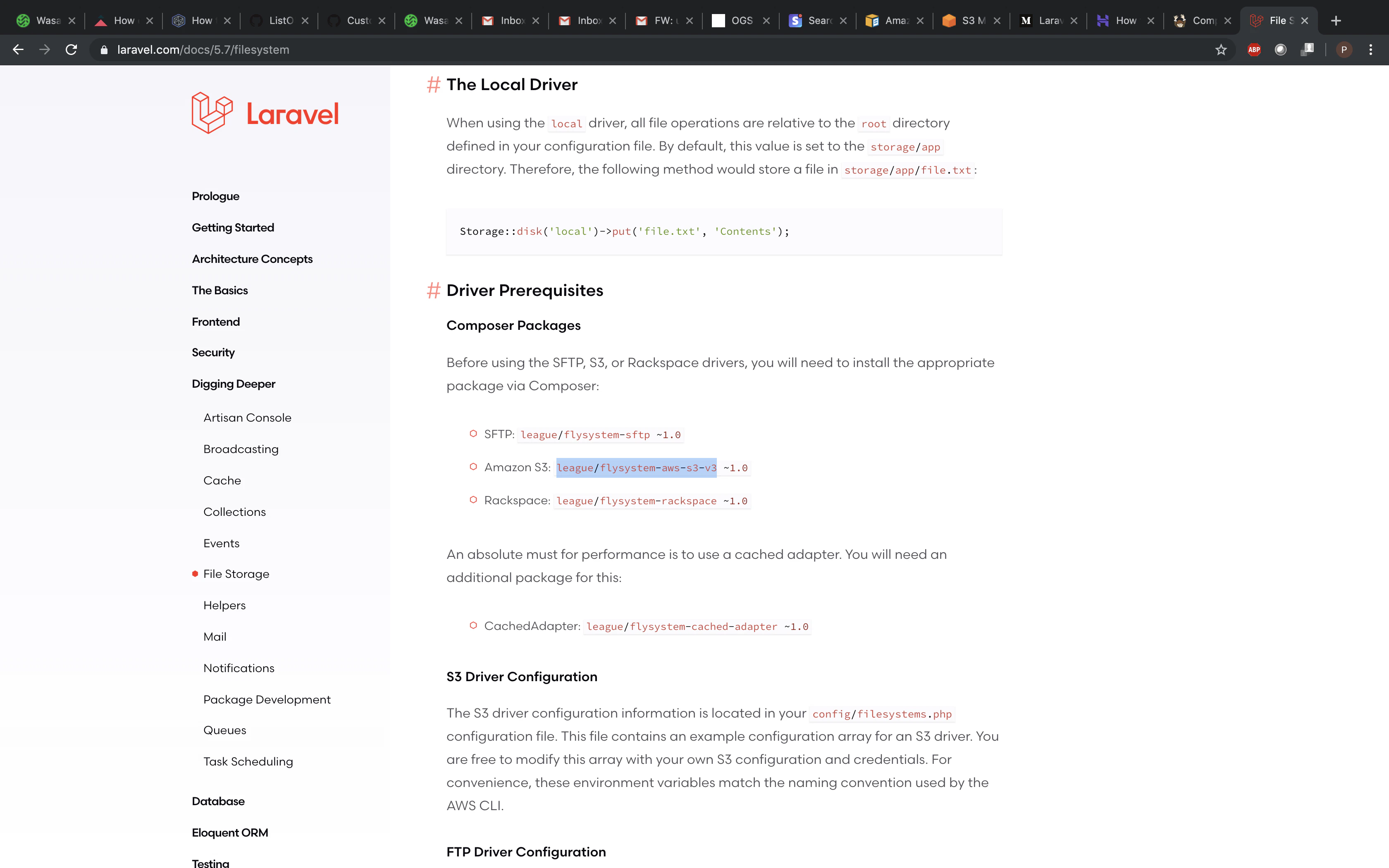
  7. As the Tenbyte/S3 driver is not the default driver for uploading in Laravel, we need a Composer package to make this work. You can get this package on the Laravel website.
    image loading
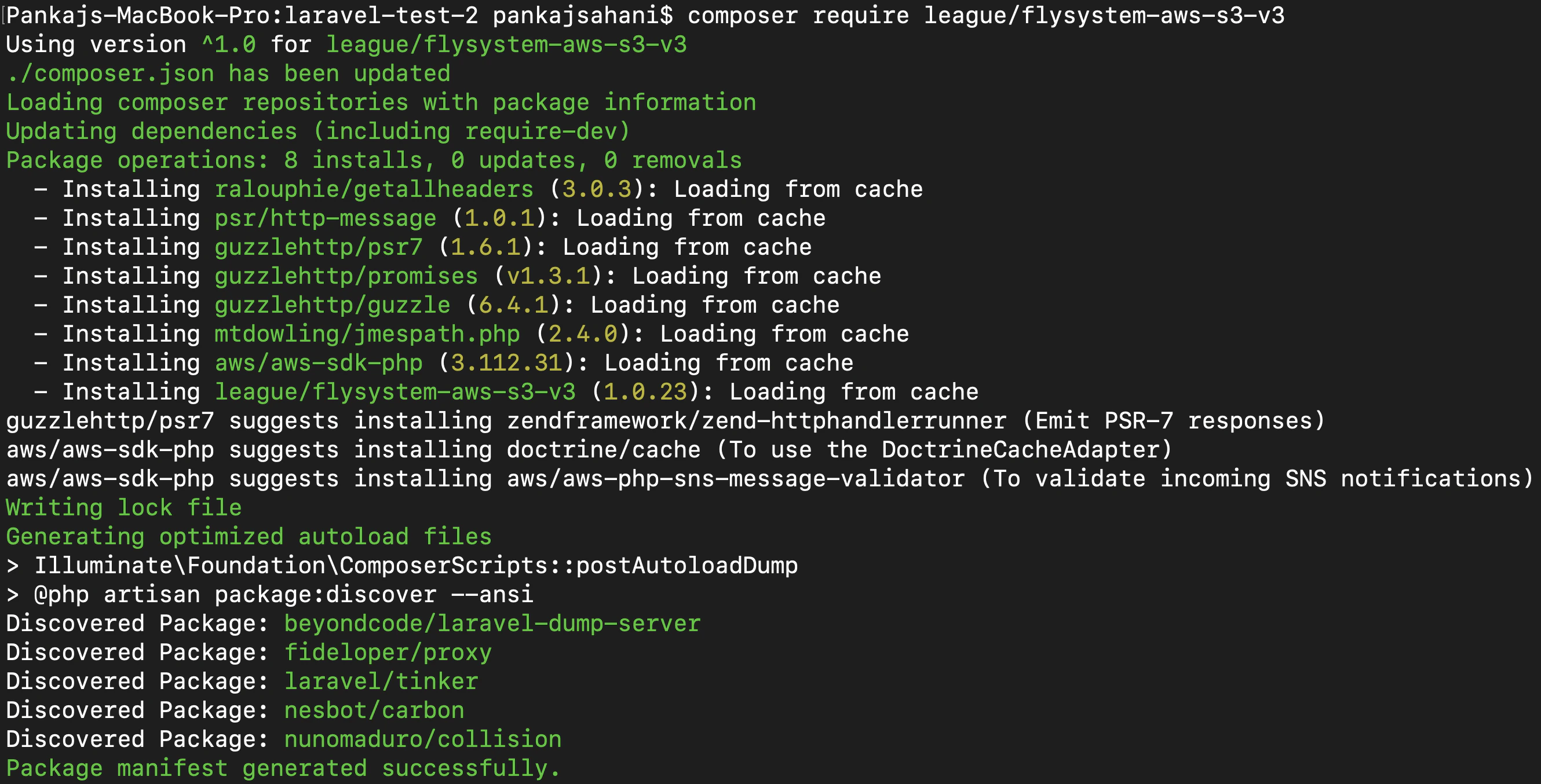
    Now on the CLI, go inside your Laravel project and run the following two commands:
    php artisan make:auth
    
    composer require league/flysystem-aws-s3-v3
    
Output
image loading
  1. Run your code using the following command and the server will start listening on port 8000:
    php artisan serve
    
Output
image loading
On the browser, navigate to http://127.0.0.1:8000 and you will be prompted to upload files to your Tenbyte bucket. Once submitted, your files will be visible inside the bucket.

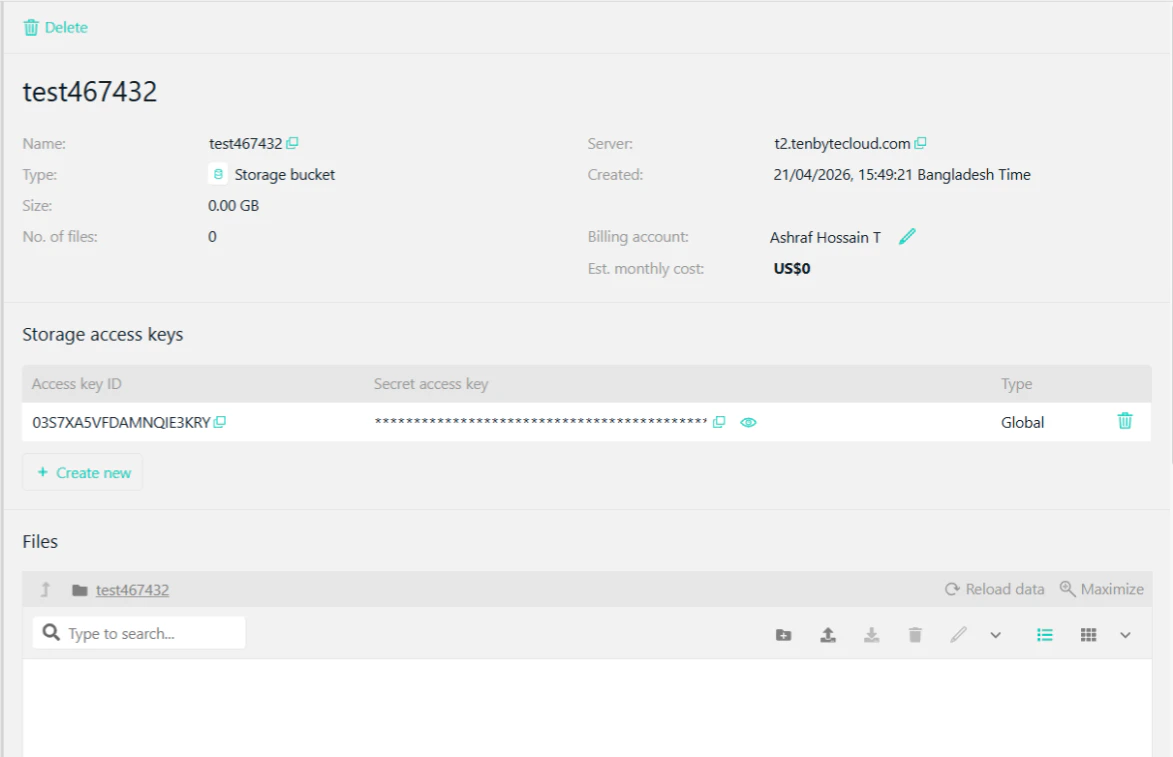
image loading