

Share and Integrate Your Video
-
Once you’ve uploaded or imported your video into Vidinfra, you can publish it for public viewing. In your video library, you’ll find all your videos listed along with important details like titles, durations, and other key metadata.
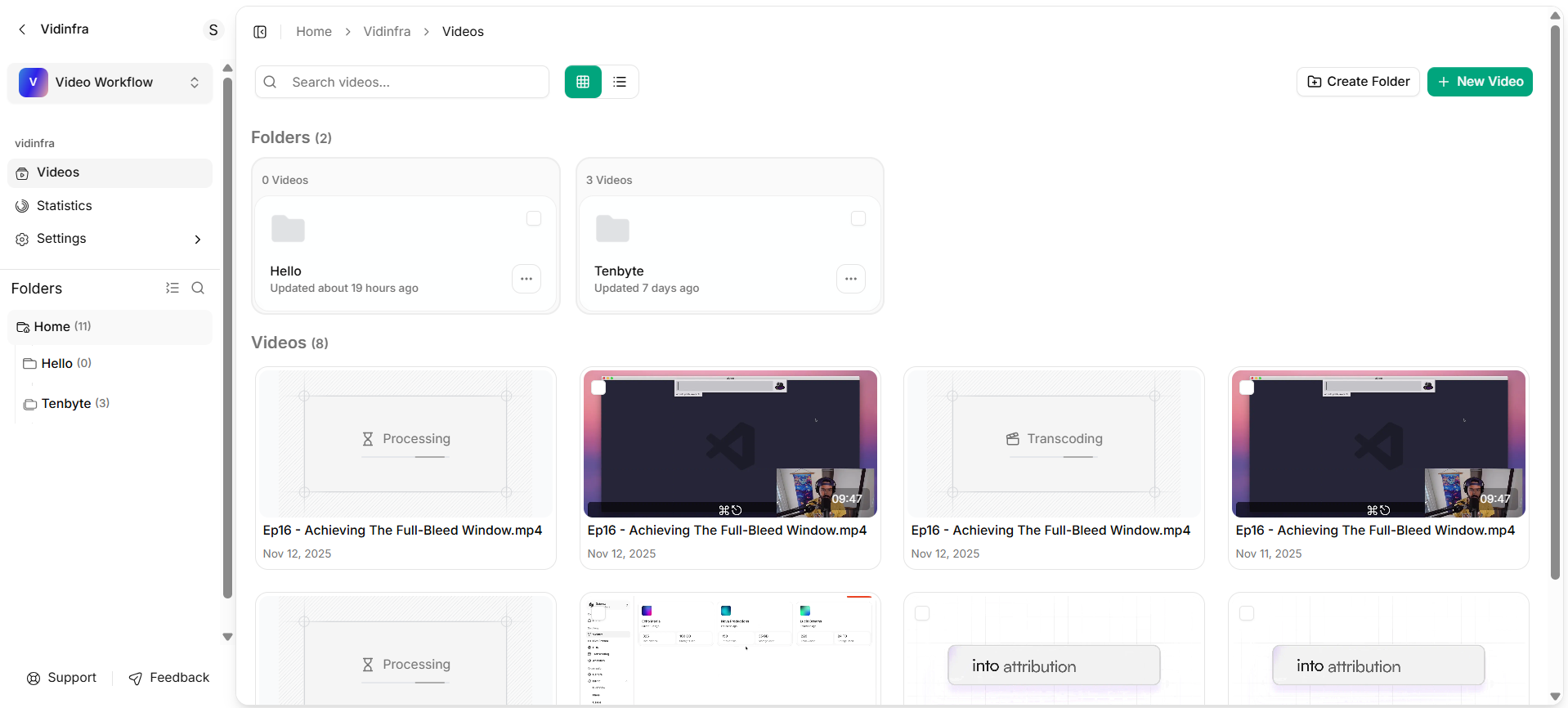
All Uploaded Video Dashboard
Embed your Video
Embedding a video allows you to display it directly on your website or app, letting you stream content securely without needing to store the file yourself. Vidinfra’s cloud delivery makes embedding fast and reliable.-
A pop-up window will appear when you click the chain icon on your selected video. From this window, click on Copy Embed Code and paste it into your website to display the video.
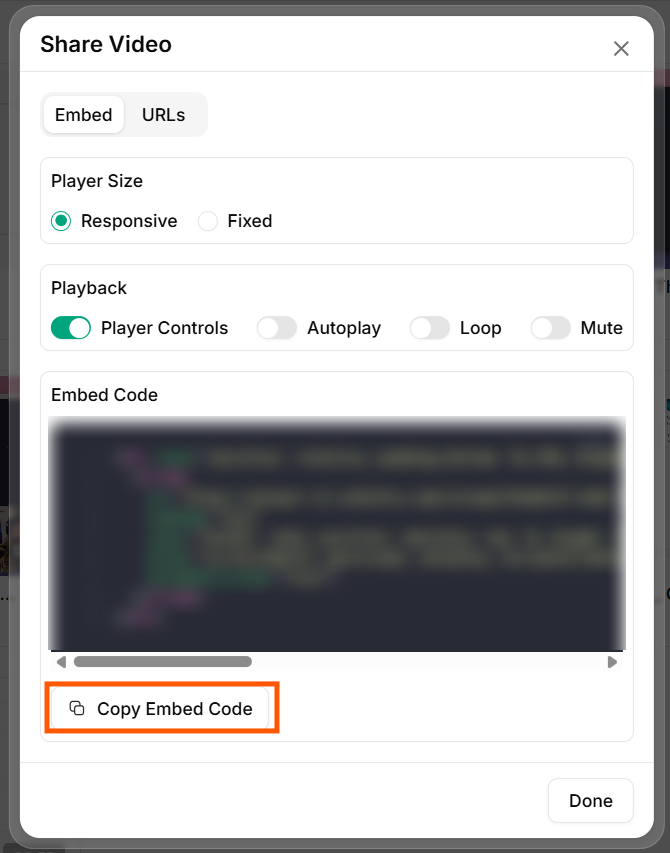
Copy Video Embed Code
- In the Embed section, you can choose between Responsive and Fixed player sizes to match your layout, and enable or disable Player Controls, Autoplay, Loop, or Mute to customize the viewing experience.
URLs
The URLs tab provides direct links for streaming, integration, and sharing your video across platforms. Each link type serves a specific purpose, depending on how you plan to use the video.-
When you click the URLs tab next to Embed, you’ll see multiple links for playback, integration, and sharing.
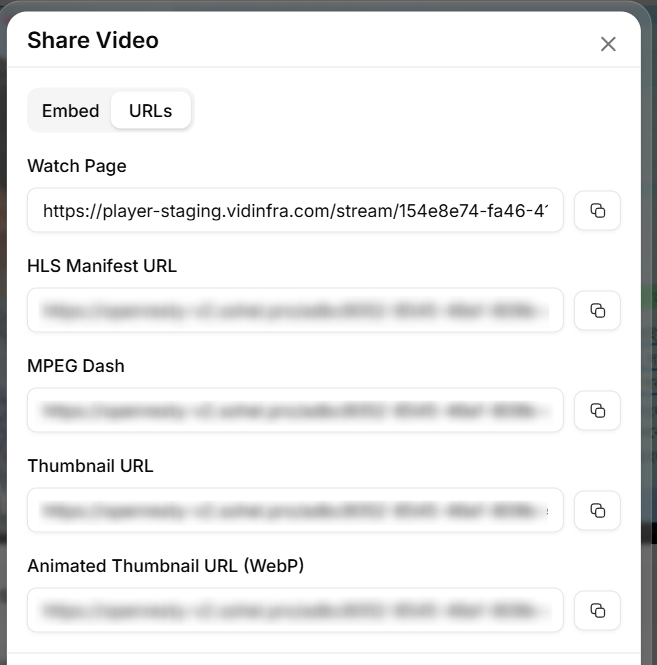
Copy URL
- Watch Page: A direct link that opens your video in the Vidinfra player. Ideal for sharing with others or embedding on a site for quick access.
- HLS Manifest URL: A link for adaptive streaming that works with HLS-supported players. This ensures smooth playback across various devices by adjusting the video quality based on the viewer’s internet speed.
- MPEG-DASH URL: A streaming link for players and platforms that support the MPEG-DASH protocol.
- Thumbnail URL: A static link to your video’s thumbnail image, ideal for previews or quick links.
- Animated Thumbnail URL (WebP): A link to an animated thumbnail that gives viewers a preview of the video content before playback begins.