

Create your Library
- Start by creating a library that fits your workflow. Add a name, choose a category, and set it as your workspace base. For detailed steps, visit Set Up Your Vidinfra Workspace.
Open Your Vidinfra Library
-
When you select Vidinfra from the left sidebar, you will see all the libraries you created.
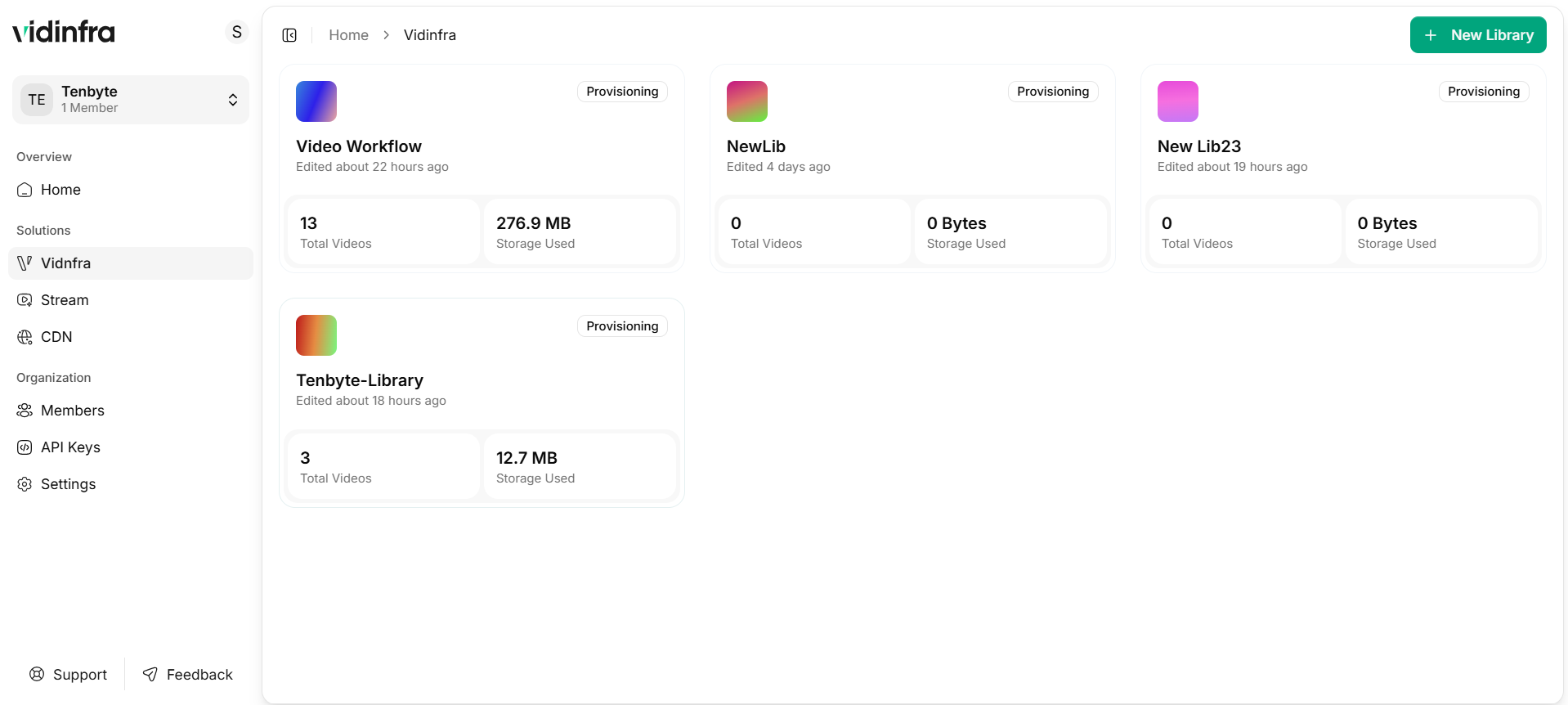
Vidinfra Library Dashboard
-
Choose the library you want to work with. Inside the library, your uploaded videos and folders are listed in one place.
Vidinfra Library Dashboard
Search and Filter
Vidinfra includes built-in tools to help you find videos quickly in large collections.Search by File Name
Use the search bar to locate videos by title. Results update instantly as you type.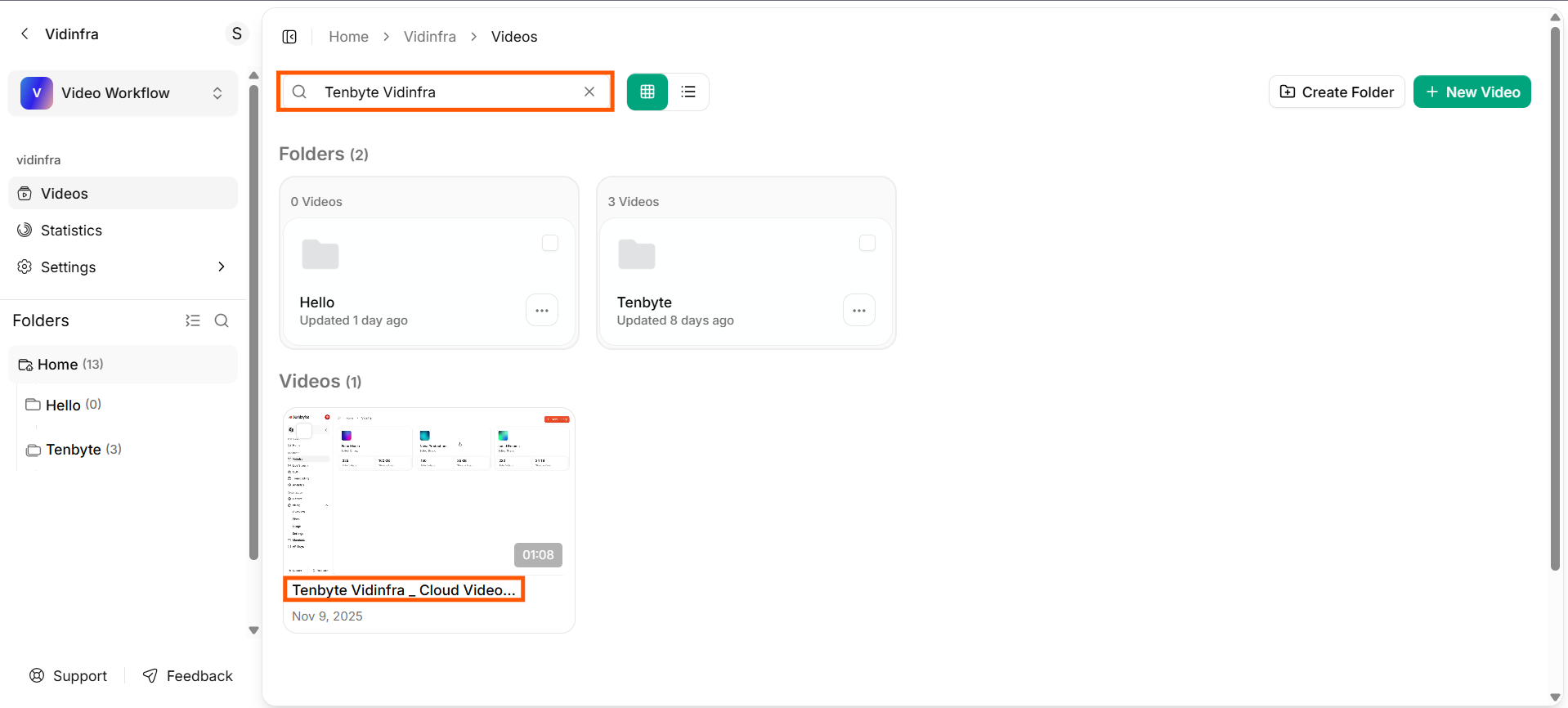
Search by Video Title
Filter by Tags
Filter your videos using the tags you assigned during upload or editing. This is useful for grouping videos by category, project, or workflow.Filter by Status
You can filter videos based on their current state, including Processing, Transcoding, or other workflow stages. This helps you review progress at a glance and track pending tasks.Organize Videos with Tags
Tags help you group videos by topic, project stage, event type, or team ownership. You can attach several tags to the same video to keep large collections easier to navigate.How to Add Tags
- Pick the videos you want to update from your library.
- Scroll to the Tags section in the details panel.
-
Type the tags you want to assign and save your changes.
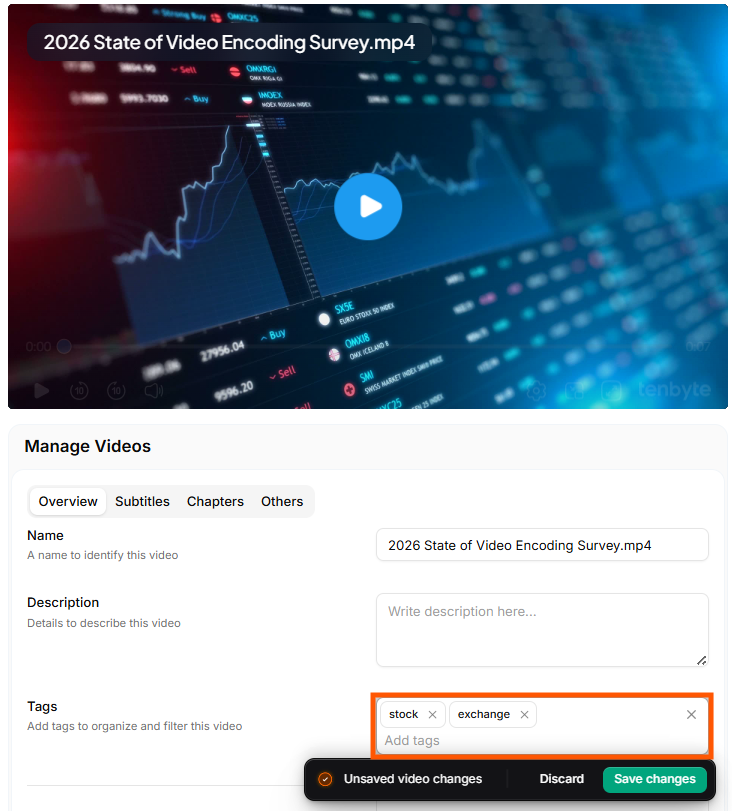
Adding Tags