

Access the Metrics Tab
-
From the Tenbyte Cloud dashboard, select the virtual machine (VM) you want to monitor.
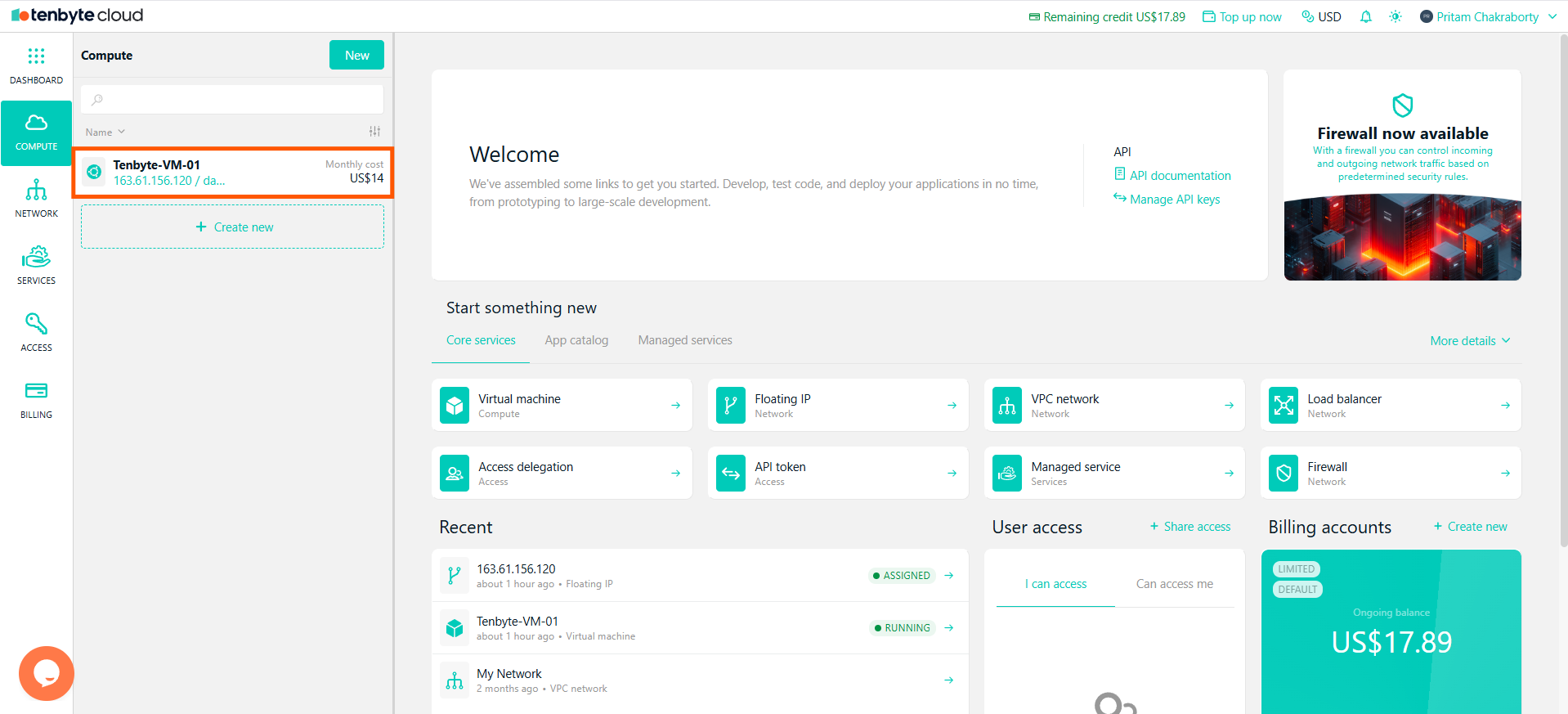
Access the Metrics Tab from Dashboard
-
Once your VM is selected, go to the Metrics tab.
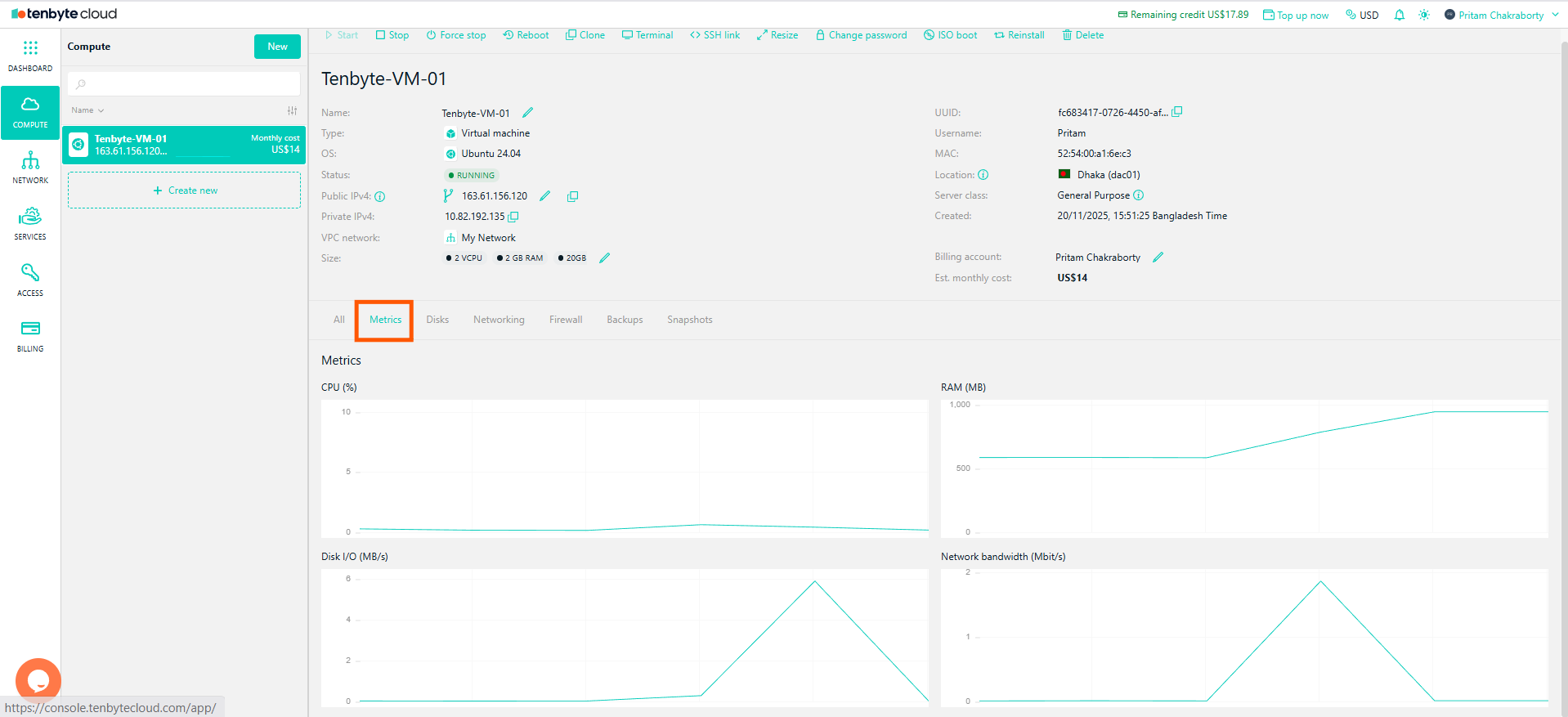
Access the Metrics Tab
-
In the Metrics tab, you will see 4 graphs displaying key performance data for your VM:
- CPU Usage
- RAM Usage
- Disk I/O
- Network Bandwidth
CPU Metrics
- The CPU (%) graph shows the percentage of CPU usage over time.
- It helps you keep track of the CPU Resources used by your virtual machine.
-
If the CPU usage is higher, it can mean your VM is processing more data, running more tasks, or handling more traffic.
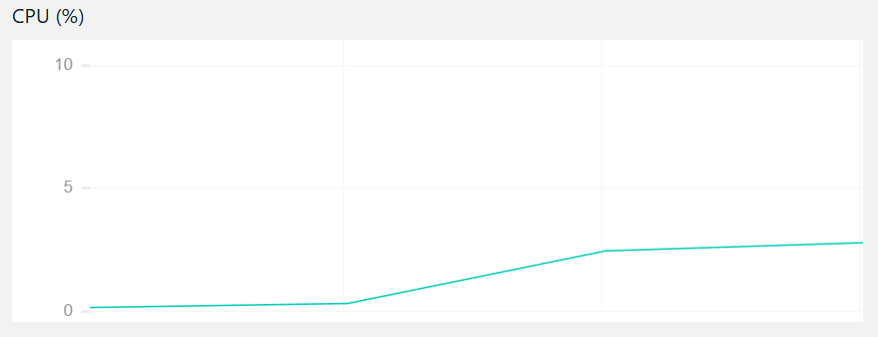
CPU Metric
RAM Metrics
- The RAM (MB) graph displays the memory usage of your VM.
-
It indicates the total RAM storage. Then the part of RAM that is being utilized.
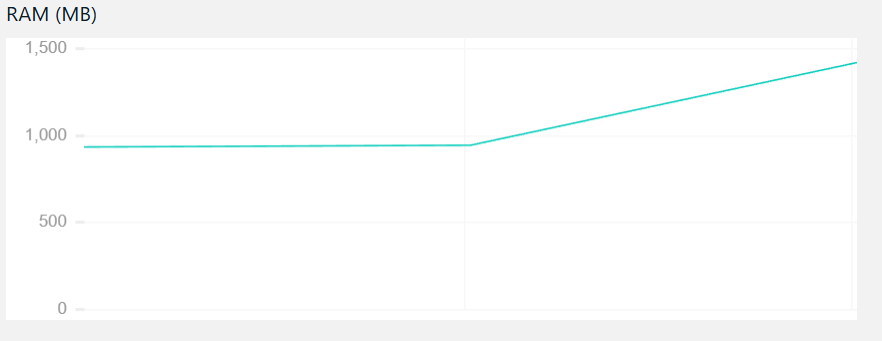
RAM Metrics
Disk I/O Metrics
- The Disk I/O (MB/s) graph shows your VM’s disk read and write operations.
-
It indicates how much data is sent to or received from the disk in seconds.
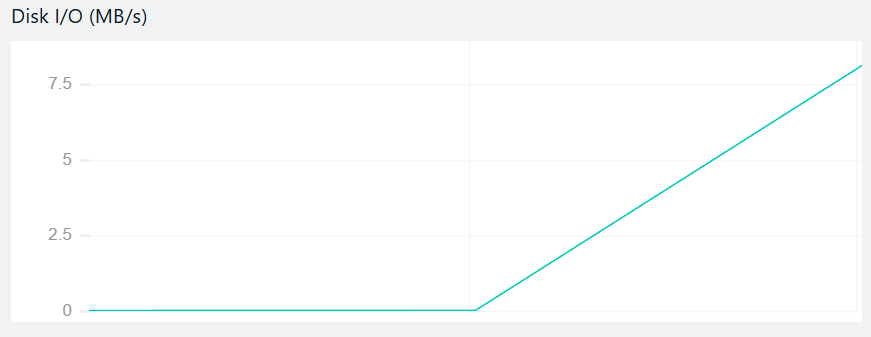
Disk I/O Metrics
Network Bandwidth Metrics
- The graph displays the quantity of data your VM is transferring over the network in Mbit/s.
-
This will help you monitor incoming and outgoing traffic.
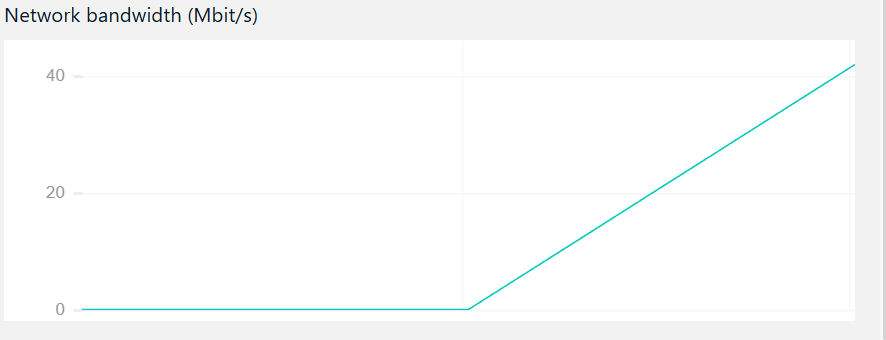
Network Bandwidth Metrics