

Select Compute Section
-
From the left sidebar, click on Compute to view your created virtual machines (VMs).
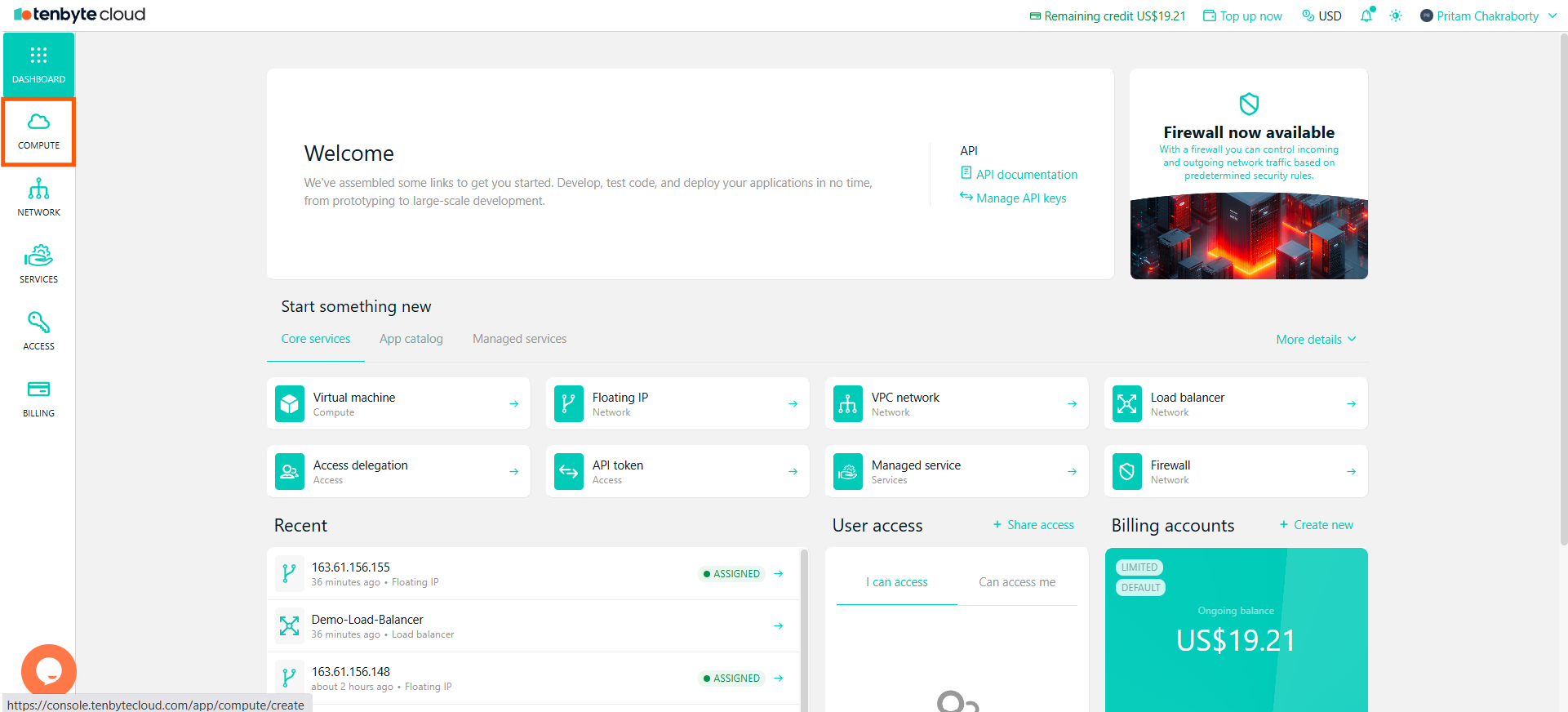
View your created Virtual Machines
Choose Your Virtual Machine
-
In the Compute section, you will see a list of all your created VMs.
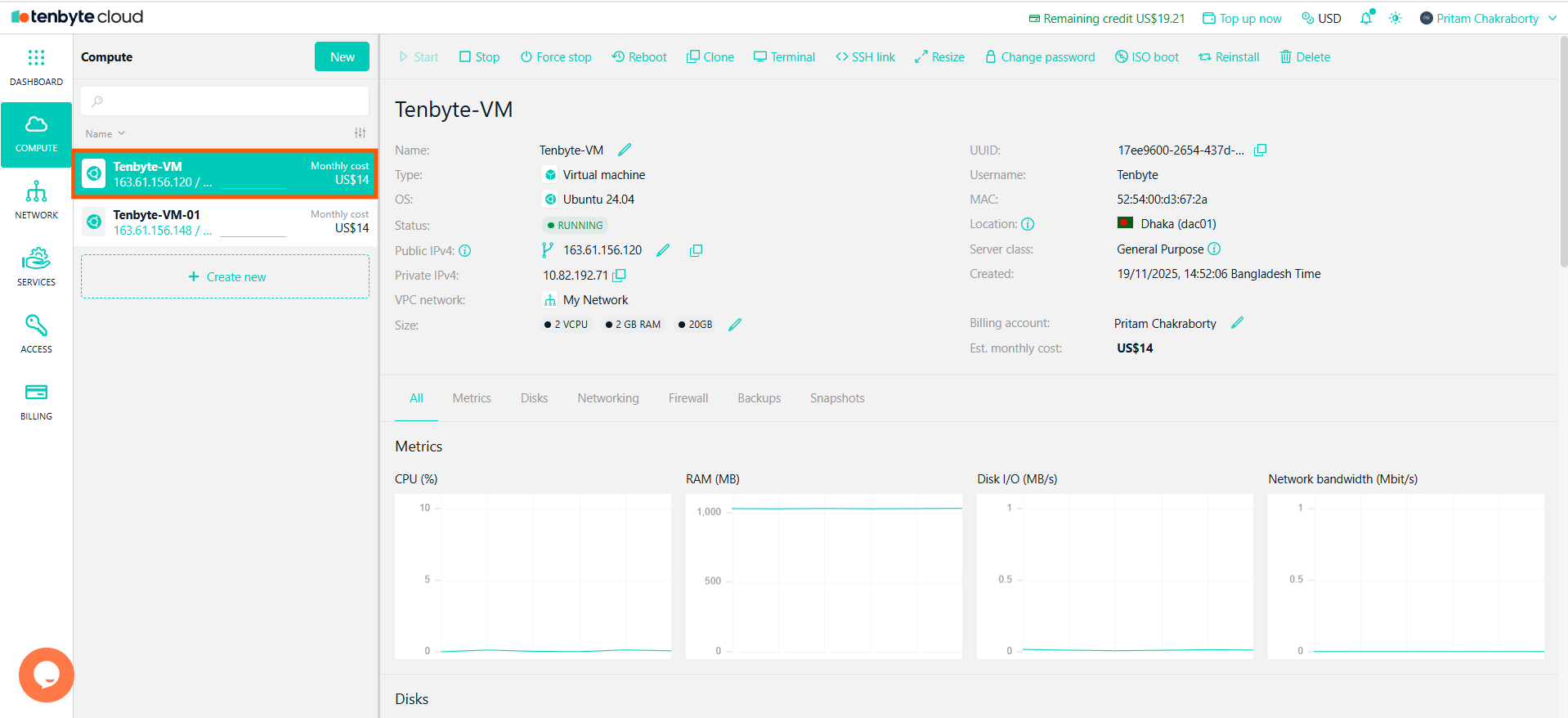
Select the VM
- Select the VM you want to create or manage snapshots for.
Navigate to the Snapshots Tab
- After selecting the VM, the system will display its details and configuration options.
-
Select Snapshots to open the snapshot management page.
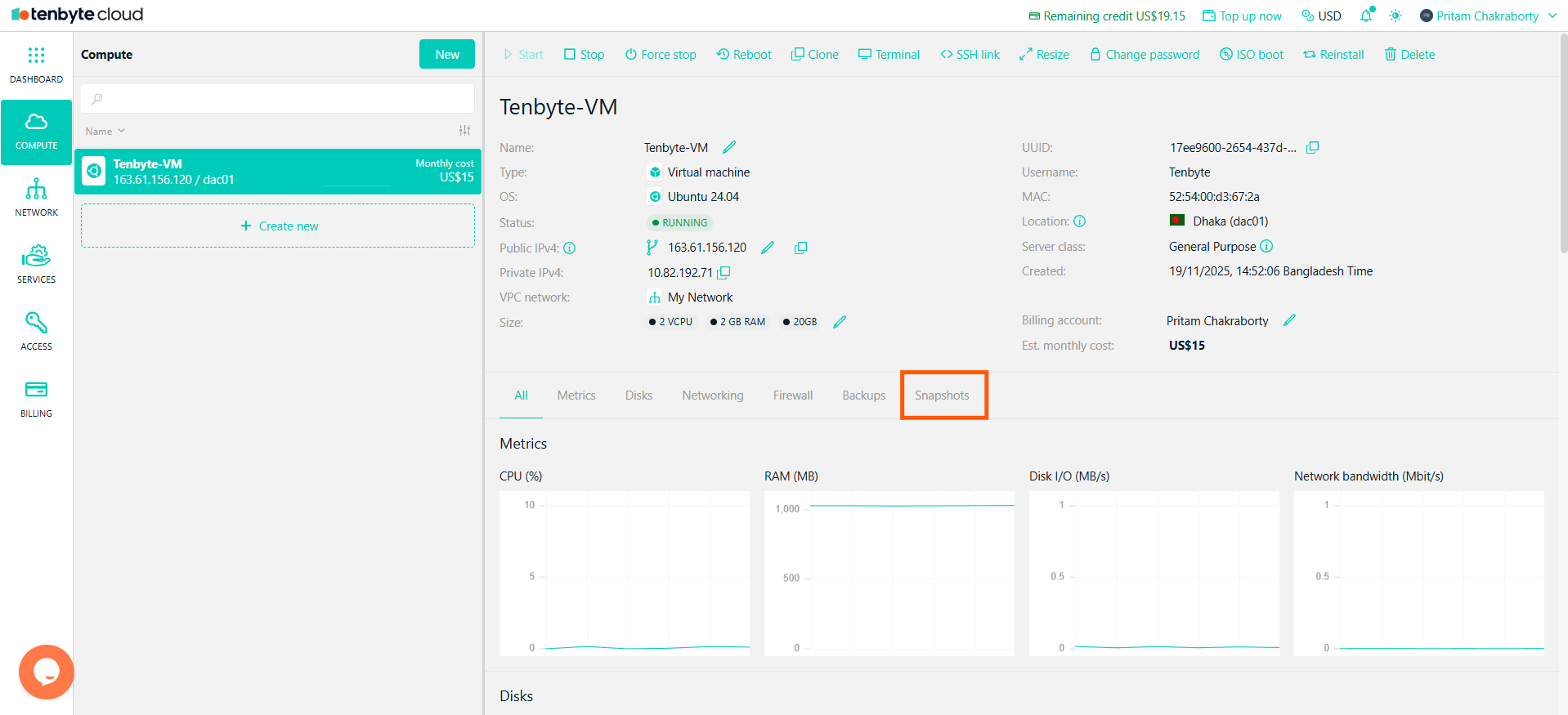
Navigate to the Snapshot Tab
Take a Snapshot
- To create a snapshot, click the Take snapshot button.
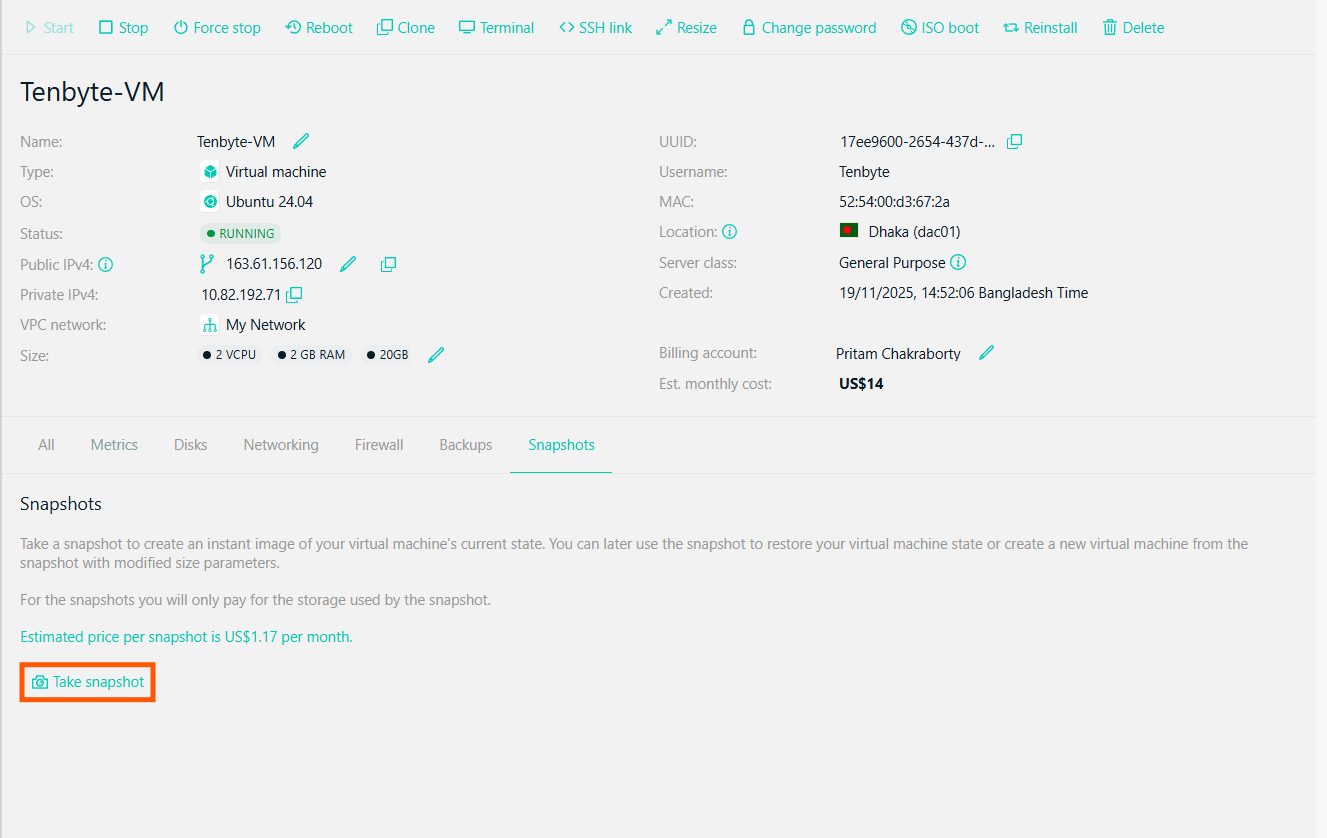
Take a Snapshot
- The platform will begin creating the snapshot immediately.
Snapshot Details
-
Once a snapshot is created, you’ll see it listed with the following information:
- UUID: A unique identifier for the snapshot
- Size: The total data size captured.
- Creation Date: The date and time the snapshot was created.
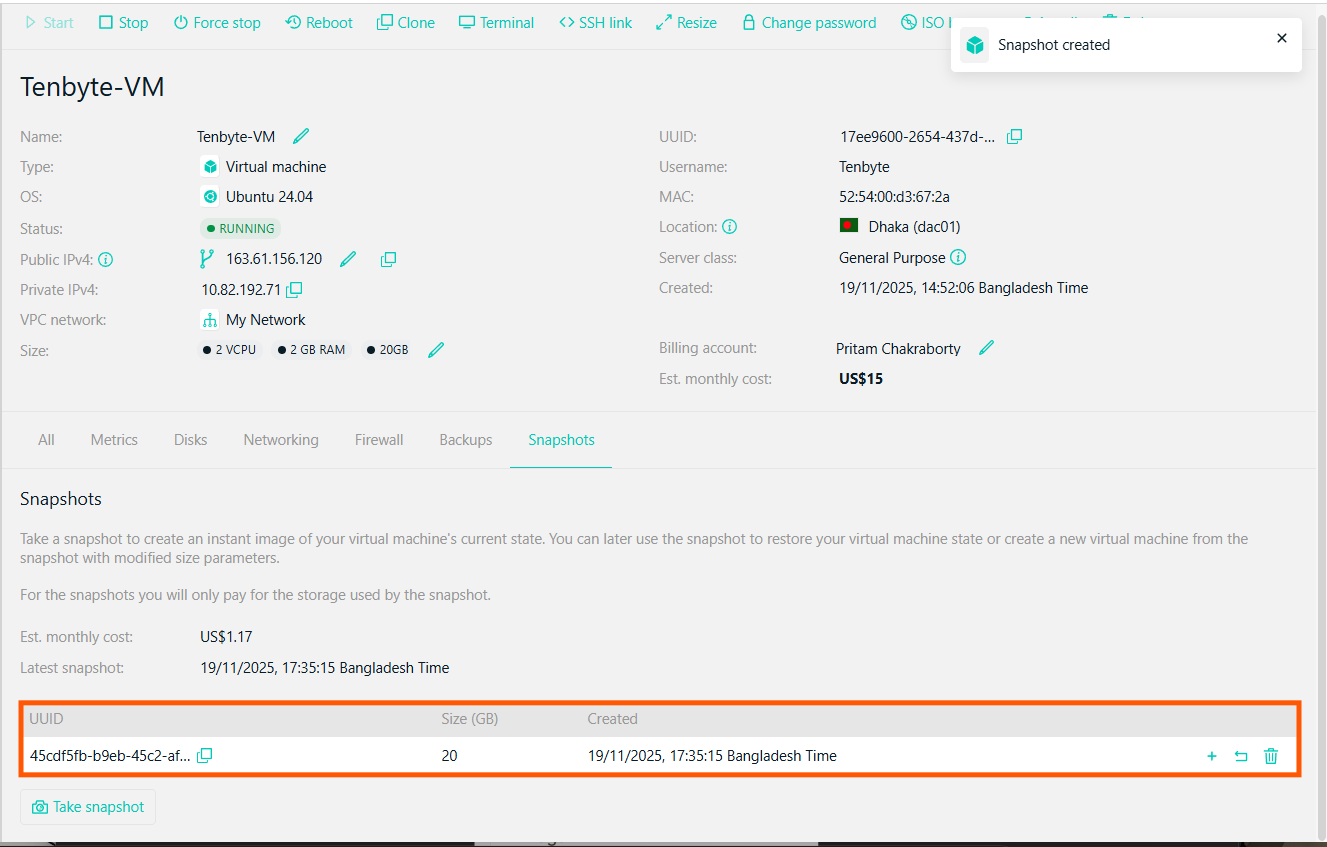
Snapshot Details
Manage Snapshots
You can use snapshots in several ways depending on your needs.- Restore: Use the snapshot to return your VM to the exact state it was in when the snapshot was created.
-
Create New VM: You can also create a new VM based on the snapshot with modified resources. Click the + icon next to the snapshot you want to use.
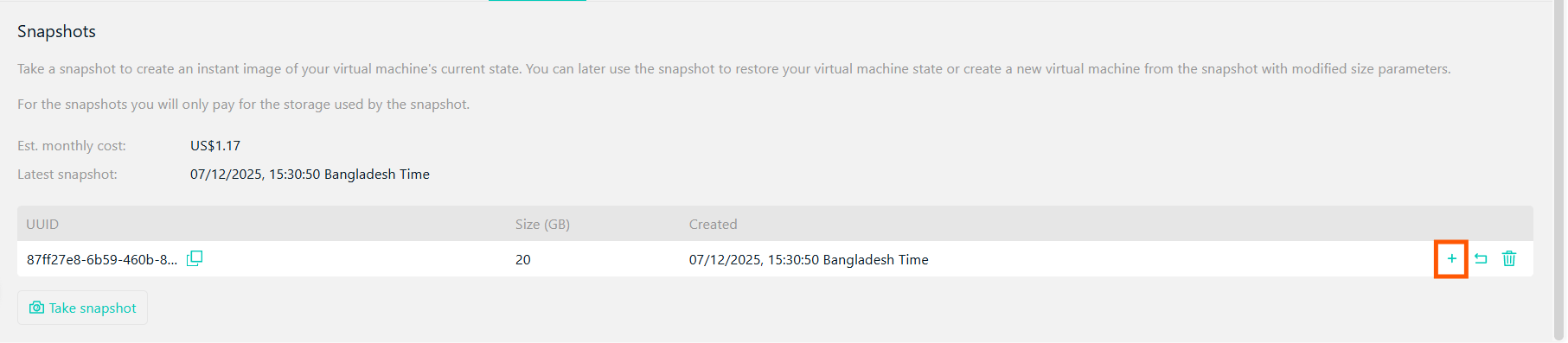
Create a New VM from Snapshot
After creating a VM from a snapshot, you can reconfigure the VM by modifying its resources and settings. - Delete: If a snapshot is no longer needed, click the trash icon to delete it permanently.