Deliver faster, lighter images across your Shopify storefront by routing your image requests through Tenbyte’s image optimization service. This guide explains how to deliver Shopify store images through Tenbyte CDN for faster loading and better performance. You will configure your Tenbyte distribution, copy your Delivery Endpoint, and use it inside your Shopify theme.

Add Shopify as an Origin

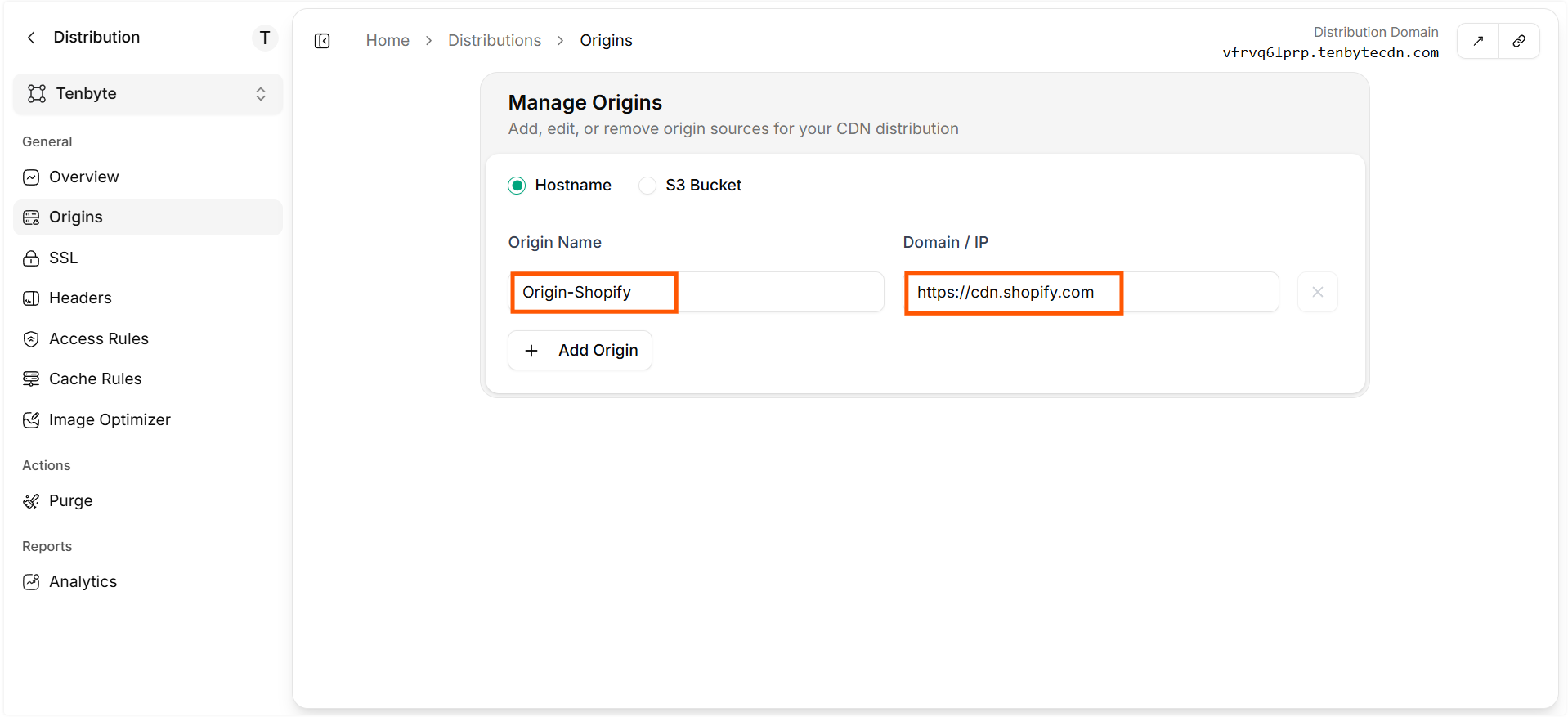
  • Go to your Distribution and select Origins from left sidebar.
  • Select Hostname and Enter:
    • Origin Name: Origin-Shopify
    • Domain / IP: https://cdn.shopify.com
  • Save the Origin.
    Add Shopify as an Origin

    Add Shopify as an Origin

  • Your Tenbyte CDN domain can now fetch and optimize Shopify-hosted images.
    Add Shopify as an Origin

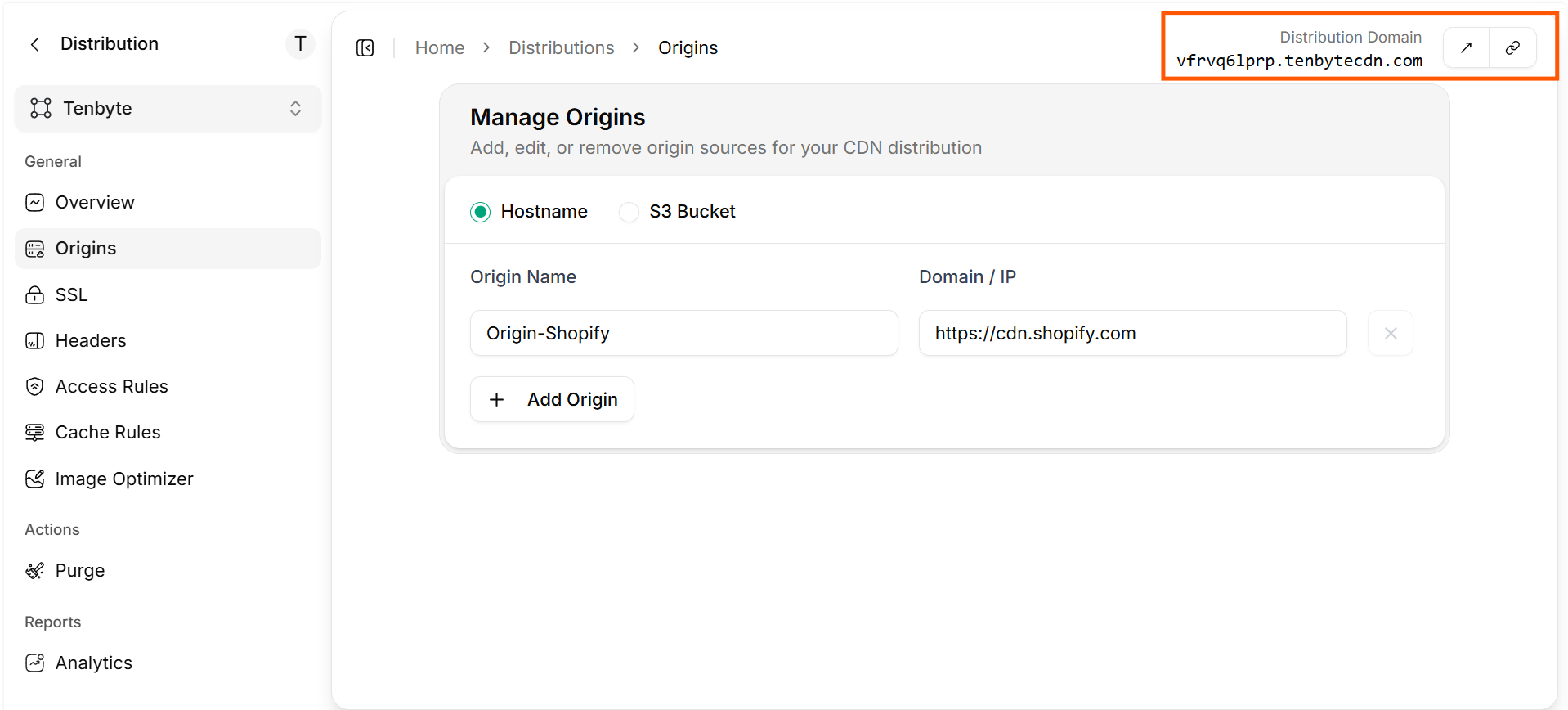
    Domain Distribution URL


Add Tenbyte Settings to Shopify (settings_schema.json)

  • In Shopify Admin go to Online Store → Themes, locate the theme, open the “…” menu, and select Edit code. This allows users to enter the Delivery Endpoint.
  • Open the Config folder, select settings_schema.json, scroll to the bottom, and paste the code below as the final section of the file. Save your changes when done.
settings_schema.json
{
    "name": "Tenbyte",
    "settings": [
        {
            "type": "paragraph",
            "content": "Check out Tenbyte's [Image Optimization for Shopify](https://docs.tenbyte.io/docs/cdn/image-optimization/integration-guide/shopify) to learn more about this."
        },
        {
            "type": "checkbox",
            "id": "enableTenbyte",
            "label": "Enable Tenbyte"
        },
        {
            "type": "text",
            "id": "tenbyteUrl",
            "label": "Tenbyte url endpoint",
            "info":"The origin domain you set within Tenbyte. Example: `https://example.tenbytecdn.com/`."
        },
        {
            "type": "text",
            "id": "tenbyteShopifyCdnUrl",
            "label": "Shopify CDN domain",
            "info":"Do not change this unless you have a proxy in place. Not sure? Leave it as is."
        }
    ]
}

Create tenbyte.liquid file

  • Create a new file named tenbyte.liquid inside the Snippets directory. Paste the code below into the file and save it.
tenbyte.liquid
{% capture TENBYTE %}
 {% comment %}
 {% endcomment %}
 {% if settings.enableTenbyte %}
 {% for i in (1..1) %}
 {% comment %}
 <!-- Check to ensure the src exists and that the Tenbyte url theme settings are not blank. If blank, stop! -->
 {% endcomment %}
 {% unless src or settings.tenbyteUrl != blank %}
 {{ src }}
 {% break %}
 {% endunless %}

 {% comment %}
 <!-- Check to ensure the src has the Shopify CDN url in it. If it doesn't this does not need to run any further -->
 {% endcomment %}
 {% assign cdnUrl = settings.tenbyteShopifyCdnUrl | strip %}
 {% unless src contains cdnUrl %}
 {{ src }}
 {% break %}
 {% endunless %}

 {% assign tenbyteUrl = settings.tenbyteUrl | strip %}

 {% comment %}
 <!-- Create a list of all the Tenbyte filters we want to use -->
 {% endcomment %}
 {% assign filters = 'bri,con,cs,exp,gam,high,hue,invert,sat,shad,sharp,usm,usmrad,vib,auto,bg,blend,bm,ba,balph,bp,bw,bh,bf,bc,bs,bx,by,border,pad,faceindex,facepad,faces,ch,chromasub,colorquant,dl,dpi,fm,lossless,q,mask,nr,nrs,colors,palette,prefix,dpr,flip,or,rot,crop,fit,h,rect,w,blur,htn,mono,px,sepia,txt,txtalign,txtclip,txtclr,txtfit,txtfont,txtline,txtlineclr,txtpad,txtshad,txtsize,txtwidth,trim,trimcolor,trimmd,trimpad,trimsd,trimtol,mark,markalign,markalpha,markbase,markfit,markh,markpad,markscale,markw,markx,marky' | split:',' %}

 {% comment %}
 <!-- Build up the list of filters to add to the url -->
 {% endcomment %}
 {% assign imgWithQuerystring = "?" %}

 {% if src contains '?' %}
 {% assign imgWithQuerystring = '' %}
 {% endif %}

 {% for _filter in filters %}
 {% if [_filter] %}
 {% assign imgWithQuerystring = imgWithQuerystring | append:_filter | append:'=' | append:[_filter] | append:'&' %}
 {% endif %}
 {% endfor %}

 {% assign modifySrc = src | split:'?' | first | append: "?" %}
 {% assign newSrc = modifySrc | strip | replace:cdnUrl,tenbyteUrl | append:imgWithQuerystring %}
 {% endfor %}

 {{ newSrc | default:src }}
 {% else %}
 {{ src }}
 {% endif %}
{% endcapture %}{{ TENBYTE | strip | replace:'  ' | strip_newlines }}

Enable Tenbyte

  • Go to Online Store → Themes → Customize. In the left panel, open the Tenbyte section under General settings and turn it on. Then fill in the two fields:

Edit your theme files

  • Next, you’ll update the theme files that handle image output. These are the templates where Shopify renders your product, collection, and banner images.
Before modifying anything, download a copy of your theme so you can restore it if something goes wrong.
  • The exact locations may differ by theme, but the approach is the same. Locate every spot where an image is rendered and replace that output with the Tenbyte Liquid tag you created earlier. Here’s an example:
Before:
{{ product.featured_image }}
After:
{% assign feat_img_url = product.featured_image  | image_url %}
{% render 'tenbyte', src:feat_img_url w:600 %}
  • Here’s another example of generating a responsive image using Tenbyte’s quickly srcset and sizes attributes:
{% assign feat_img_url = product.featured_image  | image_url %}

<img
 src="{% render 'tenbyte', src:feat_img_url w:960 %}"
 srcset="
 {% render 'tenbyte', src:feat_img_url w:320  %} 320w,
 {% render 'tenbyte', src:feat_img_url w:480  %} 480w,
 {% render 'tenbyte', src:feat_img_url w:540  %} 540w,
 {% render 'tenbyte', src:feat_img_url w:640  %} 640w,
 {% render 'tenbyte', src:feat_img_url w:720  %} 720w,
 {% render 'tenbyte', src:feat_img_url w:800  %} 800w,
 {% render 'tenbyte', src:feat_img_url w:960  %} 960w,
 {% render 'tenbyte', src:feat_img_url w:1280 %} 1280w,
 {% render 'tenbyte', src:feat_img_url w:1600 %} 1600w
  "
 sizes="(min-width: {{ settings.page_width }}px) {{ settings.page_width | minus: 100 | times: media_width | round }}px, (min-width: 990px) calc({{ media_width | times: 100 }}vw - 10rem), (min-width: 750px) calc((100vw - 11.5rem) / 2), calc(100vw - 4rem)"
 alt="{{ media.preview_image.alt | escape }}"
 {% unless lazy_load == false %}loading="lazy"{% endunless %}
/>