> ## Documentation Index
> Fetch the complete documentation index at: https://docs.tenbyte.io/llms.txt
> Use this file to discover all available pages before exploring further.
# Customize Your Player
Adjust player theme, controls, and appearance to match your brand and viewing experience.
## Open the Player Settings
From the left sidebar of your library, click on **Settings** and then select **Player** to open the player customization page.
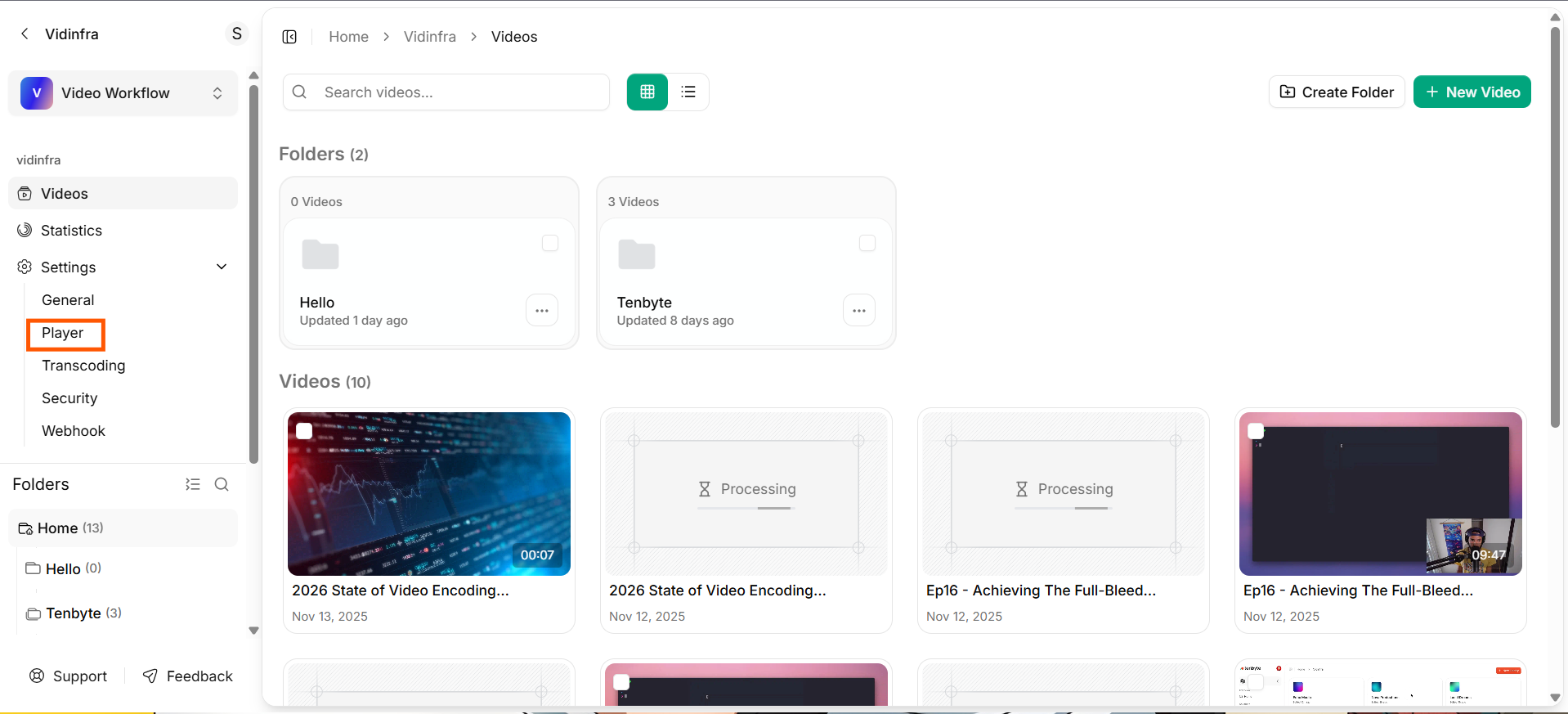 * This section lets you control how your video player looks and behaves across devices.
* Click the three-dot menu on the right side of the player card.
* From the dropdown, select **Edit** to open the player settings.
* This section lets you control how your video player looks and behaves across devices.
* Click the three-dot menu on the right side of the player card.
* From the dropdown, select **Edit** to open the player settings.
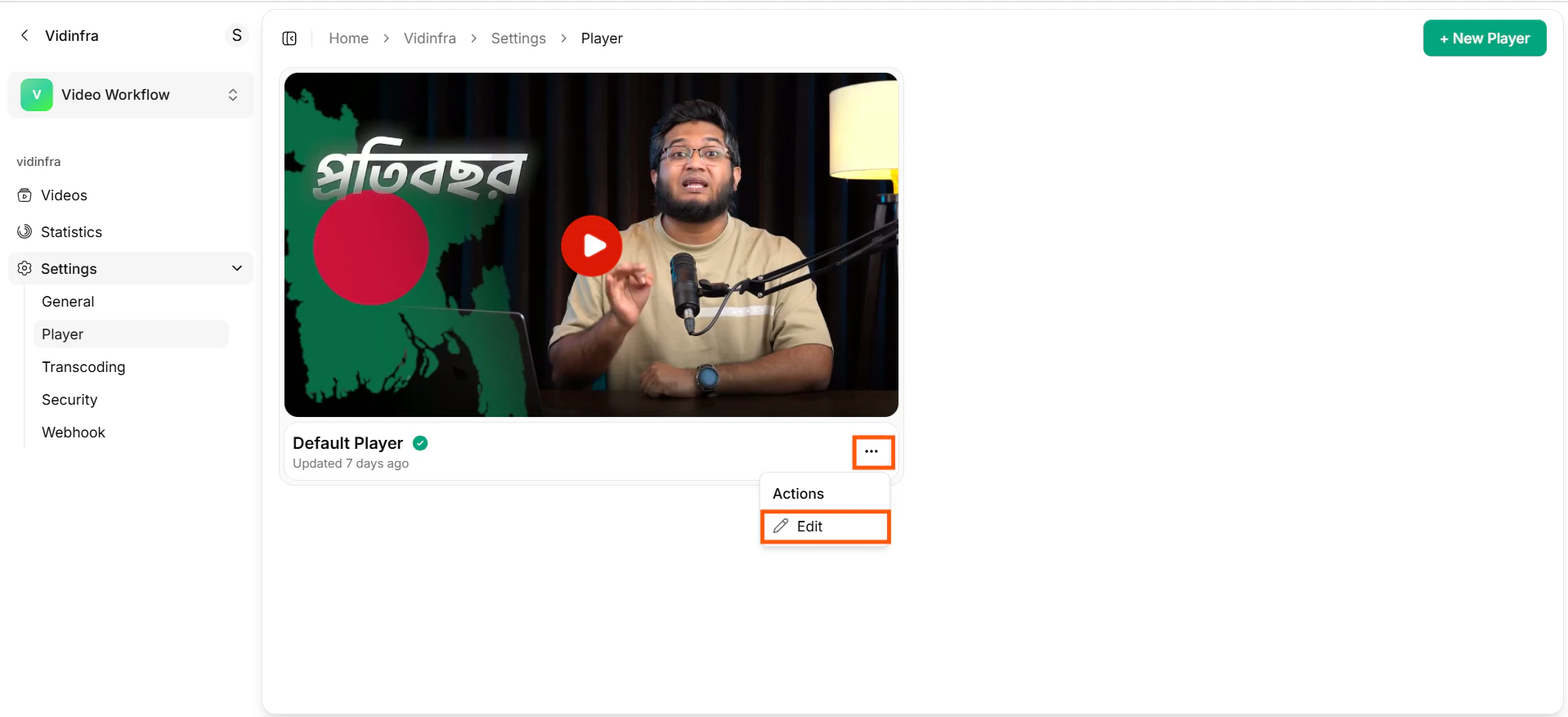 * You can also create a new player from the top right corner based on your needs.
***
## General Info
The **General Info section** lets you define the basic details and visual style of your video player.
* You can also create a new player from the top right corner based on your needs.
***
## General Info
The **General Info section** lets you define the basic details and visual style of your video player.
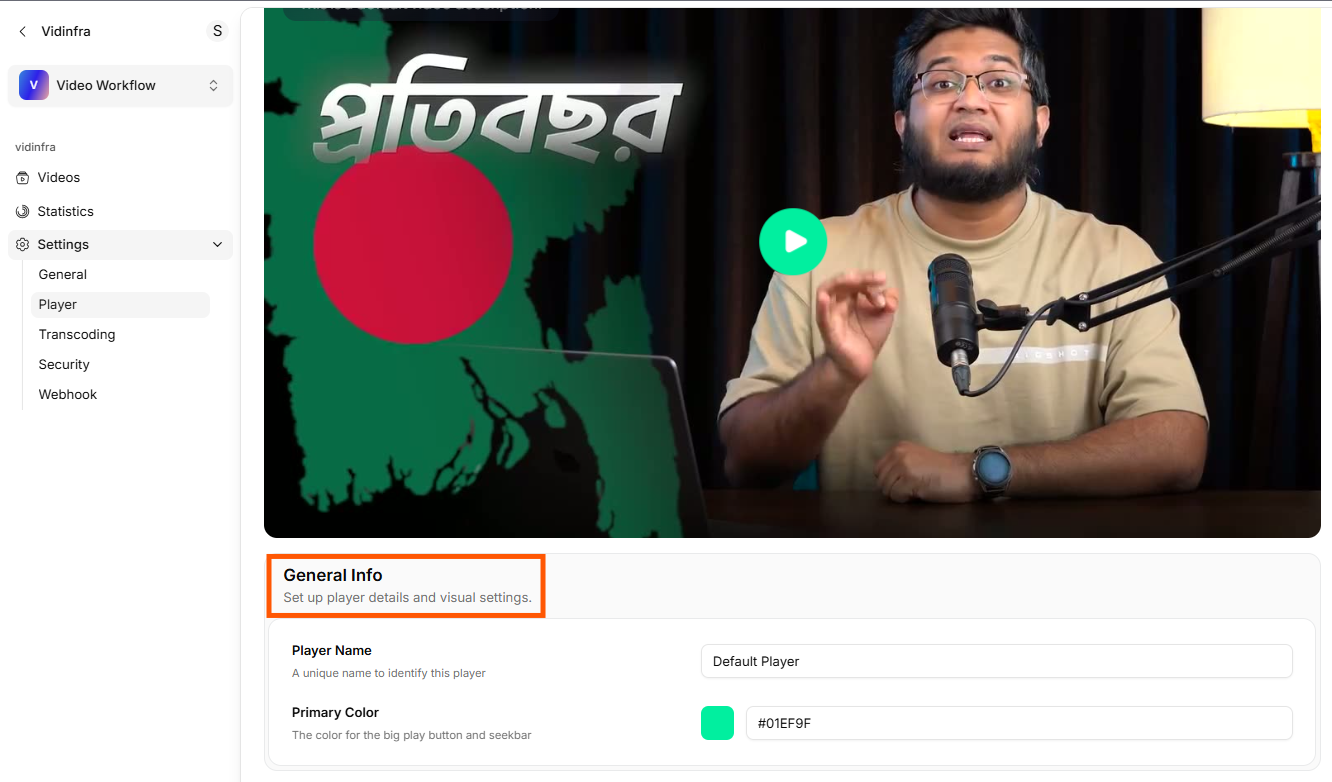 These settings help you identify the player and control the colors used across its interface.
### Player Name
Enter a name to identify this player preset. This helps you manage multiple players—for example, different themes for mobile, web, or specific projects.
### Primary Color
Choose the main color used in the player interface. This color is applied to key elements such as:
* The large play button
* Progress bar and seekbar
***
## Player Features
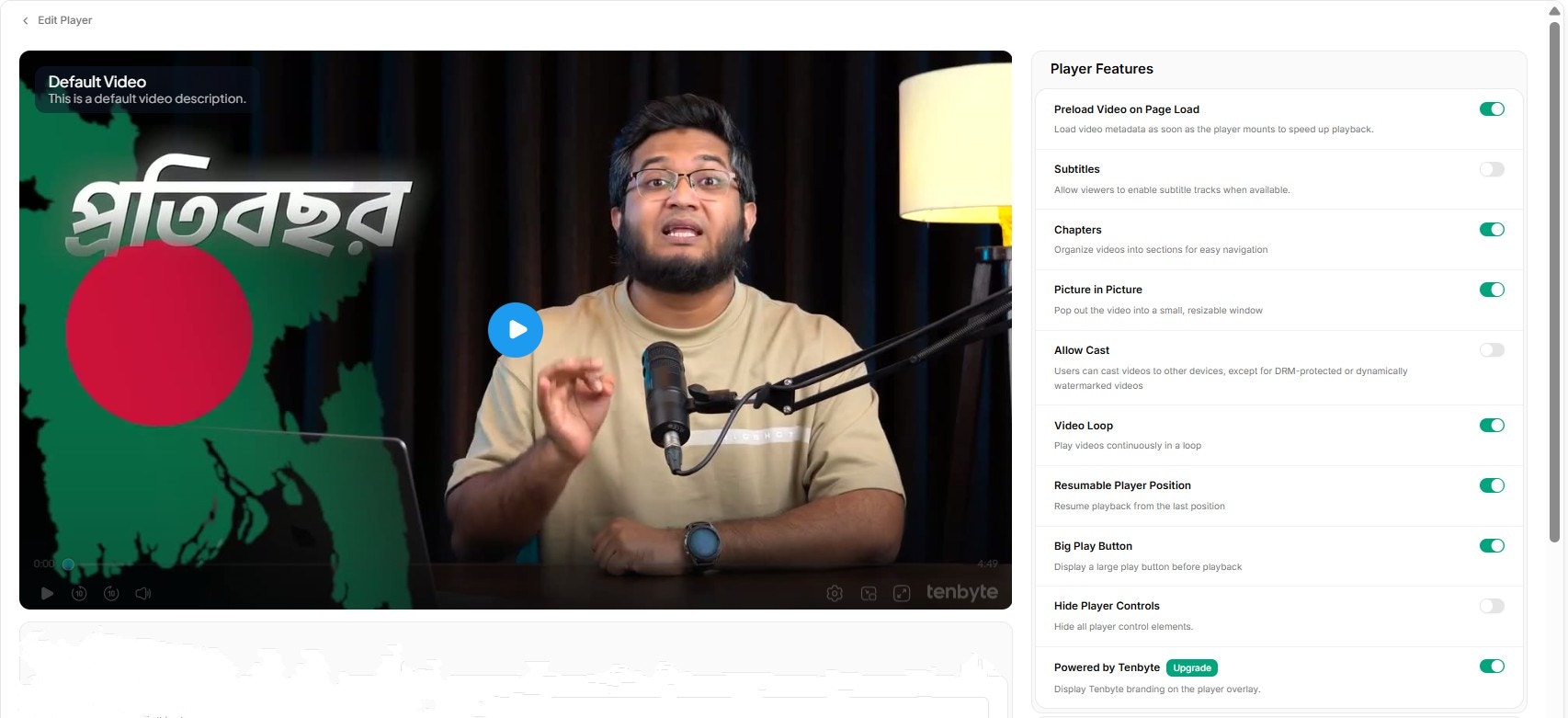
The **Player Features section** lets you control how the Vidinfra player behaves during playback. Each toggle enables or disables a specific capability that affects the viewer experience.
These settings help you identify the player and control the colors used across its interface.
### Player Name
Enter a name to identify this player preset. This helps you manage multiple players—for example, different themes for mobile, web, or specific projects.
### Primary Color
Choose the main color used in the player interface. This color is applied to key elements such as:
* The large play button
* Progress bar and seekbar
***
## Player Features
The **Player Features section** lets you control how the Vidinfra player behaves during playback. Each toggle enables or disables a specific capability that affects the viewer experience.
 ### Preload Video on Page Load
Loads video metadata as soon as the page opens. This reduces start time and improves playback speed.
### Subtitles
Allows viewers to turn on subtitle tracks if you uploaded any in the video settings.
### Chapters
Shows chapter markers inside the player so viewers can jump to key parts of the video.
### Picture in Picture
Lets viewers pop the video into a small floating window while browsing other tabs or apps.
### Allow Cast
Enables casting to supported devices like smart TVs. Not available for DRM or watermarked videos.
### Video Loop
Restarts the video automatically after it finishes.
### Resumable Player Position
Saves the viewer’s last watch position, allowing them to continue from where they left off.
### Big Play Button
Displays a large play button at the center of the video before playback.
### Hide Player Controls
Removes all control buttons for a clean, minimal viewing experience.
### Custom Overlays
Use the Brand Appearance section to add your own logo as a custom overlay or watermark on the video player.
### Preload Video on Page Load
Loads video metadata as soon as the page opens. This reduces start time and improves playback speed.
### Subtitles
Allows viewers to turn on subtitle tracks if you uploaded any in the video settings.
### Chapters
Shows chapter markers inside the player so viewers can jump to key parts of the video.
### Picture in Picture
Lets viewers pop the video into a small floating window while browsing other tabs or apps.
### Allow Cast
Enables casting to supported devices like smart TVs. Not available for DRM or watermarked videos.
### Video Loop
Restarts the video automatically after it finishes.
### Resumable Player Position
Saves the viewer’s last watch position, allowing them to continue from where they left off.
### Big Play Button
Displays a large play button at the center of the video before playback.
### Hide Player Controls
Removes all control buttons for a clean, minimal viewing experience.
### Custom Overlays
Use the Brand Appearance section to add your own logo as a custom overlay or watermark on the video player.
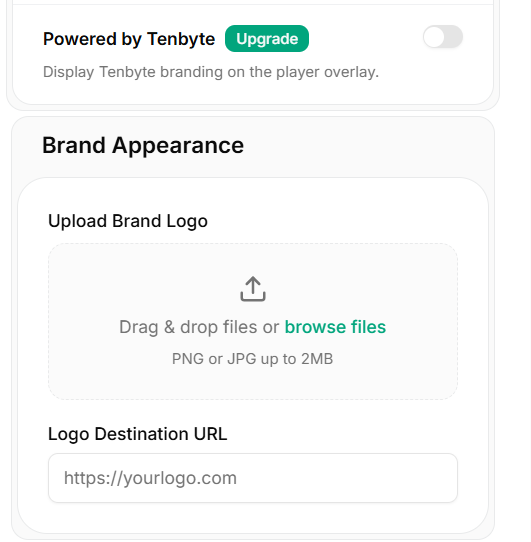 #### Upload Brand Logo
You can drag and drop the image or browse files manually. The logo appears as a watermark on the player.
#### Logo Destination URL
Add a link that viewers will be taken to when they click your logo. Use this to direct users to your website, landing page, or campaign URL.
The watermark image must be smaller than 2MB. Larger files will not upload.
***
## Advanced Settings
The **Advanced Settings section** is designed for developers and teams who want deeper branding or analytics integration.
#### Upload Brand Logo
You can drag and drop the image or browse files manually. The logo appears as a watermark on the player.
#### Logo Destination URL
Add a link that viewers will be taken to when they click your logo. Use this to direct users to your website, landing page, or campaign URL.
The watermark image must be smaller than 2MB. Larger files will not upload.
***
## Advanced Settings
The **Advanced Settings section** is designed for developers and teams who want deeper branding or analytics integration.
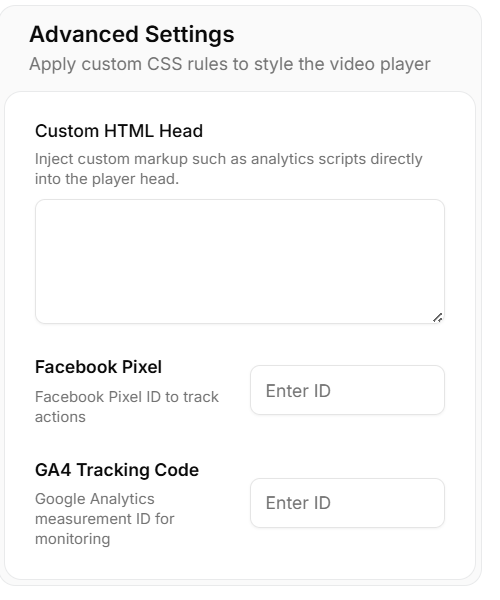 ### Custom HTML Head
Lets you inject custom HTML or scripts directly into the player head area.
### Facebook Pixel
Add your Facebook Pixel ID to track video engagement and viewer actions.
### GA4 Tracking Code
Enter your Google Analytics 4 measurement ID to collect playback insights.
### Custom HTML Head
Lets you inject custom HTML or scripts directly into the player head area.
### Facebook Pixel
Add your Facebook Pixel ID to track video engagement and viewer actions.
### GA4 Tracking Code
Enter your Google Analytics 4 measurement ID to collect playback insights.