> ## Documentation Index
> Fetch the complete documentation index at: https://docs.tenbyte.io/llms.txt
> Use this file to discover all available pages before exploring further.
# Configure Your Video
The Video Settings panel lets you control every aspect of a video after upload. You can edit basic details, add subtitles, create chapters, and review technical metadata to organize and optimize each video asset.
Vidinfra divides video settings into four tabs:
1. Overview
2. Subtitles
3. Chapters
4. Others
Below is a full explanation of each tab.
## Overview
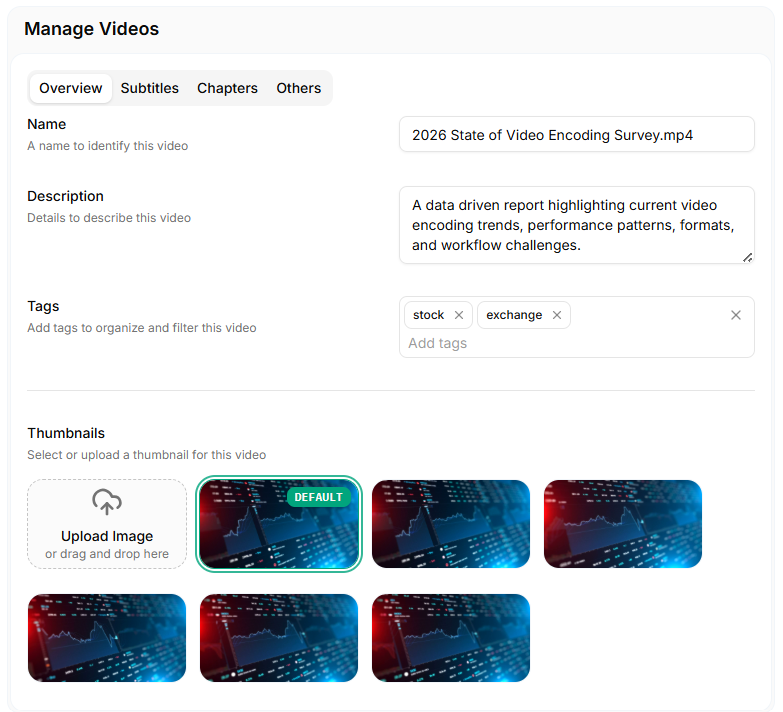
The **Overview tab** contains the core information about your video. You can update the **name**, add a **description**, **manage tags**, and **set thumbnails**.
 ### Name
Enter a title that identifies your video. This name appears across your Vidinfra dashboard and in all video listings.
### Description
Add a short description to explain what the video covers. This is helpful when managing large libraries or sharing content with teams.
### Tags
Tags help you organize and filter videos. Add multiple tags to group videos by category, event, project, or workflow. For advanced tag management, check [Library Settings](/docs/vidinfra/manage-library/library-settings#organize-videos-with-tags).
### Thumbnails
Choose a thumbnail to represent the video.
You can:
1. Select a generated thumbnail
2. Upload a custom image
3. Drag and drop an image into the upload area
***
## Subtitles
The **Subtitles tab** allows you to upload caption files for your video. Subtitles help improve accessibility, viewer engagement, and searchability.
### Name
Enter a title that identifies your video. This name appears across your Vidinfra dashboard and in all video listings.
### Description
Add a short description to explain what the video covers. This is helpful when managing large libraries or sharing content with teams.
### Tags
Tags help you organize and filter videos. Add multiple tags to group videos by category, event, project, or workflow. For advanced tag management, check [Library Settings](/docs/vidinfra/manage-library/library-settings#organize-videos-with-tags).
### Thumbnails
Choose a thumbnail to represent the video.
You can:
1. Select a generated thumbnail
2. Upload a custom image
3. Drag and drop an image into the upload area
***
## Subtitles
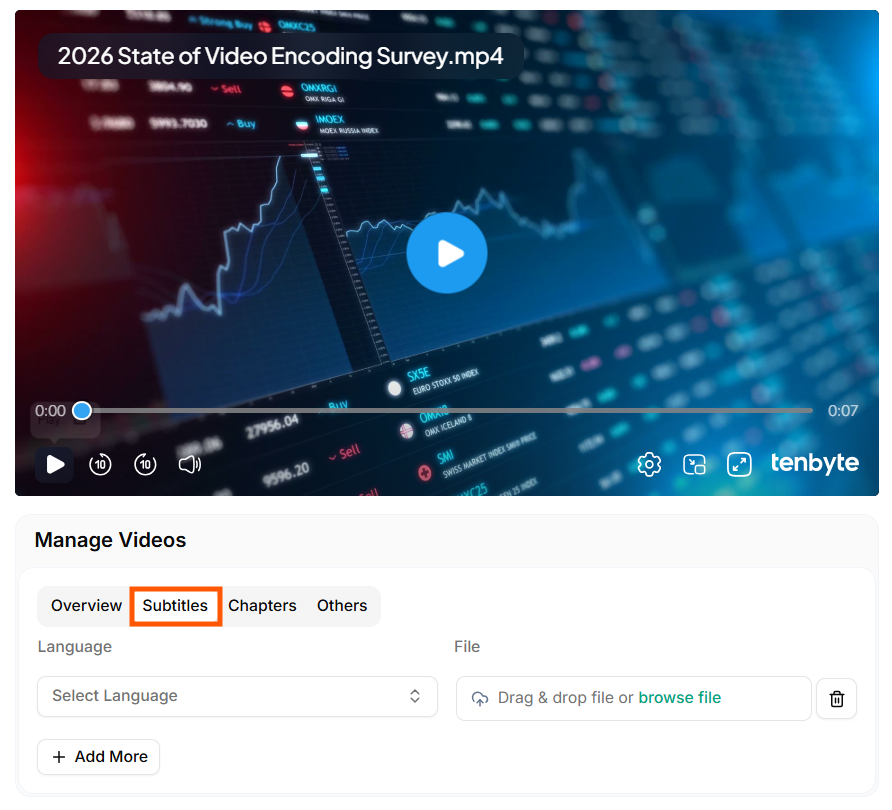
The **Subtitles tab** allows you to upload caption files for your video. Subtitles help improve accessibility, viewer engagement, and searchability.
 ### Language Selection
Choose the subtitle language from the dropdown list.
### Upload Subtitle File
Upload a subtitle file by:
1. Dragging and dropping it into the file box
2. Clicking browse file to select it from your device
3. Vidinfra supports standard subtitle formats like VTT and SRT.
### Multiple Subtitles
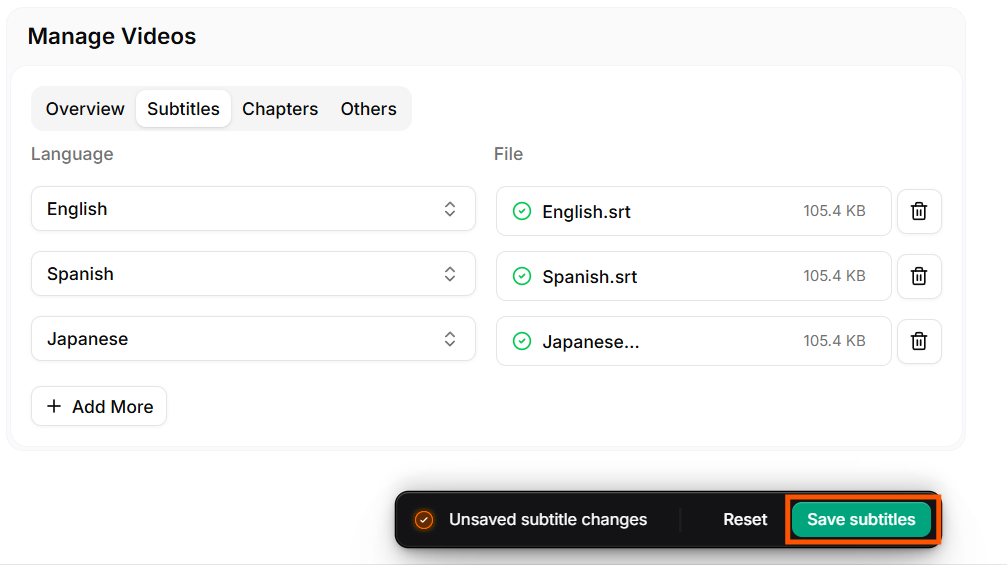
* Click **Add More** to upload multiple subtitle tracks.
* Select your languages and upload the files and click on **Save subtitles**
### Language Selection
Choose the subtitle language from the dropdown list.
### Upload Subtitle File
Upload a subtitle file by:
1. Dragging and dropping it into the file box
2. Clicking browse file to select it from your device
3. Vidinfra supports standard subtitle formats like VTT and SRT.
### Multiple Subtitles
* Click **Add More** to upload multiple subtitle tracks.
* Select your languages and upload the files and click on **Save subtitles**
 ***
## Chapters
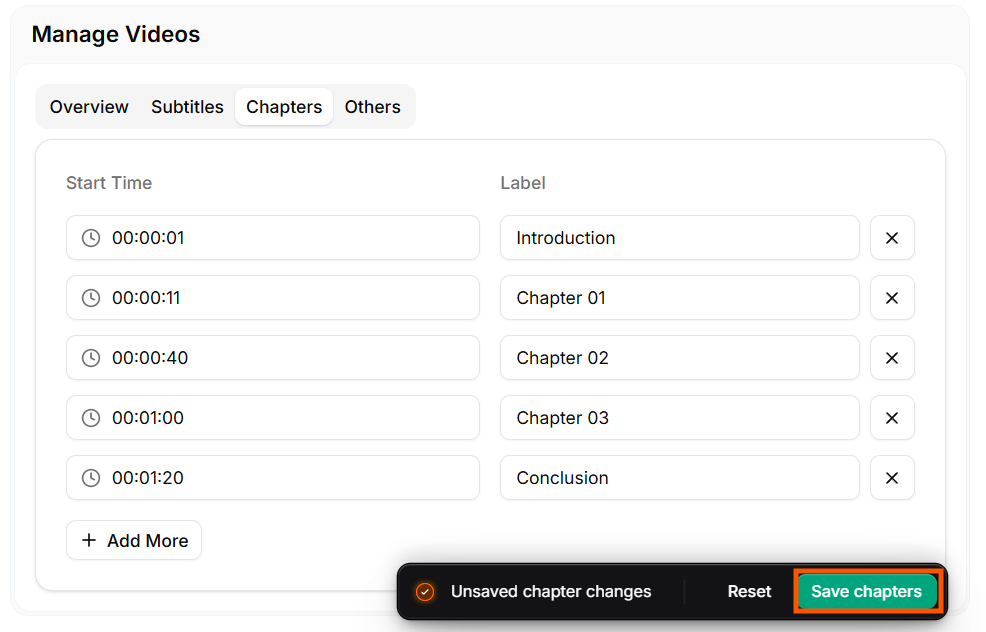
The **Chapters tab** lets you break your video into sections. Chapters help viewers jump to key moments and improve navigation in long videos.
***
## Chapters
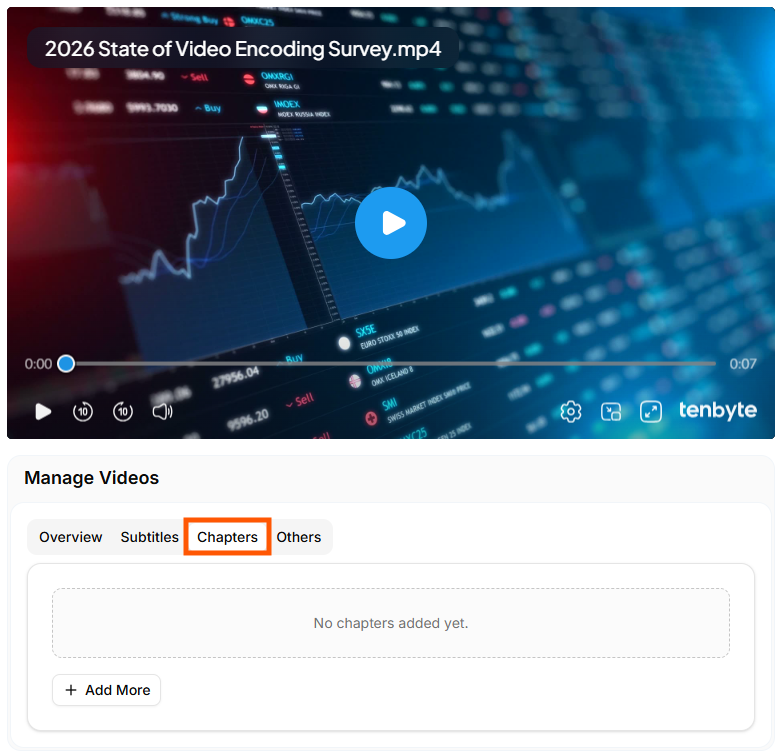
The **Chapters tab** lets you break your video into sections. Chapters help viewers jump to key moments and improve navigation in long videos.
 ### Add Chapters
* Click **Add More** to create a new chapter.
* Enter the timestamp and title for each chapter.
* Add as many chapters as you need and click on **Save changes**.
### Add Chapters
* Click **Add More** to create a new chapter.
* Enter the timestamp and title for each chapter.
* Add as many chapters as you need and click on **Save changes**.
 If your video has no chapters yet, the panel will show: No chapters added yet.
***
## Others
The **Others tab** displays technical metadata and asset information about your video. This section helps you understand the processing status, quality outputs, and file properties.
If your video has no chapters yet, the panel will show: No chapters added yet.
***
## Others
The **Others tab** displays technical metadata and asset information about your video. This section helps you understand the processing status, quality outputs, and file properties.
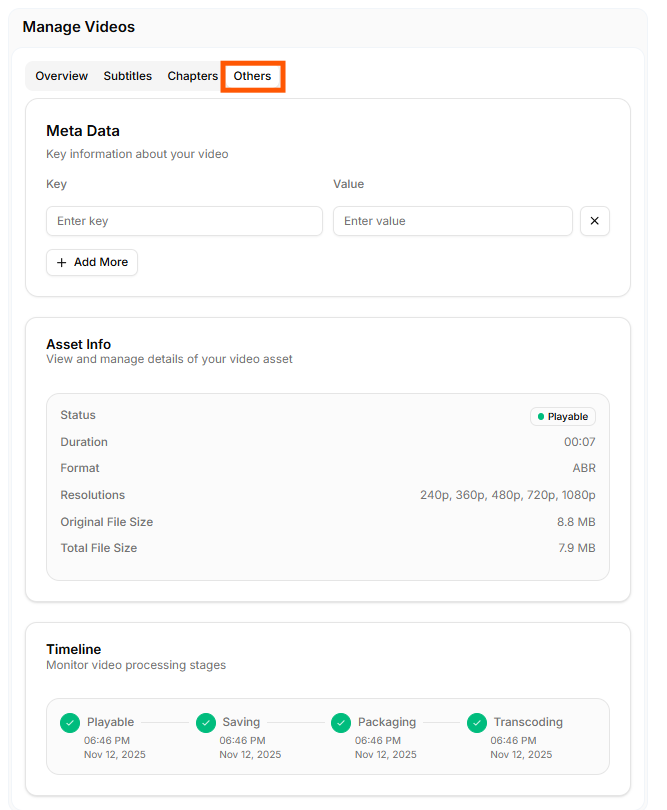 ### Meta Data
Add custom key–value pairs to store extra information about the video. Examples:
* Category
* Campaign name
* Internal tracking IDs
* Creator information
You can add multiple metadata fields using **Add More**.
### Asset Info
This section shows core details of your video asset, including:
1. **Status** – Shows whether the video is playable
2. **Duration** – Video length
3. **Format** – Playback format (e.g., `ABR`)
4. **Resolutions** – Available output qualities (240p to 1080p)
5. **Original File Size** – Size of the uploaded file
6. **Total File Size** – Size of all processed output variants
### Timeline
Displays the full processing history of the video. You can track each stage with timestamps:
* Playable
* Saving
* Packaging
* Transcoding
This helps you verify when each processing step finished and ensures the video is ready for playback.
### Meta Data
Add custom key–value pairs to store extra information about the video. Examples:
* Category
* Campaign name
* Internal tracking IDs
* Creator information
You can add multiple metadata fields using **Add More**.
### Asset Info
This section shows core details of your video asset, including:
1. **Status** – Shows whether the video is playable
2. **Duration** – Video length
3. **Format** – Playback format (e.g., `ABR`)
4. **Resolutions** – Available output qualities (240p to 1080p)
5. **Original File Size** – Size of the uploaded file
6. **Total File Size** – Size of all processed output variants
### Timeline
Displays the full processing history of the video. You can track each stage with timestamps:
* Playable
* Saving
* Packaging
* Transcoding
This helps you verify when each processing step finished and ensures the video is ready for playback.