> ## Documentation Index
> Fetch the complete documentation index at: https://docs.tenbyte.io/llms.txt
> Use this file to discover all available pages before exploring further.
# Tenbyte Cloud T2 Object Storage
Tenbyte T2 Object Storage is built for storing and managing large volumes of unstructured data. It supports creating buckets, uploading files, controlling access permissions, and sharing objects securely across applications and teams.
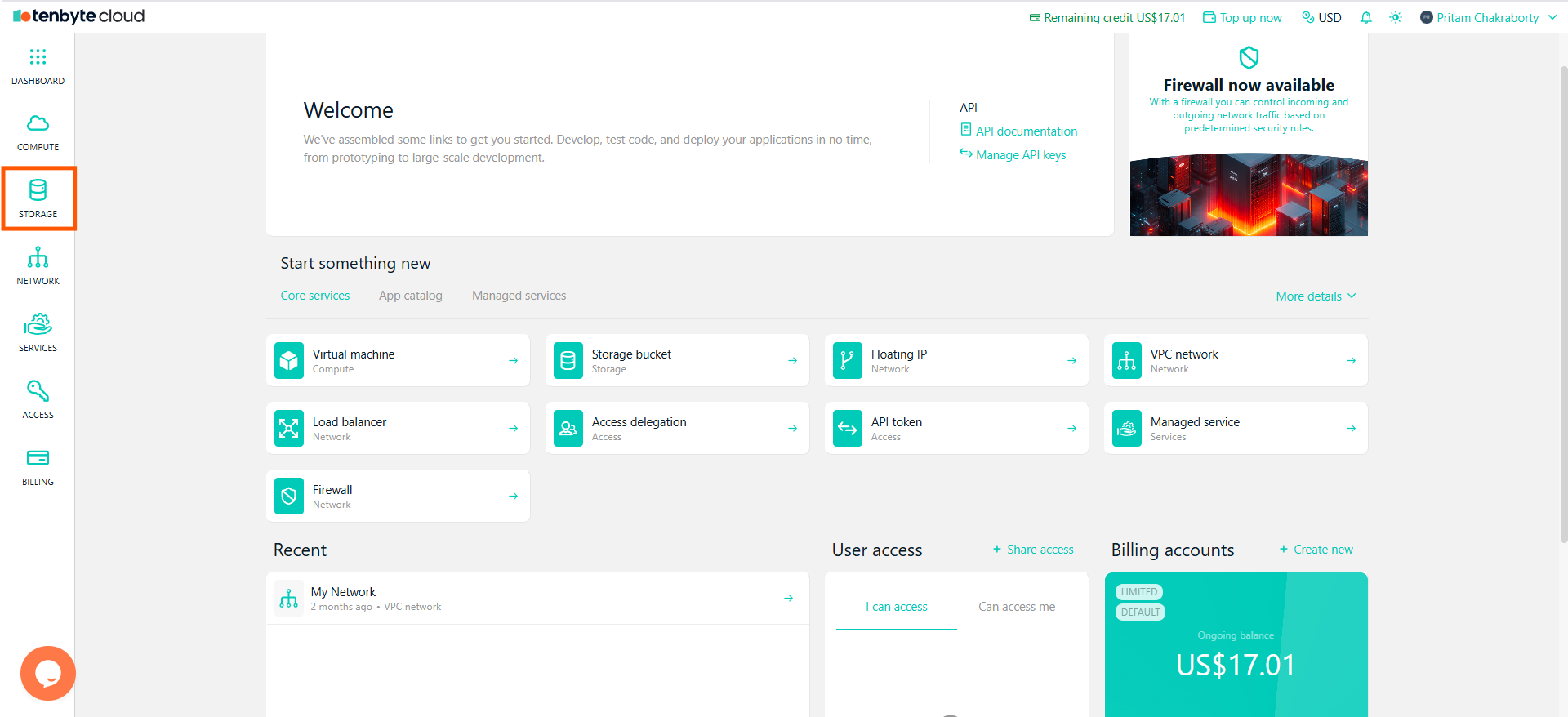
## Open the Storage Section
* From the left sidebar, click **Storage**.
* If you haven’t created any buckets yet, the page will appear empty.
 ***
## Create a New Storage Bucket
* Click **Create new**.
* Select **Storage bucket** as the resource type.
* Enter a name for your bucket.
***
## Create a New Storage Bucket
* Click **Create new**.
* Select **Storage bucket** as the resource type.
* Enter a name for your bucket.
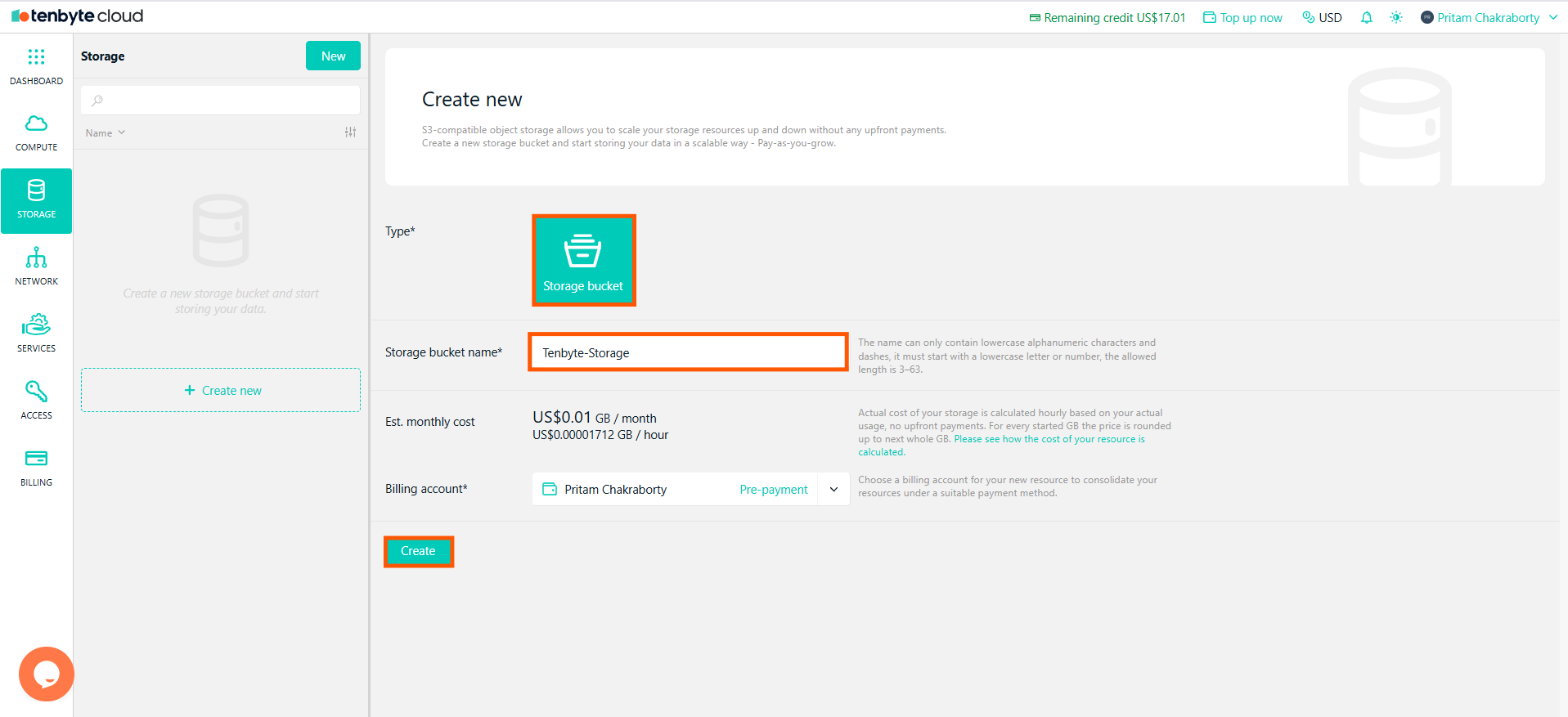 Bucket names must use lowercase letters, numbers, or dashes. The length must be between 3–63 characters, and the name must be globally unique.
* Select a billing account.
* Click **Create**.
* Your bucket will appear in the Storage list immediately after creation.
***
## View Bucket Details
* Click the bucket name to open its details page.
Bucket names must use lowercase letters, numbers, or dashes. The length must be between 3–63 characters, and the name must be globally unique.
* Select a billing account.
* Click **Create**.
* Your bucket will appear in the Storage list immediately after creation.
***
## View Bucket Details
* Click the bucket name to open its details page.
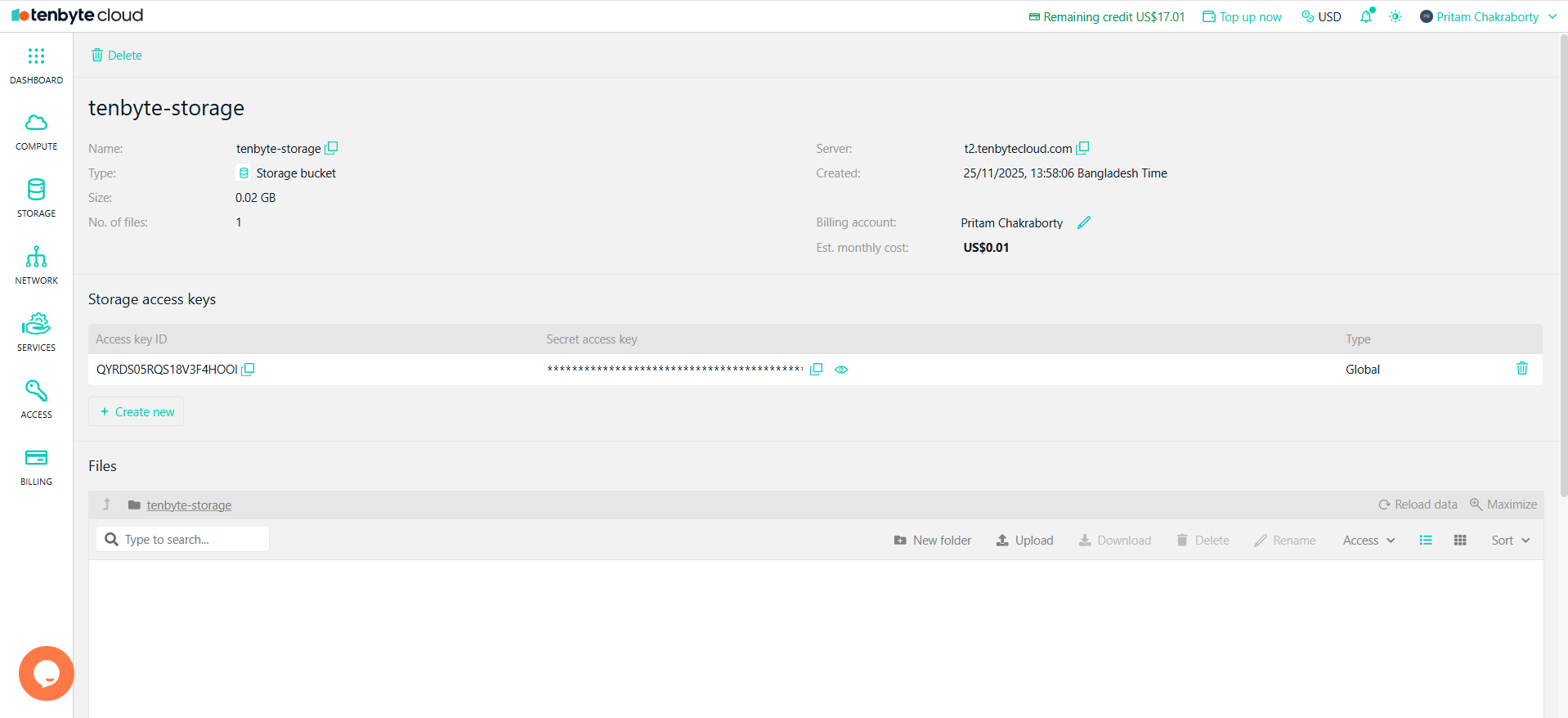 Here you can see **Bucket name**, **Type (Storage bucket)**, **Creation time**, **Bucket size**, **Number of files**, **Server endpoint**, and **Billing account**.
* You will also see a section for Storage access keys:
* Access key ID
* Secret access key
* Type: Global / Restricted
These keys are used for programmatic access (S3-compatible).
***
## Upload Files to your Bucket
Inside the bucket, scroll down to the Files section. You can **Create folders**, **Upload files**, **Download files**, **Delete files**, and **Rename files**.
* To upload a file Click **Upload**.
Here you can see **Bucket name**, **Type (Storage bucket)**, **Creation time**, **Bucket size**, **Number of files**, **Server endpoint**, and **Billing account**.
* You will also see a section for Storage access keys:
* Access key ID
* Secret access key
* Type: Global / Restricted
These keys are used for programmatic access (S3-compatible).
***
## Upload Files to your Bucket
Inside the bucket, scroll down to the Files section. You can **Create folders**, **Upload files**, **Download files**, **Delete files**, and **Rename files**.
* To upload a file Click **Upload**.
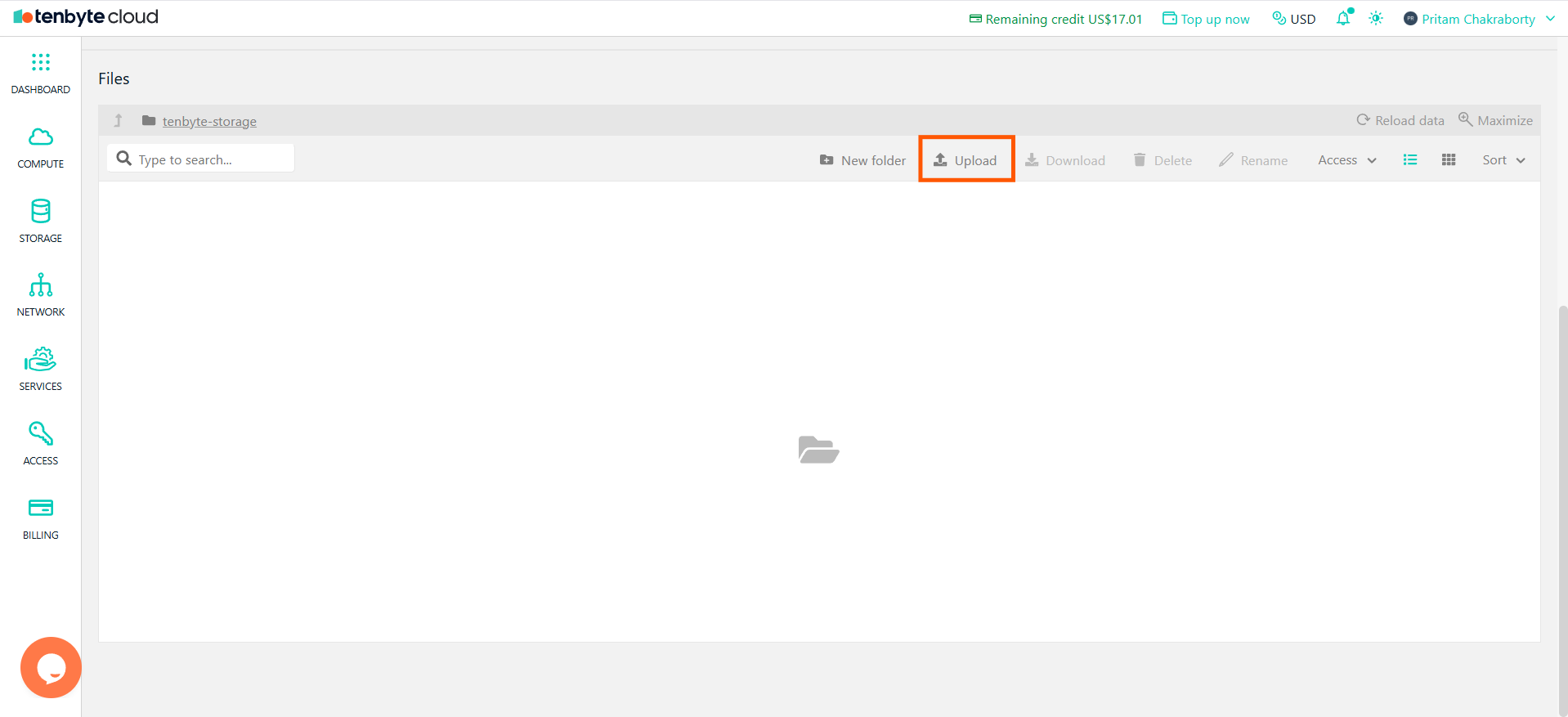 * Choose any file from your device.
* Once the upload completes, the file will appear in the list.
* Choose any file from your device.
* Once the upload completes, the file will appear in the list.
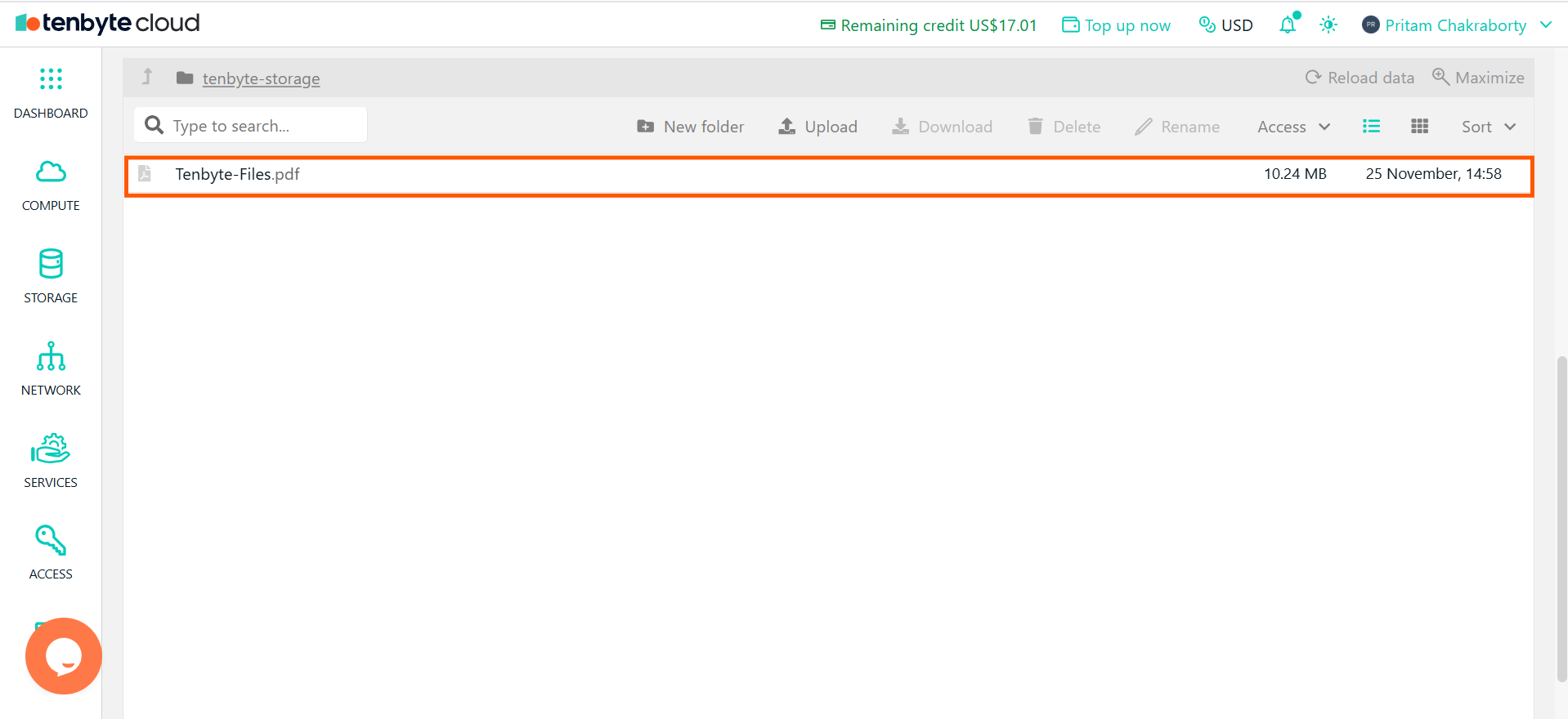 You can upload directly inside the root or inside a created folder.
***
## File Access Controls
* Select a file, then open the **Access** menu from the right side of the row.
You can upload directly inside the root or inside a created folder.
***
## File Access Controls
* Select a file, then open the **Access** menu from the right side of the row.
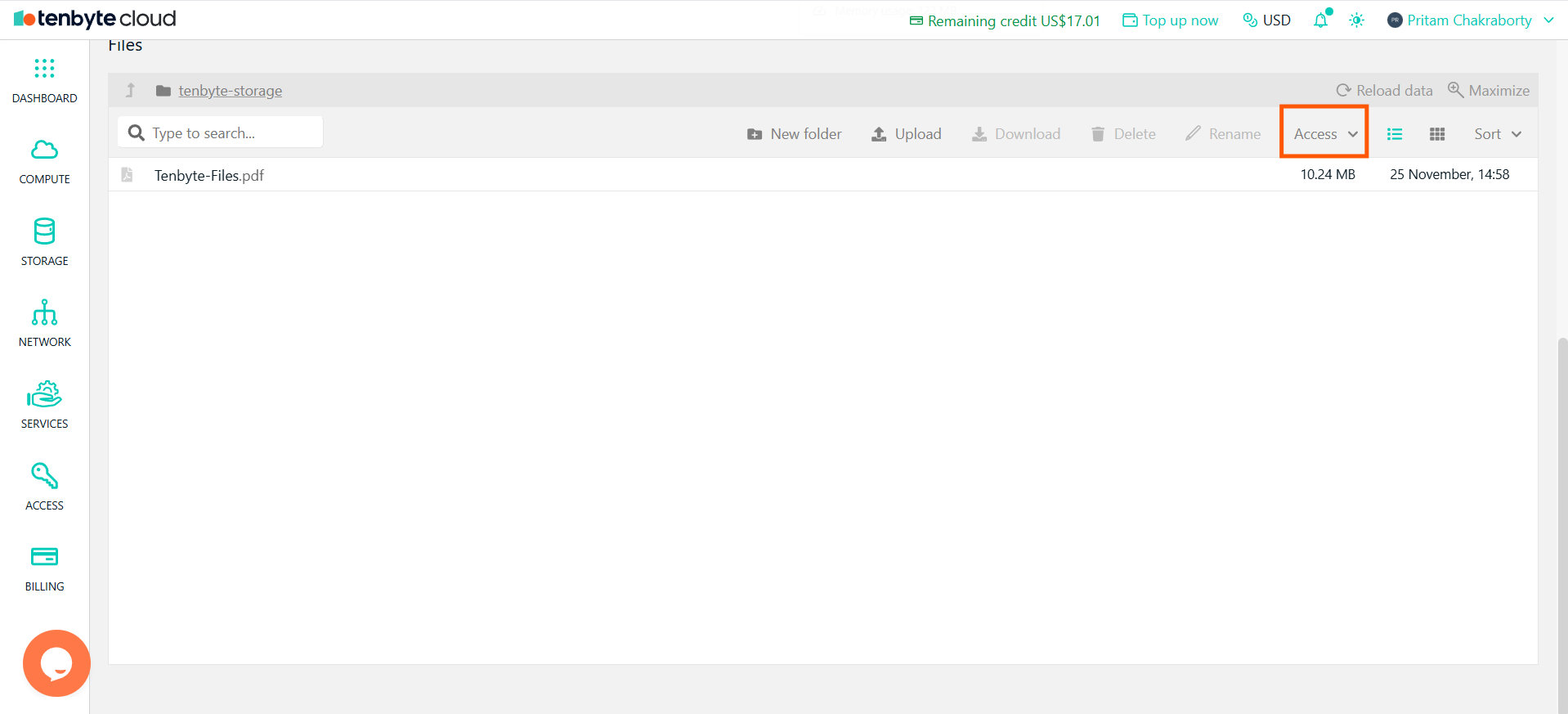 * You will see three options:
1. Share temporarily
2. Permissions
3. Copy Public URL
### Share temporarily
* Generates a temporary link that expires after a chosen duration.
* You will see three options:
1. Share temporarily
2. Permissions
3. Copy Public URL
### Share temporarily
* Generates a temporary link that expires after a chosen duration.
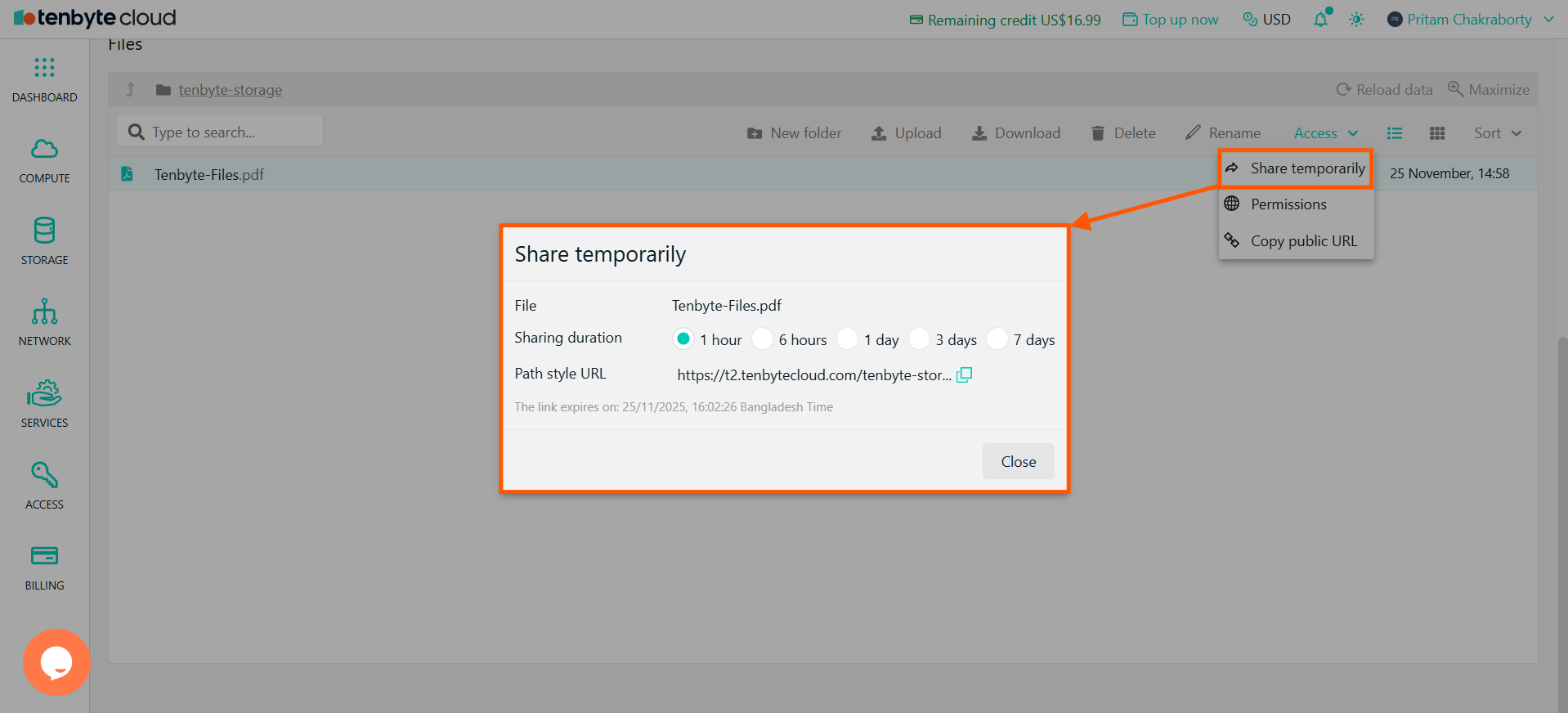 * Click **Share temporarily** and select a duration.
* A temporary URL is generated.
* Copy and share the URL.
* The link expires automatically on the displayed time.
### Permissions
* This controls whether your file is **Private** or **Public**.
* Click **Share temporarily** and select a duration.
* A temporary URL is generated.
* Copy and share the URL.
* The link expires automatically on the displayed time.
### Permissions
* This controls whether your file is **Private** or **Public**.
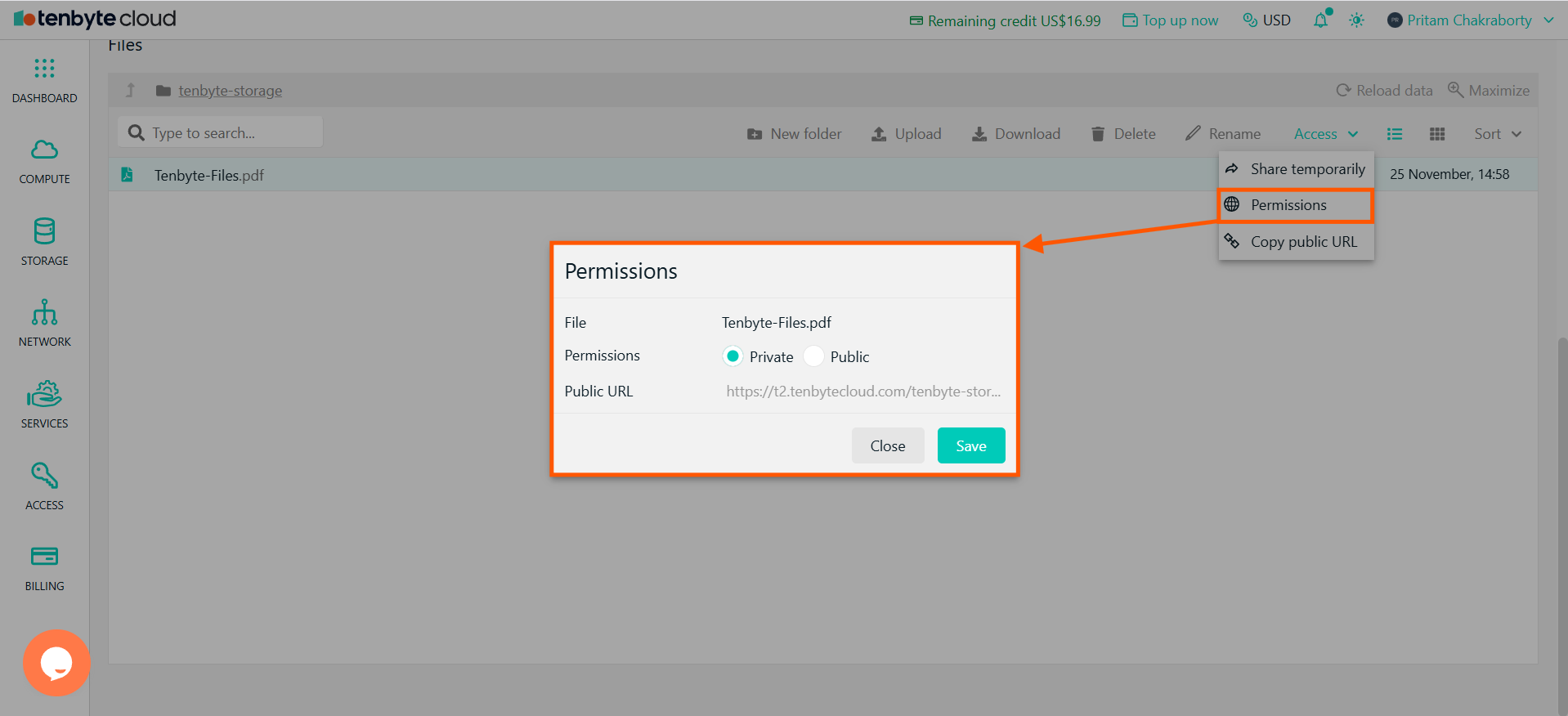 1. **Private (default)**
* File can only be accessed using **access keys** or **bucket permissions**.
* No public URL is available
2. **Public**
* Anyone can open the file using the public link.
* No authentication required.
* Click **Save** after choosing the desired permission.
### Copy Public URL
* If the file is already Public, the system will provide a usable URL that you can copy with one click.
1. **Private (default)**
* File can only be accessed using **access keys** or **bucket permissions**.
* No public URL is available
2. **Public**
* Anyone can open the file using the public link.
* No authentication required.
* Click **Save** after choosing the desired permission.
### Copy Public URL
* If the file is already Public, the system will provide a usable URL that you can copy with one click.
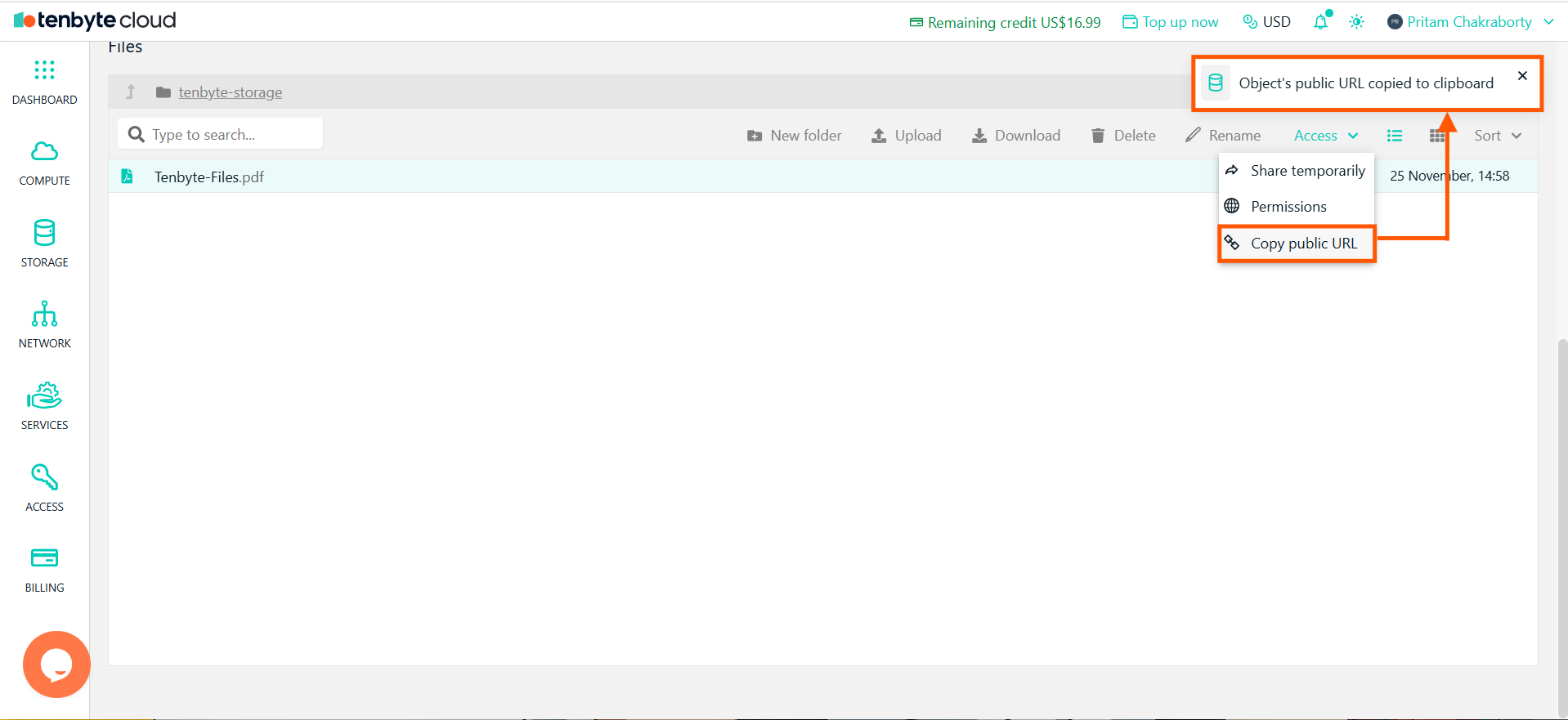 If the file is Private, the public link remains disabled until you switch permissions to Public.