> ## Documentation Index
> Fetch the complete documentation index at: https://docs.tenbyte.io/llms.txt
> Use this file to discover all available pages before exploring further.
# Laravel With Tenbyte
> How to use Laravel with Tenbyte t2-compatible storage
### How do I use Laravel with Tenbyte?
[Laravel](https://laravel.com/) is validated for use with Tenbyte. To use this product with Tenbyte, please follow the instructions below.
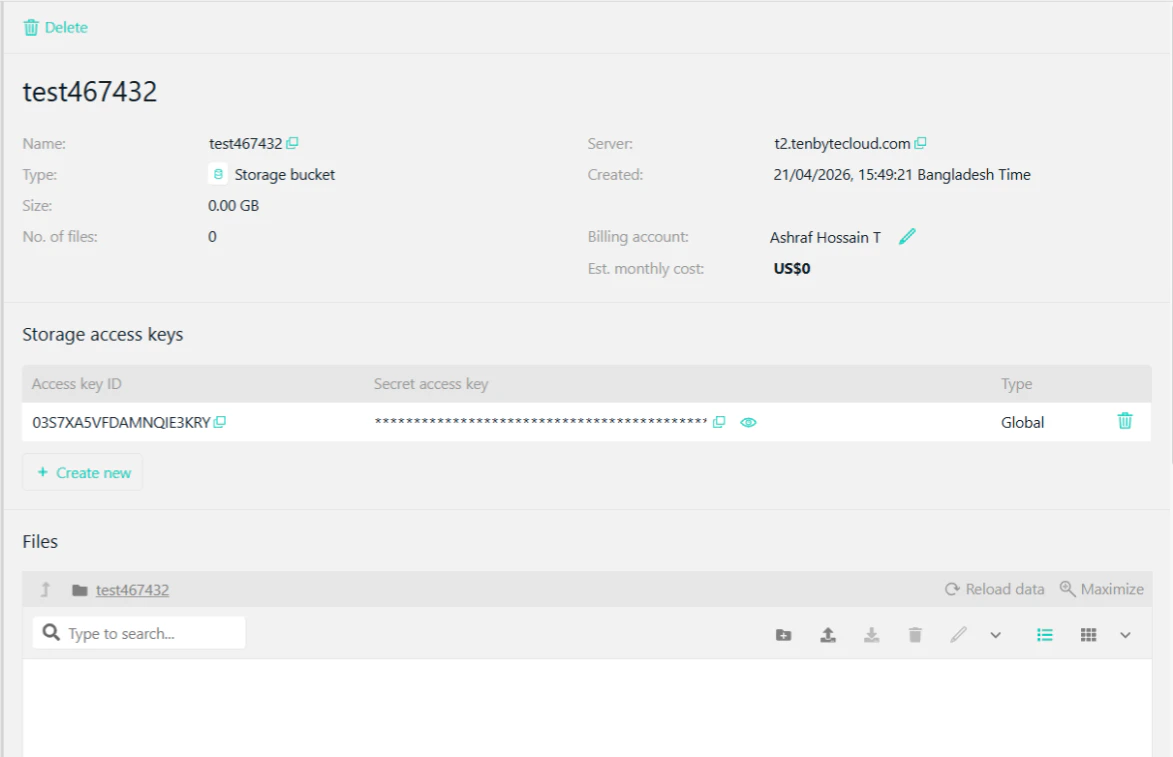
1. Set up your Tenbyte account and create a bucket as described [here](https://docs.tenbyte.io/docs/cloud/storage/object-storage).
2. Install Composer using the CLI.
3. Create a new Laravel project using the following command. You will receive the following output on the terminal once it is successfully created:
```bash theme={null}
composer create-project laravel/laravel
```
 4. Go inside your project using the `cd` command and you will see the project files inside.
 5. Now we will need to edit certain files inside this project to make this work with S3-style storage. You can either use any editor to edit the files (e.g. `vim` or `nano`) or make use of an IDE to search and edit them easily (e.g. Atom or Visual Studio Code).
6. Once you have the framework open in an IDE, create a new `.php` file in `resources -> views` and name it `fileUpload.blade.php`.
> **Note:** We recommend using the same name for the test as we have used this name when referencing in other files.
> The hierarchy would look like this
5. Now we will need to edit certain files inside this project to make this work with S3-style storage. You can either use any editor to edit the files (e.g. `vim` or `nano`) or make use of an IDE to search and edit them easily (e.g. Atom or Visual Studio Code).
6. Once you have the framework open in an IDE, create a new `.php` file in `resources -> views` and name it `fileUpload.blade.php`.
> **Note:** We recommend using the same name for the test as we have used this name when referencing in other files.
> The hierarchy would look like this
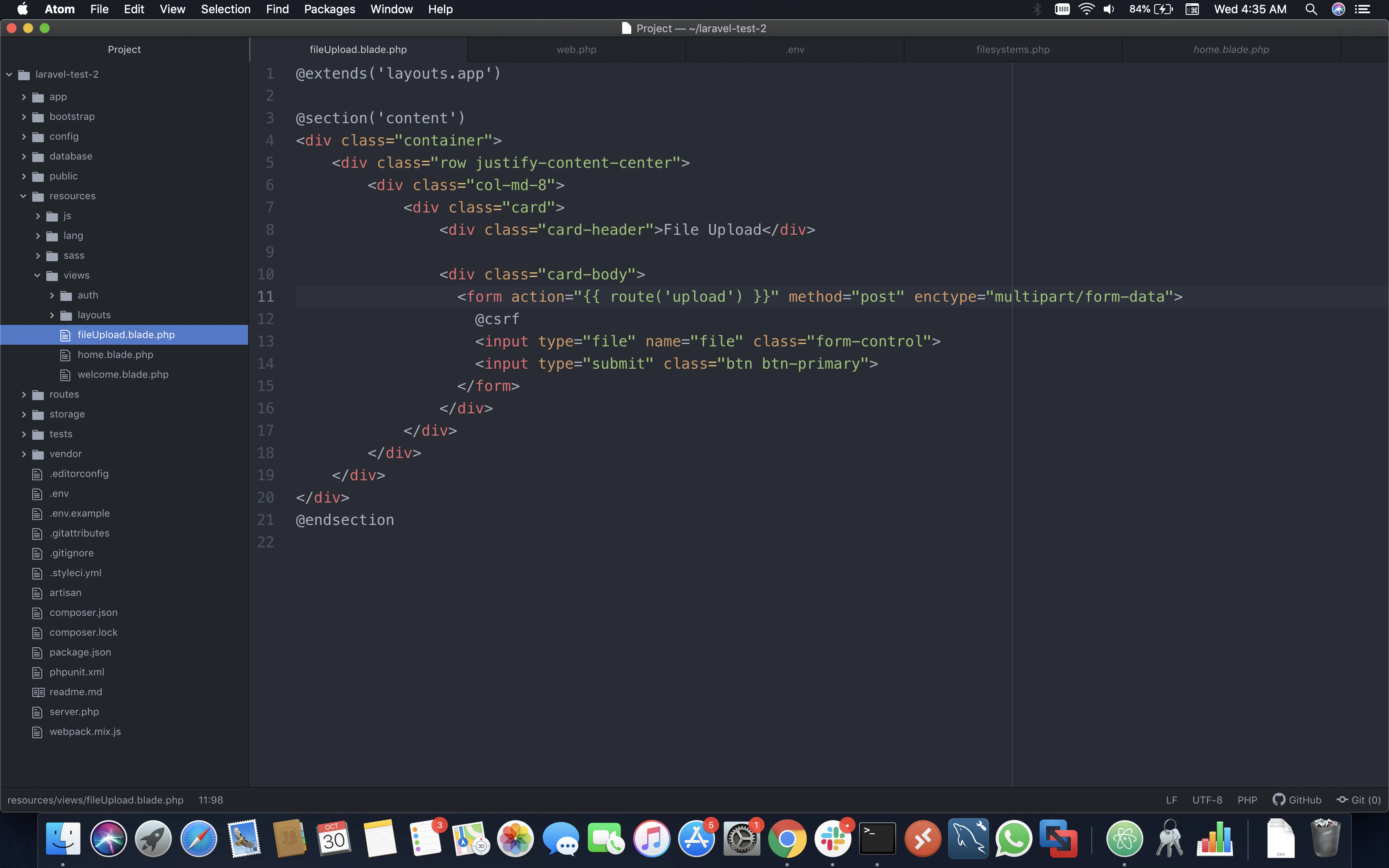 Paste the below code in `fileUpload.blade.php`:
```php theme={null}
@extends('layouts.app')
@section('content')
@endsection
```
7. Now go to `routes -> web.php` and replace the file with the following code:
```php theme={null}
Route::get('/', function () {
return view('fileUpload');
});
Route::post('upload', function () {
request()->file('file')->store(
'my-file',
'Tenbyte'
);
})->name('upload');
Auth::routes();
Route::get('/home', 'HomeController@index')->name('home');
```
> **Note:** The directory here is `my-file` and your files will be uploaded inside it. We are also passing **`Tenbyte`** as a driver, which we will configure later in `filesystems.php` to specify our custom-defined driver to pass user input.
8. Go to the **root of your Laravel project** and open the `.env` file, then replace its contents with the following code.
> **NOTE:** Make sure to use your correct Access Key, Secret Access Key, Tenbyte bucket region, Tenbyte Bucket Name, and Tenbyte Region URL.
```env theme={null}
APP_NAME=Laravel
APP_ENV=local
APP_KEY=base64:ZBWX+Pgx8ABy8CThdSi9ixRCyQmKQ1iWDsv1TSCMBUM=
APP_DEBUG=true
APP_URL=http://localhost
LOG_CHANNEL=stack
DB_CONNECTION=mysql
DB_HOST=127.0.0.1
DB_PORT=3306
DB_DATABASE=laravel
DB_USERNAME=root
DB_PASSWORD=
BROADCAST_DRIVER=log
CACHE_DRIVER=file
QUEUE_CONNECTION=sync
SESSION_DRIVER=file
SESSION_LIFETIME=120
REDIS_HOST=127.0.0.1
REDIS_PASSWORD=null
REDIS_PORT=6379
MAIL_DRIVER=smtp
MAIL_HOST=smtp.mailtrap.io
MAIL_PORT=2525
MAIL_USERNAME=null
MAIL_PASSWORD=null
MAIL_ENCRYPTION=null
PUSHER_APP_ID=
PUSHER_APP_KEY=
PUSHER_APP_SECRET=
PUSHER_APP_CLUSTER=mt1
MIX_PUSHER_APP_KEY="${PUSHER_APP_KEY}"
MIX_PUSHER_APP_CLUSTER="${PUSHER_APP_CLUSTER}"
AWS_ACCESS_KEY_ID=XXXXXXXXXXXXXXXXXXXX
AWS_SECRET_ACCESS_KEY=XXXXXXXXXXXXXXXXXXXXXXXXXXXXXXXXXXXXXXX
AWS_DEFAULT_REGION=us-east-1
AWS_BUCKET=Bucket-Name
AWS_USE_PATH_STYLE_ENDPOINT=true
AWS_URL="t2.tenbytecloud.com"
AWS_ENDPOINT=https://t2.tenbytecloud.com/
AWS_USE_ACCELERATE_ENDPOINT=false
```
> **Note:** This example uses Tenbyte's `us-east-1` storage region. To use other Tenbyte storage regions, please use the appropriate Tenbyte service URL.
9. Now you need to create a new driver, as S3 has `amazonaws.com` hardcoded in the library. Go to `config -> filesystems.php` and replace with the following code:
```php theme={null}
return [
'default' => env('FILESYSTEM_DRIVER', 'local'),
'cloud' => env('FILESYSTEM_CLOUD', 's3'),
'disks' => [
'local' => [
'driver' => 'local',
'root' => storage_path('app'),
],
'public' => [
'driver' => 'local',
'root' => storage_path('app/public'),
'url' => env('APP_URL').'/storage',
'visibility' => 'public',
],
'Tenbyte' => [
'driver' => 's3',
'key' => env('AWS_ACCESS_KEY_ID'),
'secret' => env('AWS_SECRET_ACCESS_KEY'),
'region' => env('AWS_DEFAULT_REGION'),
'bucket' => env('AWS_BUCKET'),
'endpoint' => 'https://t2.tenbytecloud.com',
],
],
];
```
10. As the Tenbyte/S3 driver is not the default driver for uploading in Laravel, we need a Composer package to make this work. You can get this package on the Laravel website.
Paste the below code in `fileUpload.blade.php`:
```php theme={null}
@extends('layouts.app')
@section('content')
@endsection
```
7. Now go to `routes -> web.php` and replace the file with the following code:
```php theme={null}
Route::get('/', function () {
return view('fileUpload');
});
Route::post('upload', function () {
request()->file('file')->store(
'my-file',
'Tenbyte'
);
})->name('upload');
Auth::routes();
Route::get('/home', 'HomeController@index')->name('home');
```
> **Note:** The directory here is `my-file` and your files will be uploaded inside it. We are also passing **`Tenbyte`** as a driver, which we will configure later in `filesystems.php` to specify our custom-defined driver to pass user input.
8. Go to the **root of your Laravel project** and open the `.env` file, then replace its contents with the following code.
> **NOTE:** Make sure to use your correct Access Key, Secret Access Key, Tenbyte bucket region, Tenbyte Bucket Name, and Tenbyte Region URL.
```env theme={null}
APP_NAME=Laravel
APP_ENV=local
APP_KEY=base64:ZBWX+Pgx8ABy8CThdSi9ixRCyQmKQ1iWDsv1TSCMBUM=
APP_DEBUG=true
APP_URL=http://localhost
LOG_CHANNEL=stack
DB_CONNECTION=mysql
DB_HOST=127.0.0.1
DB_PORT=3306
DB_DATABASE=laravel
DB_USERNAME=root
DB_PASSWORD=
BROADCAST_DRIVER=log
CACHE_DRIVER=file
QUEUE_CONNECTION=sync
SESSION_DRIVER=file
SESSION_LIFETIME=120
REDIS_HOST=127.0.0.1
REDIS_PASSWORD=null
REDIS_PORT=6379
MAIL_DRIVER=smtp
MAIL_HOST=smtp.mailtrap.io
MAIL_PORT=2525
MAIL_USERNAME=null
MAIL_PASSWORD=null
MAIL_ENCRYPTION=null
PUSHER_APP_ID=
PUSHER_APP_KEY=
PUSHER_APP_SECRET=
PUSHER_APP_CLUSTER=mt1
MIX_PUSHER_APP_KEY="${PUSHER_APP_KEY}"
MIX_PUSHER_APP_CLUSTER="${PUSHER_APP_CLUSTER}"
AWS_ACCESS_KEY_ID=XXXXXXXXXXXXXXXXXXXX
AWS_SECRET_ACCESS_KEY=XXXXXXXXXXXXXXXXXXXXXXXXXXXXXXXXXXXXXXX
AWS_DEFAULT_REGION=us-east-1
AWS_BUCKET=Bucket-Name
AWS_USE_PATH_STYLE_ENDPOINT=true
AWS_URL="t2.tenbytecloud.com"
AWS_ENDPOINT=https://t2.tenbytecloud.com/
AWS_USE_ACCELERATE_ENDPOINT=false
```
> **Note:** This example uses Tenbyte's `us-east-1` storage region. To use other Tenbyte storage regions, please use the appropriate Tenbyte service URL.
9. Now you need to create a new driver, as S3 has `amazonaws.com` hardcoded in the library. Go to `config -> filesystems.php` and replace with the following code:
```php theme={null}
return [
'default' => env('FILESYSTEM_DRIVER', 'local'),
'cloud' => env('FILESYSTEM_CLOUD', 's3'),
'disks' => [
'local' => [
'driver' => 'local',
'root' => storage_path('app'),
],
'public' => [
'driver' => 'local',
'root' => storage_path('app/public'),
'url' => env('APP_URL').'/storage',
'visibility' => 'public',
],
'Tenbyte' => [
'driver' => 's3',
'key' => env('AWS_ACCESS_KEY_ID'),
'secret' => env('AWS_SECRET_ACCESS_KEY'),
'region' => env('AWS_DEFAULT_REGION'),
'bucket' => env('AWS_BUCKET'),
'endpoint' => 'https://t2.tenbytecloud.com',
],
],
];
```
10. As the Tenbyte/S3 driver is not the default driver for uploading in Laravel, we need a Composer package to make this work. You can get this package on the Laravel website.
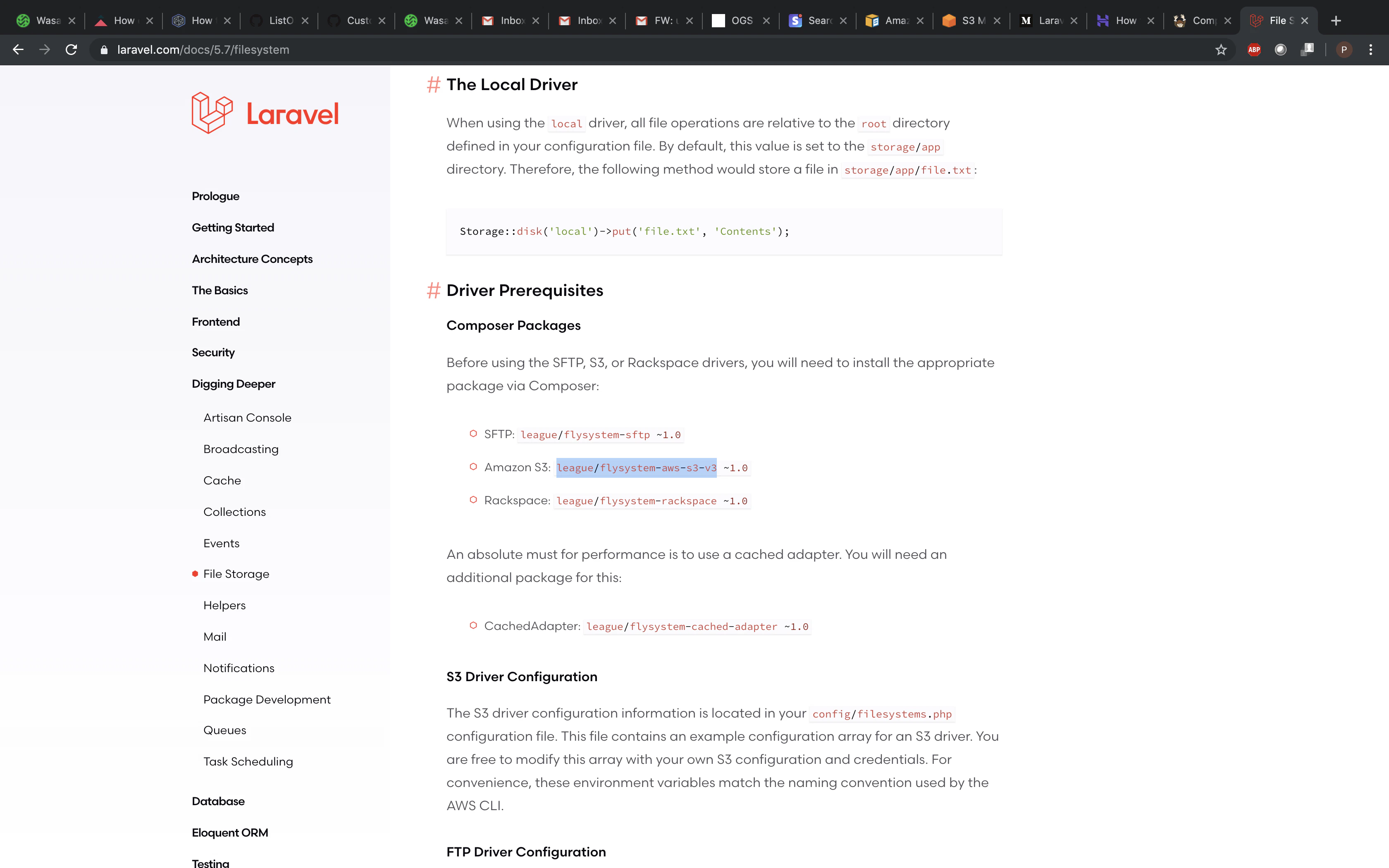 Now on the CLI, go inside your Laravel project and run the following commands.
For **Laravel 5 and below**:
```bash theme={null}
php artisan make:auth
```
For **Laravel 6 and above** (recommended):
```bash theme={null}
composer require laravel/ui
php artisan ui bootstrap --auth
```
Then run:
```bash theme={null}
composer require league/flysystem-aws-s3-v3
```
Output
Now on the CLI, go inside your Laravel project and run the following commands.
For **Laravel 5 and below**:
```bash theme={null}
php artisan make:auth
```
For **Laravel 6 and above** (recommended):
```bash theme={null}
composer require laravel/ui
php artisan ui bootstrap --auth
```
Then run:
```bash theme={null}
composer require league/flysystem-aws-s3-v3
```
Output
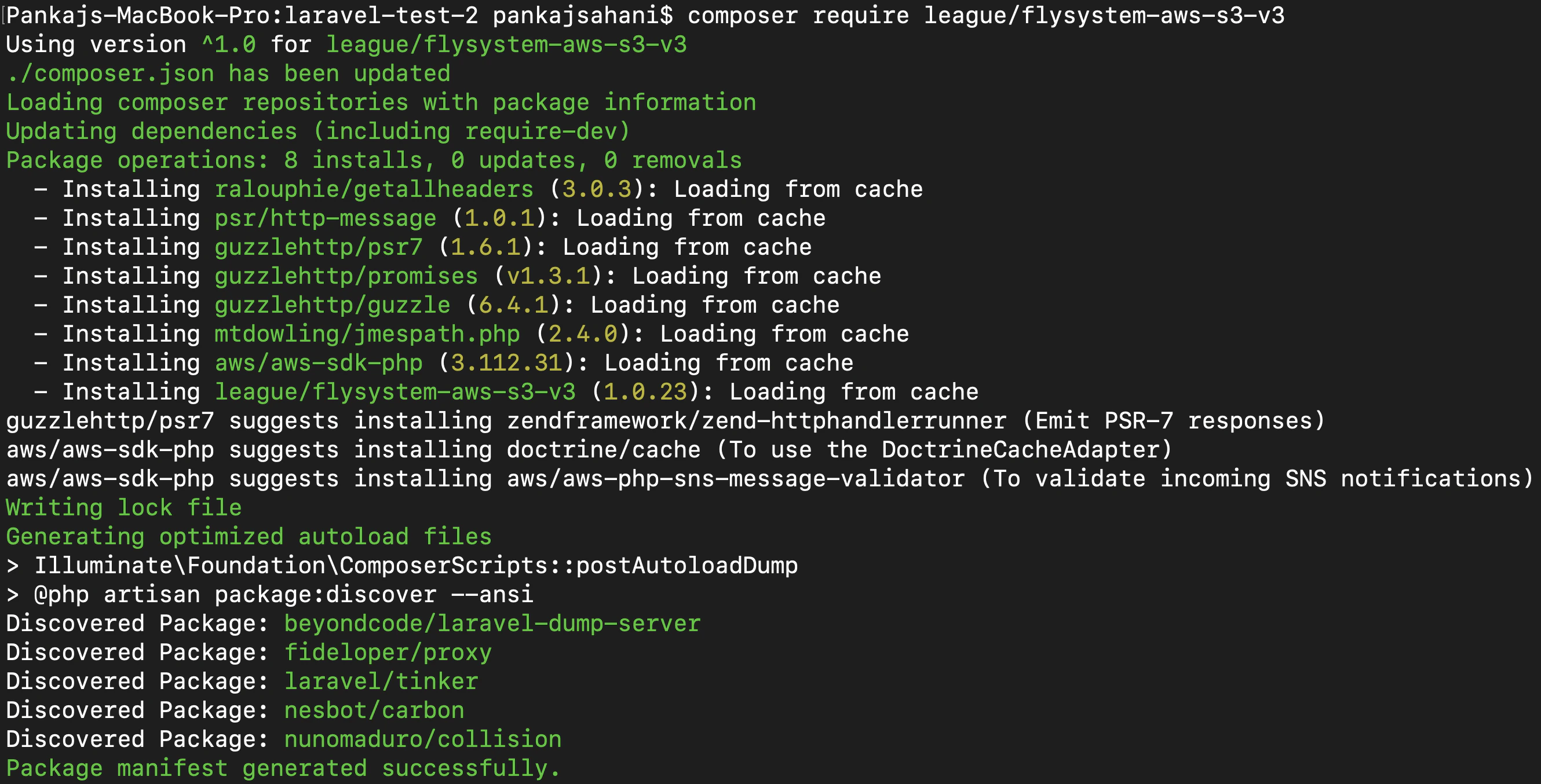 11. Run your code using the following command and the server will start listening on port 8000:
```bash theme={null}
php artisan serve
```
Output
11. Run your code using the following command and the server will start listening on port 8000:
```bash theme={null}
php artisan serve
```
Output
 On the browser, navigate to `http://127.0.0.1:8000` and you will be prompted to upload files to your Tenbyte bucket. Once submitted, your files will be visible inside the bucket.