> ## Documentation Index
> Fetch the complete documentation index at: https://docs.tenbyte.io/llms.txt
> Use this file to discover all available pages before exploring further.
# Quick Start Guide
This guide walks you through the complete process of creating your **Tenbyte Cloud account** and accessing the dashboard for the first time.
Once your account is active, you’ll be able to explore the platform, deploy cloud resources, and manage your projects.
## Prerequisites
Before starting, make sure you have:
* A **Tenbyte account** — [Sign up](https://console.tenbytecloud.com/app/).
* A valid email address that you can access immediately.
* A project or application that you want to deploy.
* A basic understanding of virtual machines, storage, or general cloud concepts.
***
## Sign up for a account
* Visit the [Tenbyte Website](https://beta.tenbyte.io/).
* On the homepage, click the "Sign Up with Email" button. This will take you to the cloud sign-in page.
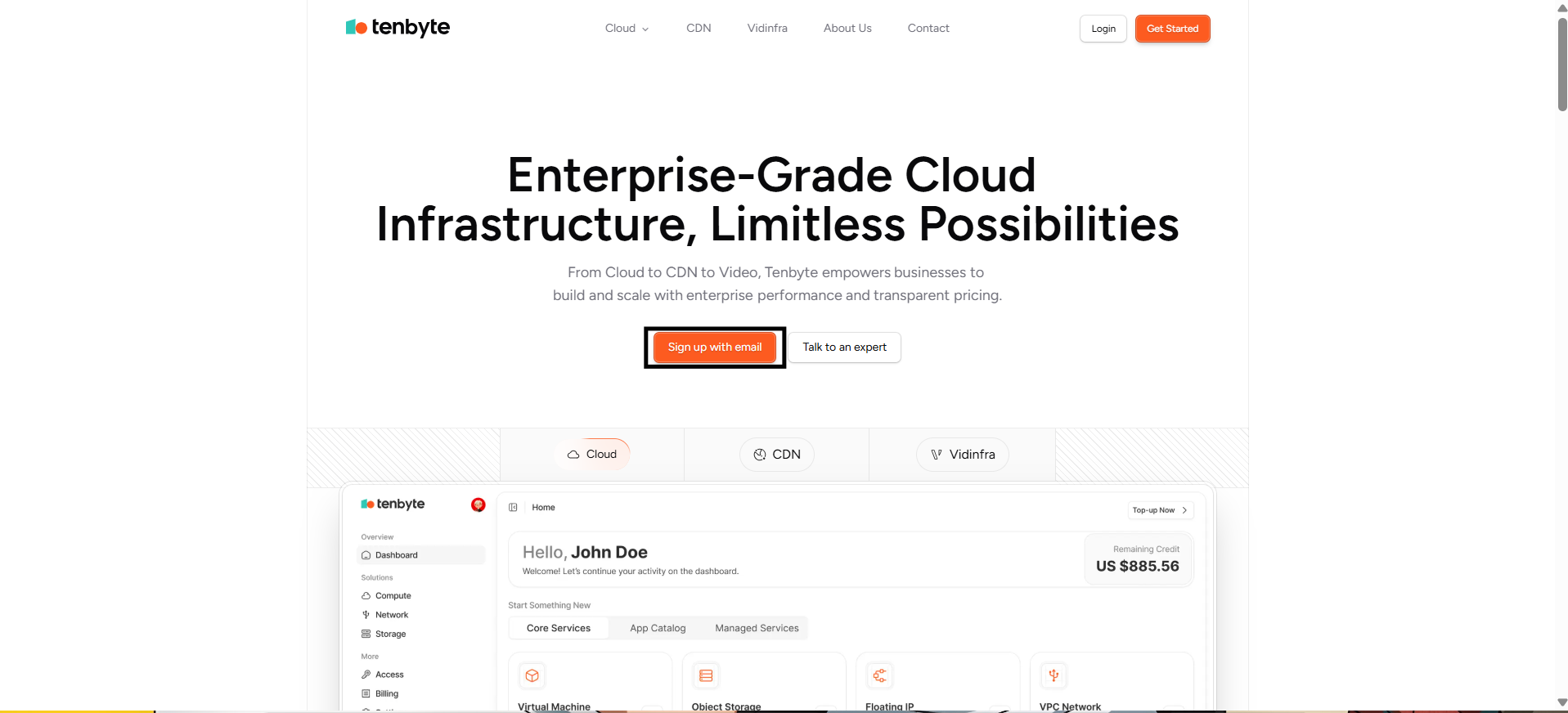 * Click **Create an Account** to create your account. A registration form will appear where you can enter your details.
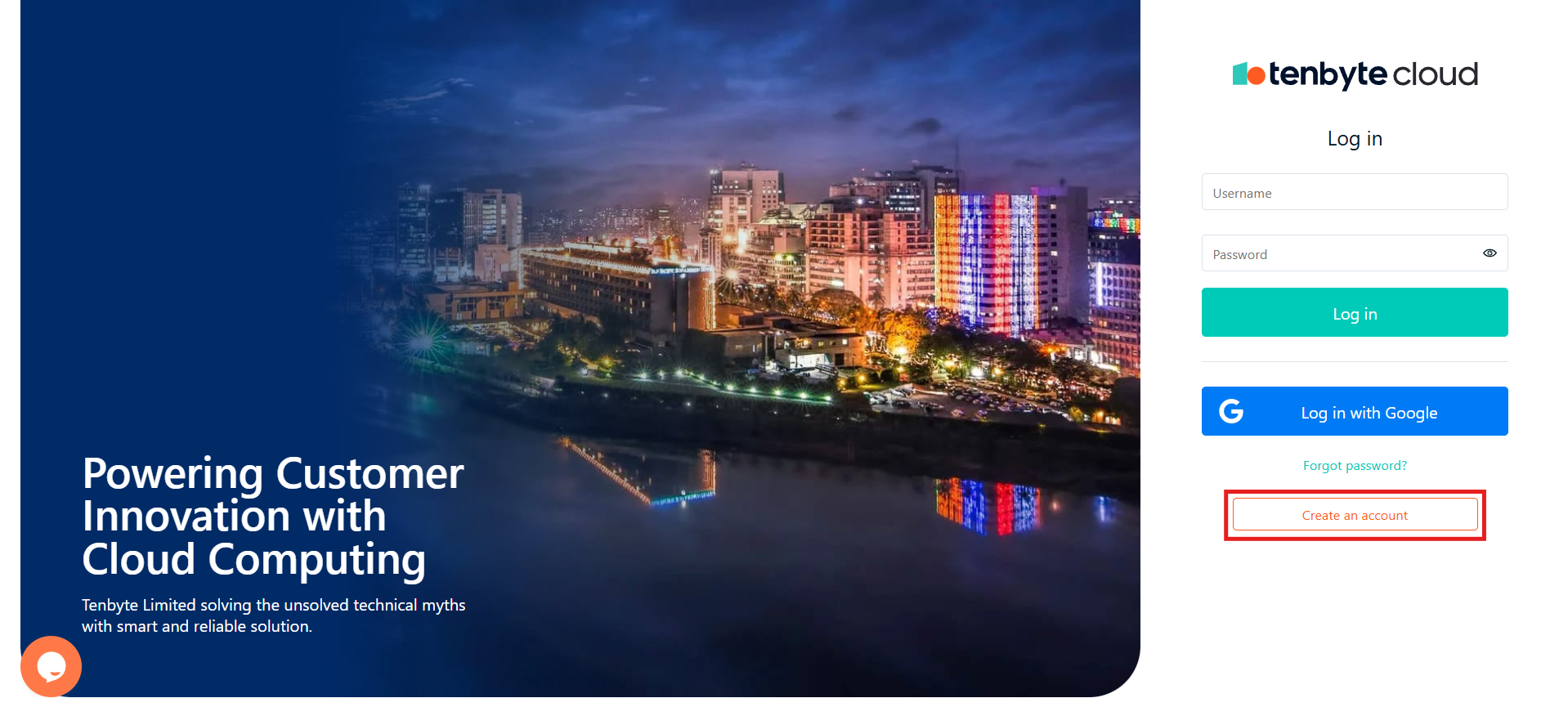 * **Add Your Email Address**: Enter a valid email address.
* **Create a Password**: Set a secure password that meets the following requirements:
* At least 8 characters long
* Includes one uppercase letter
* Includes one special character
* After filling out the required fields, click **Sign Up**.
* Tenbyte will send a verification link to the email address you provided.
* **Add Your Email Address**: Enter a valid email address.
* **Create a Password**: Set a secure password that meets the following requirements:
* At least 8 characters long
* Includes one uppercase letter
* Includes one special character
* After filling out the required fields, click **Sign Up**.
* Tenbyte will send a verification link to the email address you provided.
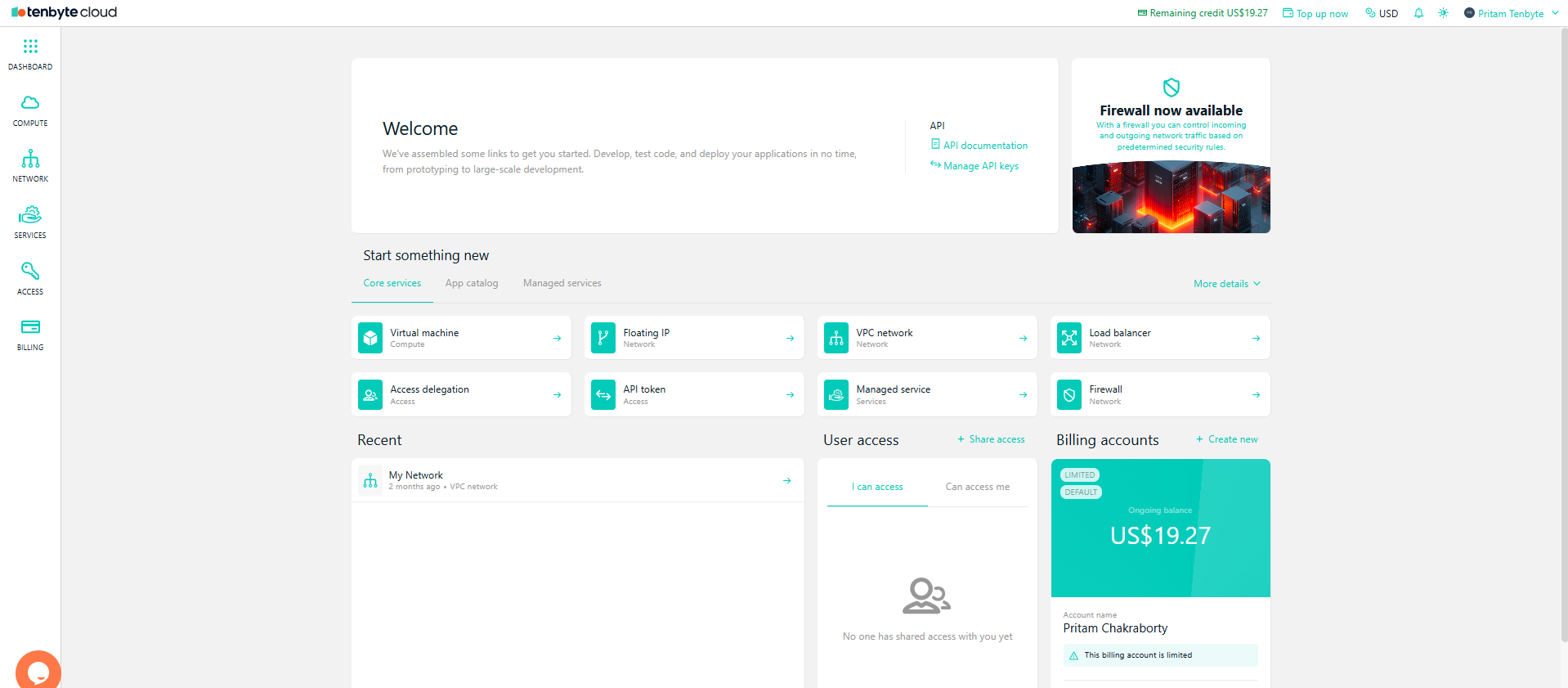 * Once you have confirmed your email, you will be able to access your **Tenbyte Cloud dashboard**.
* If the email doesn’t appear:
* Check the spam or promotions folder
* Make sure the email address was typed correctly
***
## Use Social Sign-Up
* If you prefer a faster setup, you can choose **Sign Up with Google** instead of creating a password.
* Once you have confirmed your email, you will be able to access your **Tenbyte Cloud dashboard**.
* If the email doesn’t appear:
* Check the spam or promotions folder
* Make sure the email address was typed correctly
***
## Use Social Sign-Up
* If you prefer a faster setup, you can choose **Sign Up with Google** instead of creating a password.
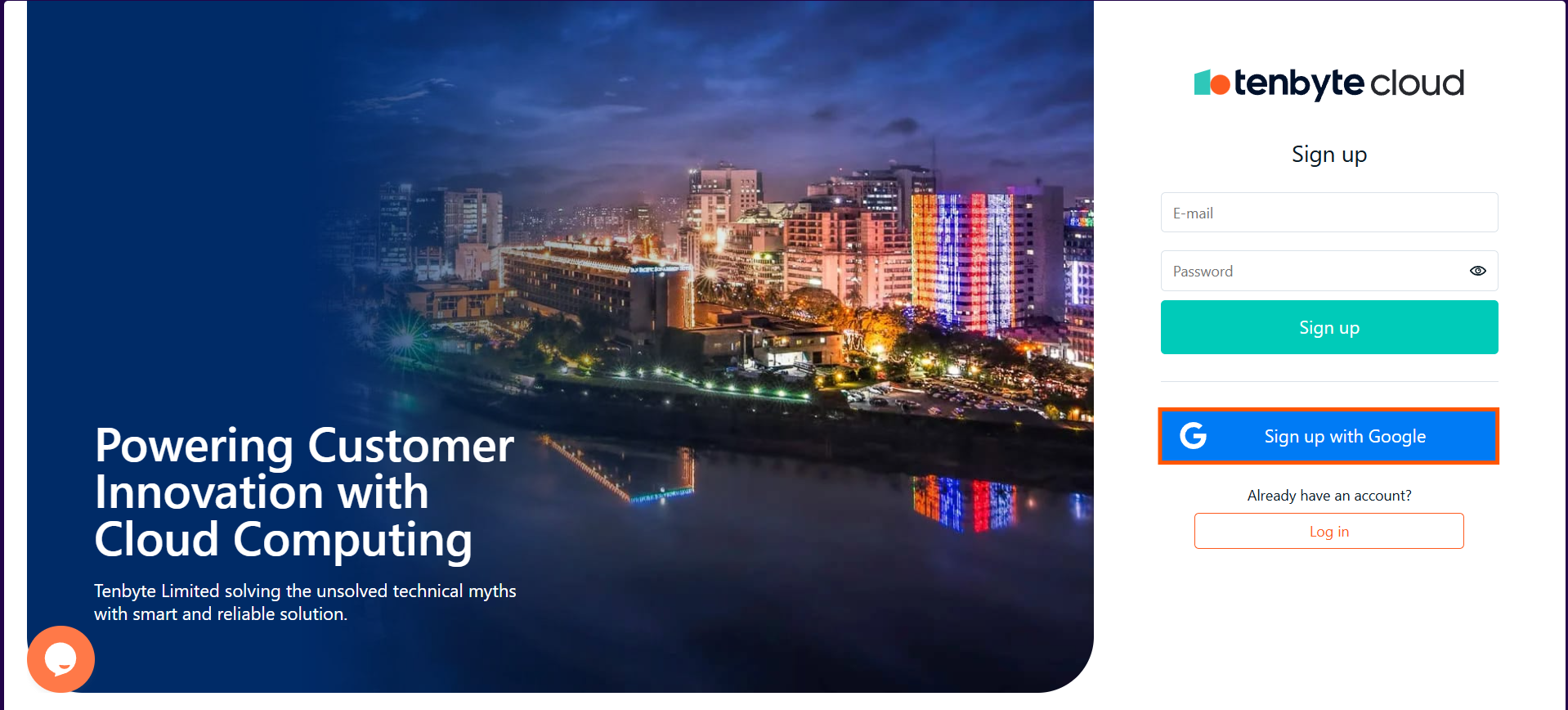 * This method links your Tenbyte Cloud account to your Google identity, making login simple and password-free.
* Use this option if you want:
* Quicker onboarding
* Fewer passwords to manage
* Automatic access control through your Google account
* Once completed, your dashboard will open just like a regular email-based account.
* This method links your Tenbyte Cloud account to your Google identity, making login simple and password-free.
* Use this option if you want:
* Quicker onboarding
* Fewer passwords to manage
* Automatic access control through your Google account
* Once completed, your dashboard will open just like a regular email-based account.