> ## Documentation Index
> Fetch the complete documentation index at: https://docs.tenbyte.io/llms.txt
> Use this file to discover all available pages before exploring further.
# Tenbyte Access Delegations
Access Delegation in Tenbyte Cloud allows controlled sharing of cloud resources with other users or systems.
You can grant limited access to a specific billing account or provide full access across all associated resources, while maintaining clear permission boundaries.
## Select Access Delegation from Dashboard
* Open your Tenbyte Cloud dashboard and click on **Access Delegation** to manage your **Access**.
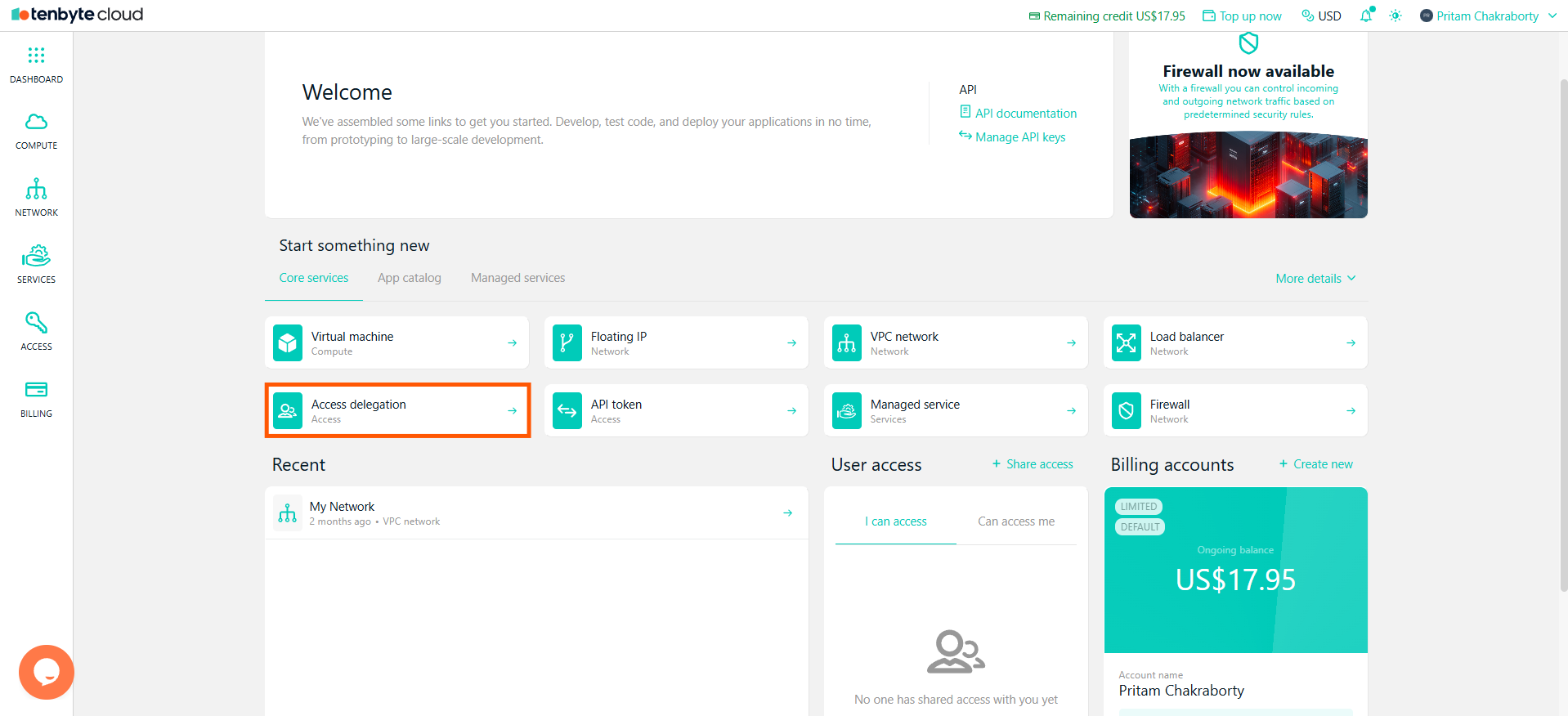 * In the Access section of the Tenbyte Cloud dashboard, you can choose between two types of access:
1. **Access Delegation**
2. **API Token**
* In the Access section of the Tenbyte Cloud dashboard, you can choose between two types of access:
1. **Access Delegation**
2. **API Token**
 ***
## Access Delegation
Allows you to delegate access to a user or system, enabling them to manage resources under your account.
### For Restricted Scope
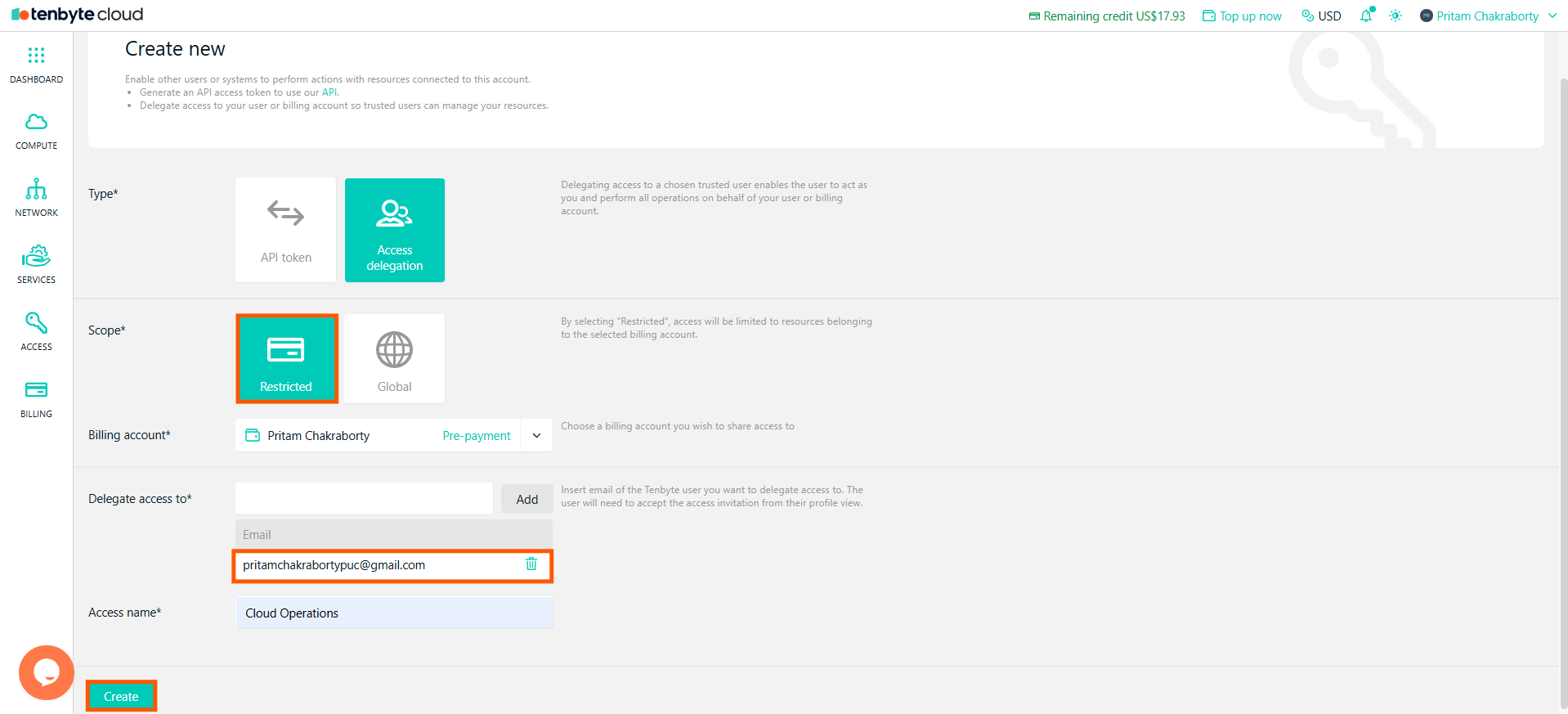
Restricted Scope means the user will have access only to the resources tied to the selected billing account.
* Click on **New** to create a **new access delegation**.
* Under **Scope**, select **Restricted**.
* Choose the **Billing Account** you wish to share access to.
* Enter the **email address** of the user you want to delegate access to.
* Provide an **Access Name**.
* Click **Create** to send the access invitation to the specified email.
***
## Access Delegation
Allows you to delegate access to a user or system, enabling them to manage resources under your account.
### For Restricted Scope
Restricted Scope means the user will have access only to the resources tied to the selected billing account.
* Click on **New** to create a **new access delegation**.
* Under **Scope**, select **Restricted**.
* Choose the **Billing Account** you wish to share access to.
* Enter the **email address** of the user you want to delegate access to.
* Provide an **Access Name**.
* Click **Create** to send the access invitation to the specified email.
 ### For Global Scope
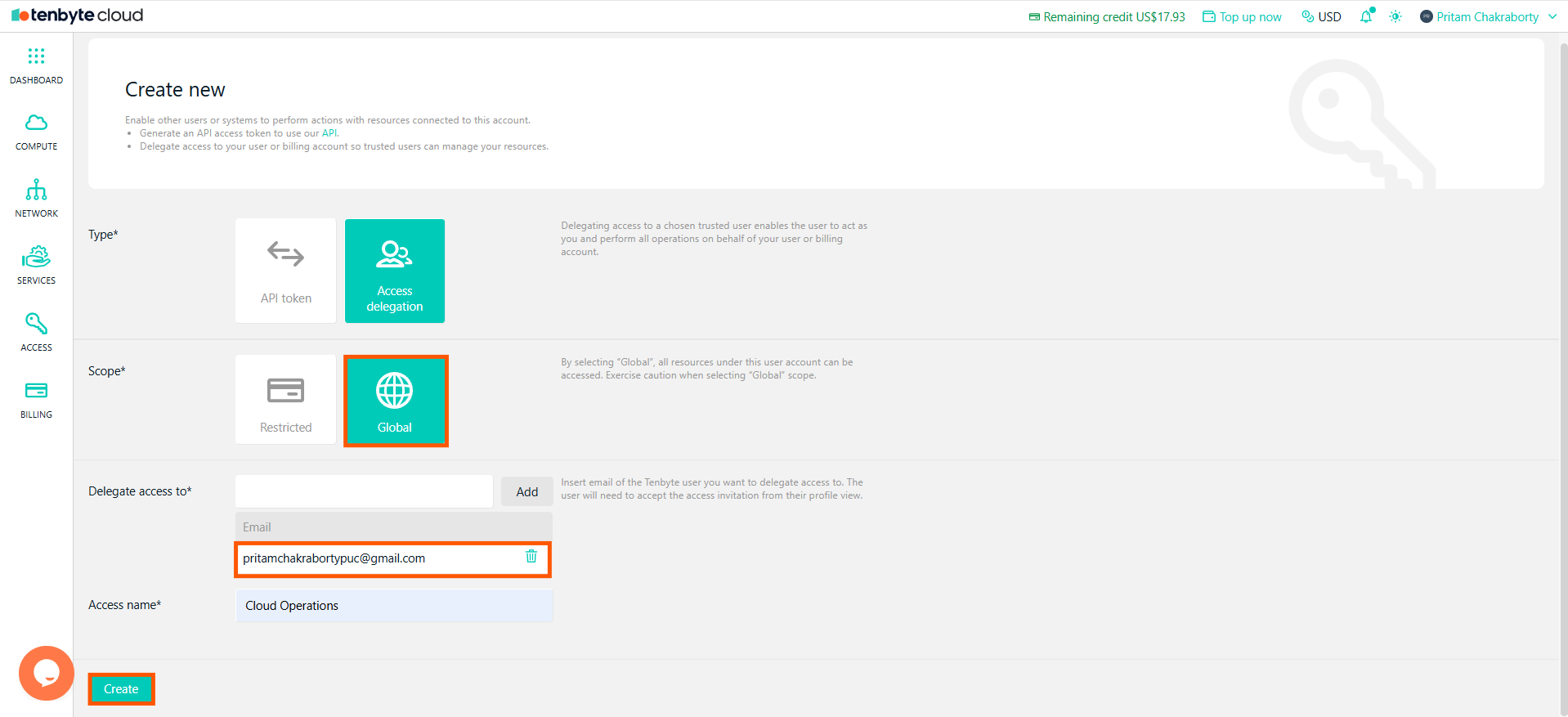
**Global Scope** means the user will have access to all resources under the billing account.
* Follow the same steps as above to create a new access delegation.
* Under **Scope**, select **Global**.
* Choose the **Billing Account** you wish to share access to.
* Enter the **email address** of the user for access delegation.
* Provide an **Access Name**.
* Click **Create** to send the access invitation.
### For Global Scope
**Global Scope** means the user will have access to all resources under the billing account.
* Follow the same steps as above to create a new access delegation.
* Under **Scope**, select **Global**.
* Choose the **Billing Account** you wish to share access to.
* Enter the **email address** of the user for access delegation.
* Provide an **Access Name**.
* Click **Create** to send the access invitation.
 Be cautious when selecting Global, as it grants access to all resources within the billing account.
The user will receive an invitation to accept access to the specified billing account.
***
## Access for API Token
API Token is used to generate a key for interacting with Tenbyte Cloud’s API.
* Navigate to the **Access** section again and click on **New**.
* Select **API Token** under Type.
* Provide an **Access Name** for your API token.
* Click **Create** to generate the API token.
Be cautious when selecting Global, as it grants access to all resources within the billing account.
The user will receive an invitation to accept access to the specified billing account.
***
## Access for API Token
API Token is used to generate a key for interacting with Tenbyte Cloud’s API.
* Navigate to the **Access** section again and click on **New**.
* Select **API Token** under Type.
* Provide an **Access Name** for your API token.
* Click **Create** to generate the API token.
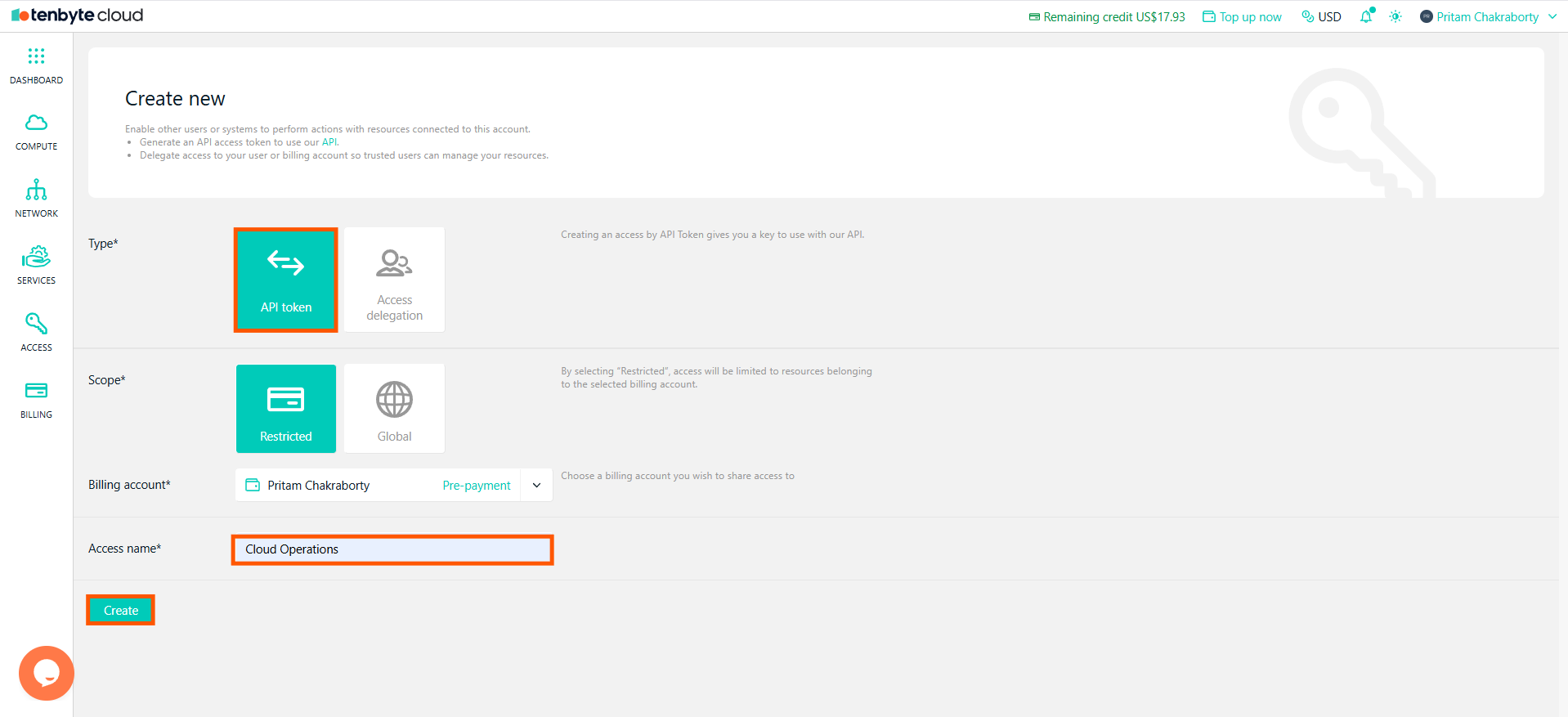 For API Token, the scope type works similarly to Access Delegations, allowing you to specify restricted or global access.
***
## Created Access Delegations
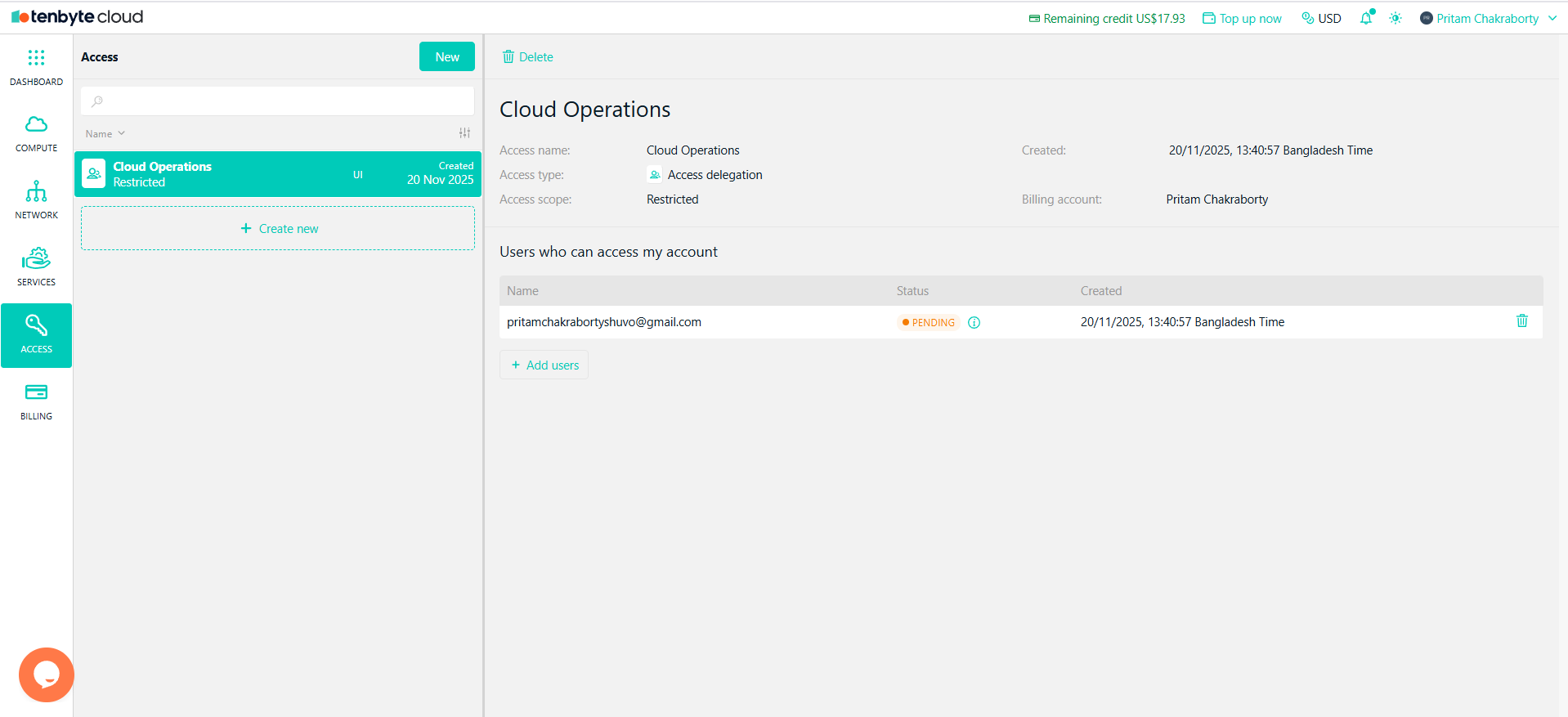
* Once the **Access Delegation** is created, you will see the **delegated access listed** under the Access section.
* The status of the delegated access will be shown as **Pending** until the user accepts the access invitation.
* Once accepted, the user will be able to perform actions as per the scope of access.
* You can view or remove delegations anytime from the Access section.
For API Token, the scope type works similarly to Access Delegations, allowing you to specify restricted or global access.
***
## Created Access Delegations
* Once the **Access Delegation** is created, you will see the **delegated access listed** under the Access section.
* The status of the delegated access will be shown as **Pending** until the user accepts the access invitation.
* Once accepted, the user will be able to perform actions as per the scope of access.
* You can view or remove delegations anytime from the Access section.