> ## Documentation Index
> Fetch the complete documentation index at: https://docs.tenbyte.io/llms.txt
> Use this file to discover all available pages before exploring further.
# Tenbyte Load Balancer
Configure and manage load balancers in Tenbyte Cloud for optimal traffic distribution and high availability.
## Select Load Balancer from Dashboard
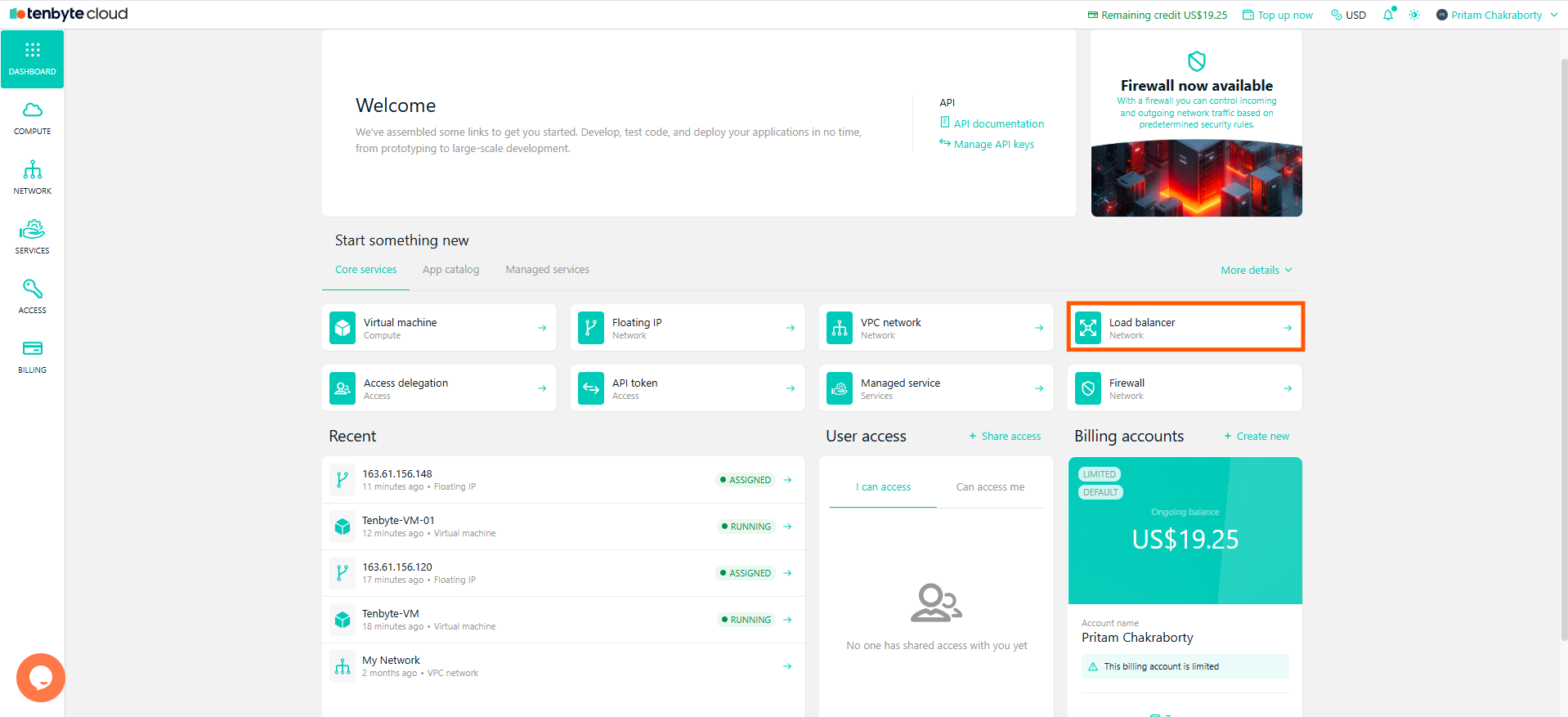
* From your **Tenbyte Cloud dashboard**, select **Load Balancers** to begin setting up your load balancer across your virtual machines.
 ***
## Select Load Balancer Type
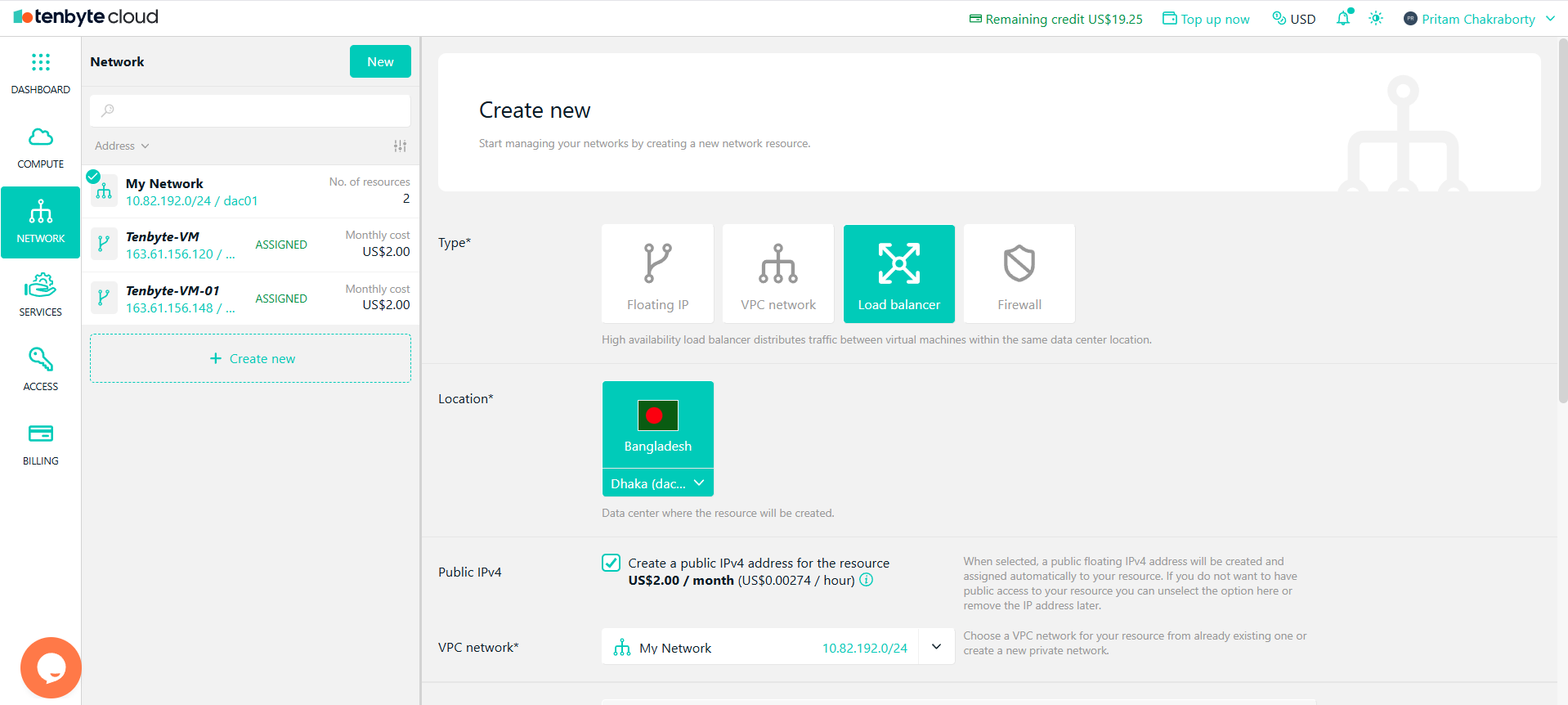
* Choose **Load Balancer** from the available options under Type.
***
## Location Selection
* Under Location, select the data center where your resource will be created.
***
## Public IPv4 Address
* Enable Public IPv4 if you require an external IP address for the load balancer.
Enabling Public IPv4 will add an additional US\$2/month charge for the resource.
***
## Select VPC Network
* Choose an existing VPC network for your resource or create a new one to isolate and secure your virtual machines.
***
## Select Load Balancer Type
* Choose **Load Balancer** from the available options under Type.
***
## Location Selection
* Under Location, select the data center where your resource will be created.
***
## Public IPv4 Address
* Enable Public IPv4 if you require an external IP address for the load balancer.
Enabling Public IPv4 will add an additional US\$2/month charge for the resource.
***
## Select VPC Network
* Choose an existing VPC network for your resource or create a new one to isolate and secure your virtual machines.
 ***
## Target Servers
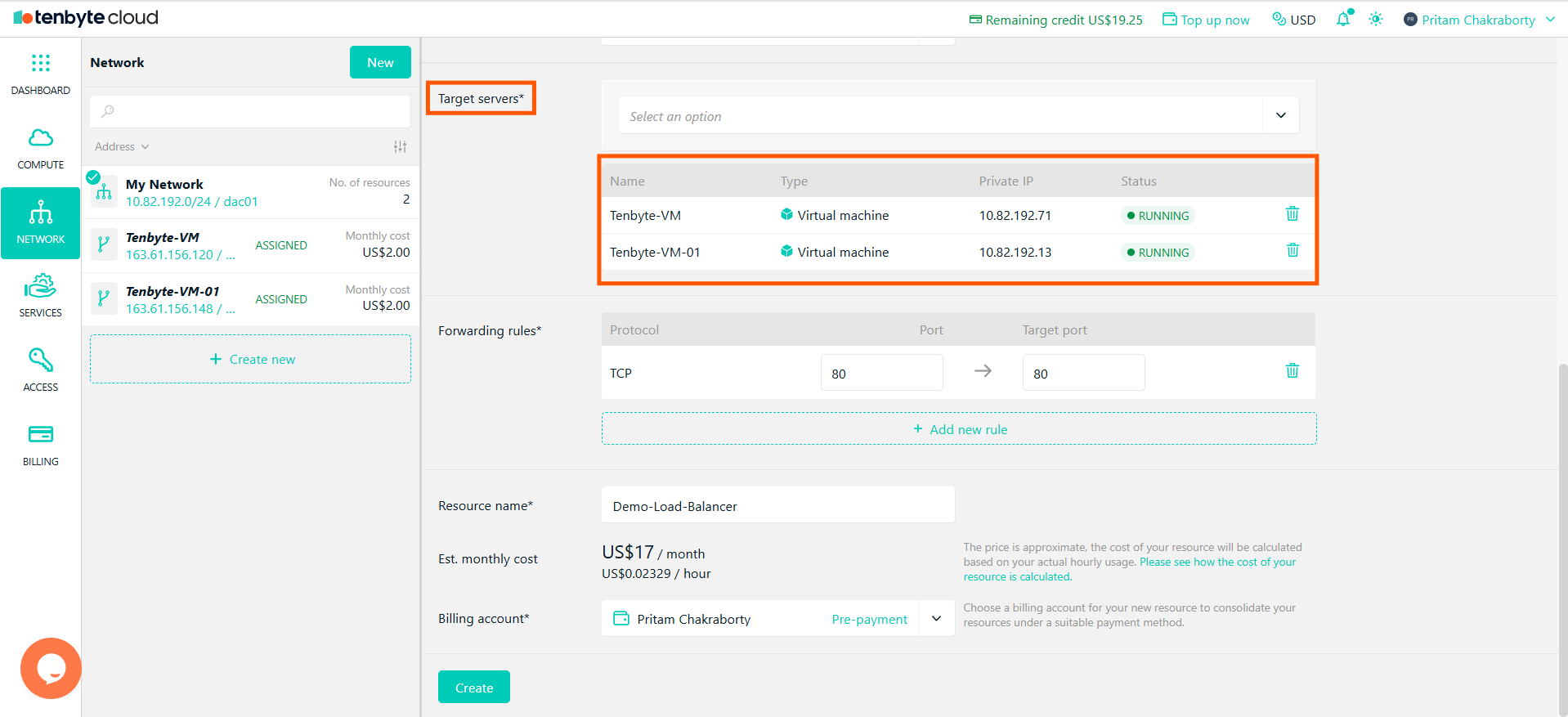
* Select the **target servers** (VMs) you want the load balancer to distribute traffic to.
***
## Target Servers
* Select the **target servers** (VMs) you want the load balancer to distribute traffic to.
 ***
## Configure Forwarding Rules
* Set up forwarding rules to define how the load balancer should route traffic to the VMs:
* **Protocol**: Select TCP.
* **Port**: Enter the source port.
* **Target Port**: Set the target port for the VM.
* You can add multiple rules if your application requires different ports or protocols.
***
## Configure Forwarding Rules
* Set up forwarding rules to define how the load balancer should route traffic to the VMs:
* **Protocol**: Select TCP.
* **Port**: Enter the source port.
* **Target Port**: Set the target port for the VM.
* You can add multiple rules if your application requires different ports or protocols.
 ***
## Review your Configuration and Create
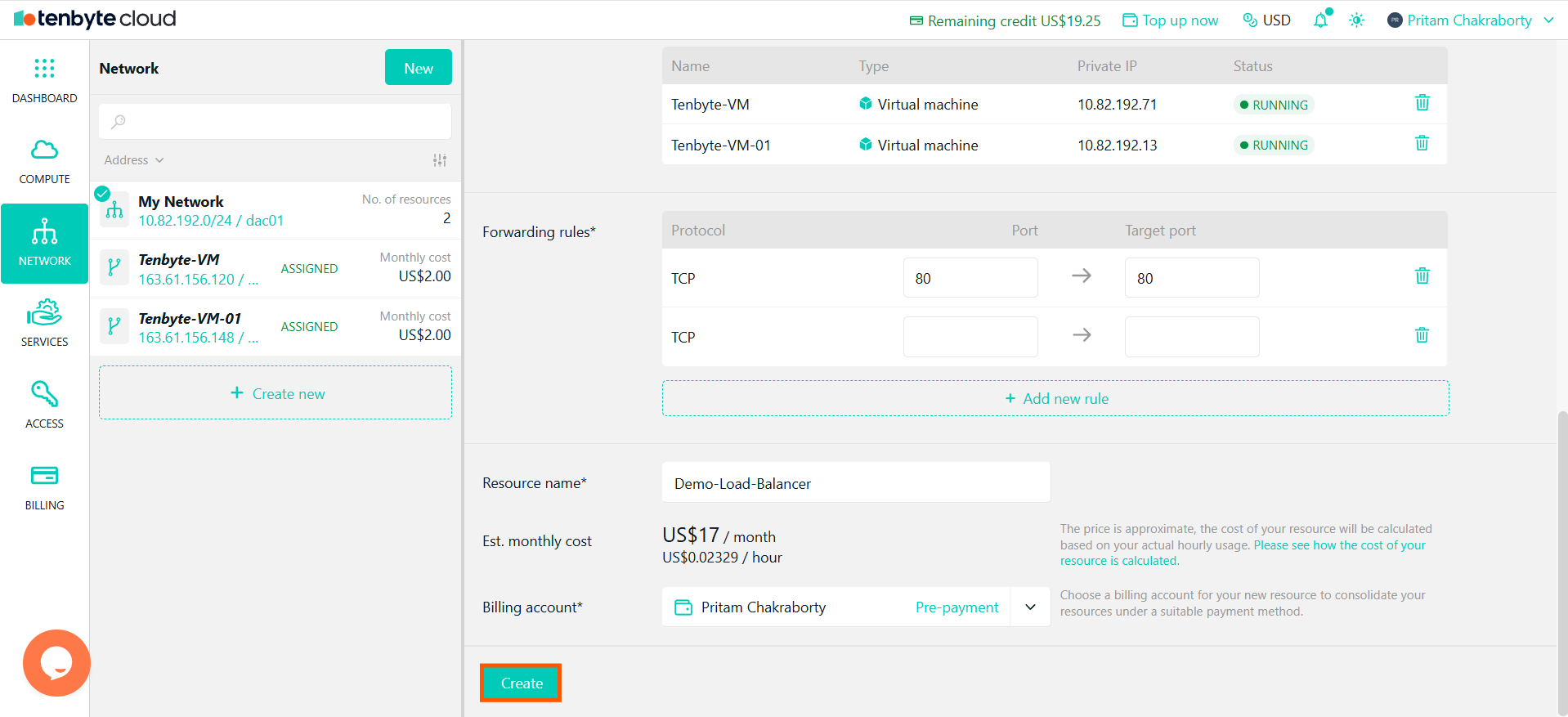
* Provide a **Resource Name**. Review the configurations, including the Public IPv4, VPC network, target servers, and forwarding rules. Once everything looks good, click **Create** to set up the load balancer.
***
## Review your Configuration and Create
* Provide a **Resource Name**. Review the configurations, including the Public IPv4, VPC network, target servers, and forwarding rules. Once everything looks good, click **Create** to set up the load balancer.
 ***
## View Your Created Load Balancer
* After creating your **Load Balancer**, you can view and manage it from the Load Balancers section in the **Network tab**.
***
## View Your Created Load Balancer
* After creating your **Load Balancer**, you can view and manage it from the Load Balancers section in the **Network tab**.
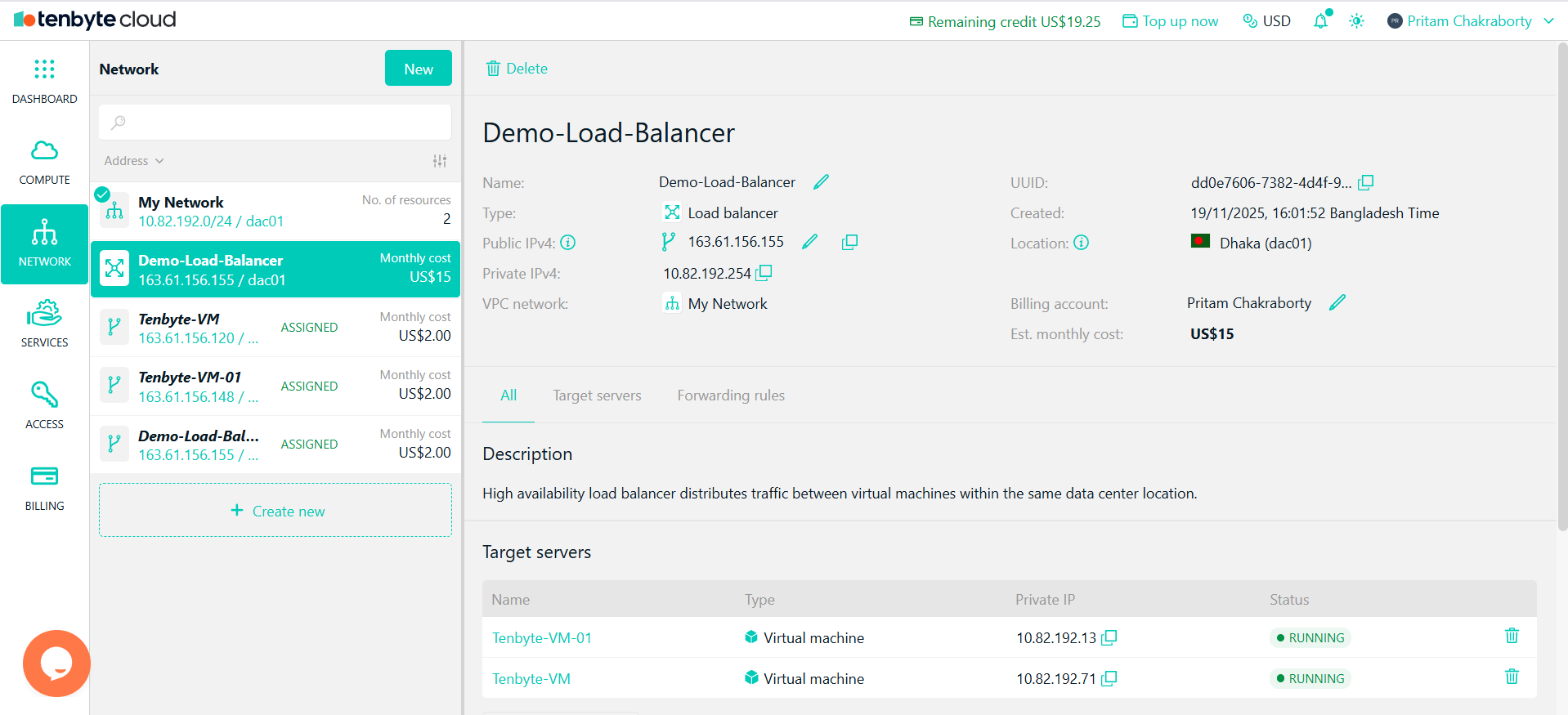 * The Load Balancer will appear in the Network section with details like:
* **Name**: The name you assigned to the load balancer.
* **Public IPv4**: The external IP assigned to the load balancer.
* **Private IPv4**: The internal IP assigned to the load balancer.
* **Target Servers**: The VMs linked to the load balancer. You will see the assigned VMs listed along with their Private IPs.
* **Status**: The status of the load balancer.
* You can manage and configure the load balancer from here, including adjusting settings or adding new target servers.
* The Load Balancer will appear in the Network section with details like:
* **Name**: The name you assigned to the load balancer.
* **Public IPv4**: The external IP assigned to the load balancer.
* **Private IPv4**: The internal IP assigned to the load balancer.
* **Target Servers**: The VMs linked to the load balancer. You will see the assigned VMs listed along with their Private IPs.
* **Status**: The status of the load balancer.
* You can manage and configure the load balancer from here, including adjusting settings or adding new target servers.