> ## Documentation Index
> Fetch the complete documentation index at: https://docs.tenbyte.io/llms.txt
> Use this file to discover all available pages before exploring further.
# User Profile Settings
Update your personal information, manage login details, and control account preferences in your Tenbyte profile.
## What you need
Before updating your profile, make sure you have:
* Access to the email linked to your Tenbyte account
* A new password ready if you plan to change it
* The image file you want to use as your profile picture
***
## User Profile Settings
* Click your profile icon in the left sidebar. When the dropdown menu opens, choose **Account** to access your **user settings**.
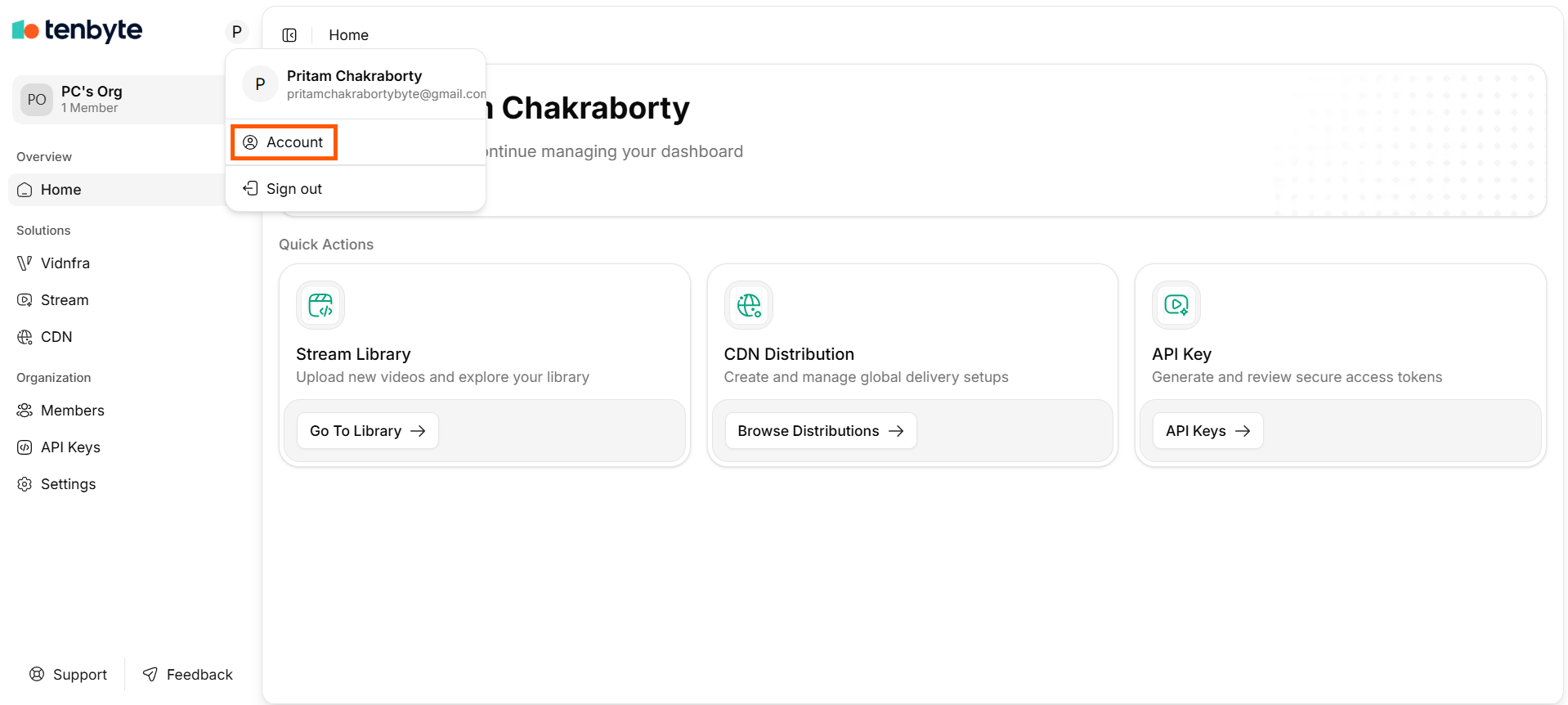 * The **User section** allows you to manage your personal information, update login details, and perform critical account actions. Follow the steps below to update your profile.
### Update Account Information
* In the **Account Information** section, you can edit your basic profile details.
* The **User section** allows you to manage your personal information, update login details, and perform critical account actions. Follow the steps below to update your profile.
### Update Account Information
* In the **Account Information** section, you can edit your basic profile details.
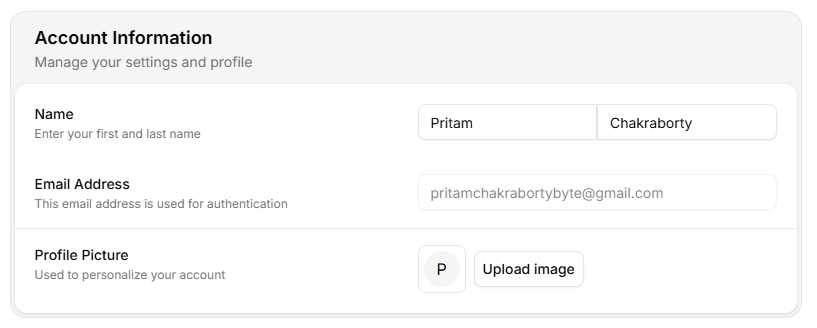 1. **Name**: Enter or update your first name and last name.
2. **Email Address**: Your email address is shown here for authentication purposes.
If you signed in using a social provider like Google or GitHub, this field shows the associated login email.
3. **Profile Picture**: Click **Upload image** to add or change your profile picture.
### Create or Update Your Password
* If you signed in using a social login, you may not have a password yet. Use the **Create a Password** section to set one.
1. **Name**: Enter or update your first name and last name.
2. **Email Address**: Your email address is shown here for authentication purposes.
If you signed in using a social provider like Google or GitHub, this field shows the associated login email.
3. **Profile Picture**: Click **Upload image** to add or change your profile picture.
### Create or Update Your Password
* If you signed in using a social login, you may not have a password yet. Use the **Create a Password** section to set one.
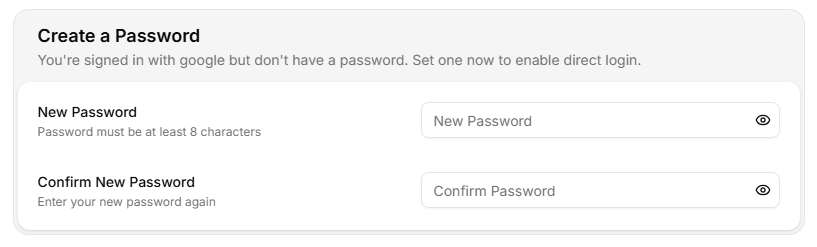 1. **New Password**: Enter a new password. It must meet Tenbyte’s security rules (minimum 8 characters).
2. **Confirm New Password**: Re-enter the same password to verify it.
Setting a password enables direct email-based login alongside your social provider.
### Manage Critical Account Actions
* The **Danger Zone** contains irreversible actions.
* **Account Deletion**: Click **Delete Account** to permanently remove your Tenbyte account. A confirmation step will appear to ensure you understand the impact.
1. **New Password**: Enter a new password. It must meet Tenbyte’s security rules (minimum 8 characters).
2. **Confirm New Password**: Re-enter the same password to verify it.
Setting a password enables direct email-based login alongside your social provider.
### Manage Critical Account Actions
* The **Danger Zone** contains irreversible actions.
* **Account Deletion**: Click **Delete Account** to permanently remove your Tenbyte account. A confirmation step will appear to ensure you understand the impact.
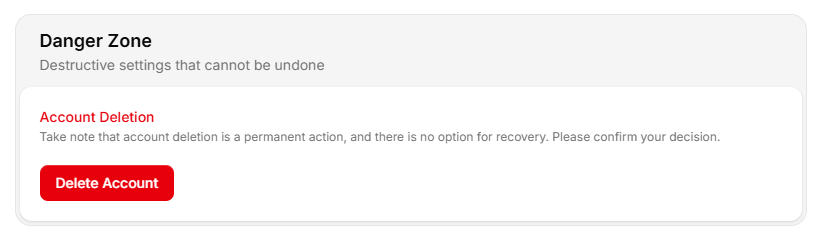 This action cannot be undone and will delete all associated data.